
1

Check MT5 CPU Version
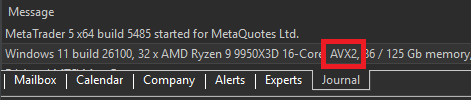
317959584947Re-open the MT5 > Journal > Next to CPU information look for AVX2 or any other read out.In this screenshot AVX2 is used, therefore for the next steps we must use AVX2 version.Close the MT5 after getting the correct version.
2

Download MT5 Build 5430

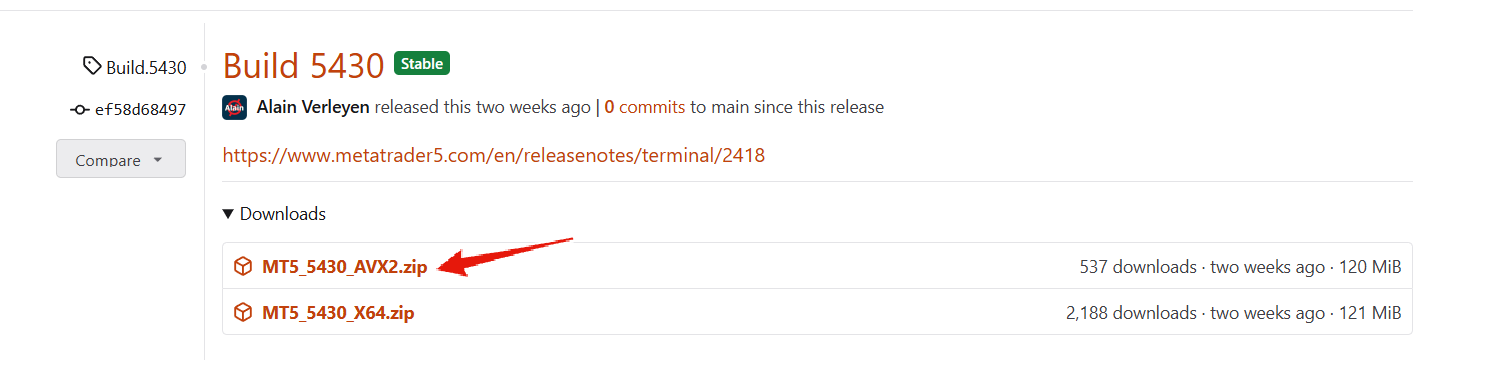
Mt5downloadVisit: https://forge.mql5.io/angevoyageur/MT5-Last-Official-Release/releasesFrom the MQL developers site download the zip folder which matches your CPU version.In the example above my CPU version is AVX2. Therefore, I will download the AVX2 zip file only.
3

Navigate To MT5 installation Folder

Navigate to and open your MT5 installation folder. This is usually located in C:\Program Files\“YOUR MT5 INSTALLATION NAME”.Inside of the folder you will find items like terminal64, MetaEditor, and Metatester.
4

Open the .zip From Step 2

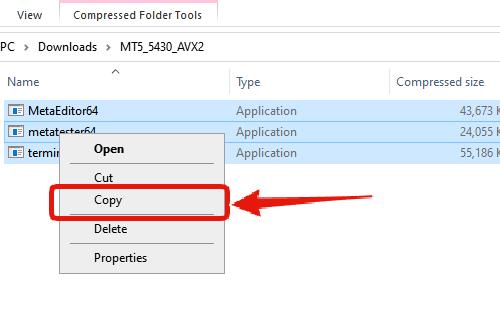
Mt5copyIn a different Windows explorer instance open the .zip folder downloaded from step 2. Select all three files, and select copy.
5

Paste Files To MT5 Installation Folder
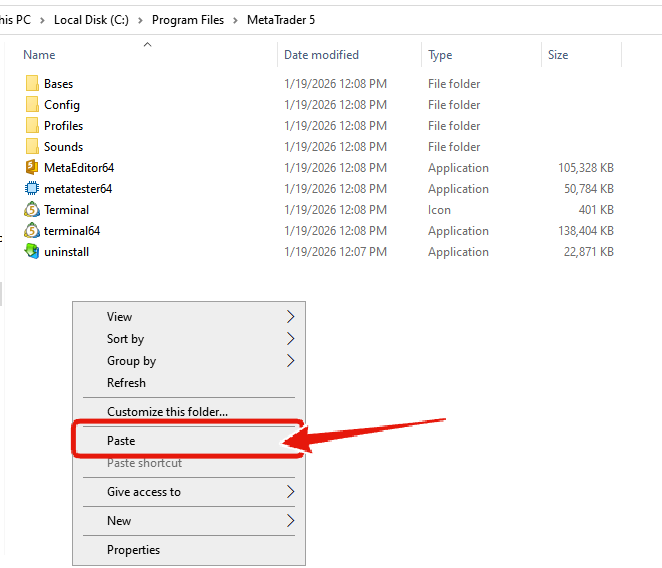
Mt5copy2Return to the MT5 installation folder, right click in an empty spot, and then select paste. This will transfer the files from the patch folder into the MT5 installation folder.Mt5copy3If prompted, you must click “Replace the files in the destination”.
6

Re-Open MT5 & Skip Updates

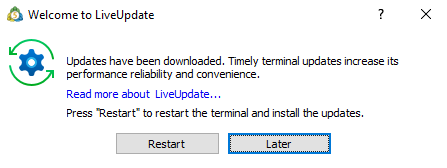
After the patch files are pasted you can then proceed with re-opening and using MT5.1135533431699If prompted by MT5 for updates, click “Later” to avoid updating the platform back to the bugged versions.