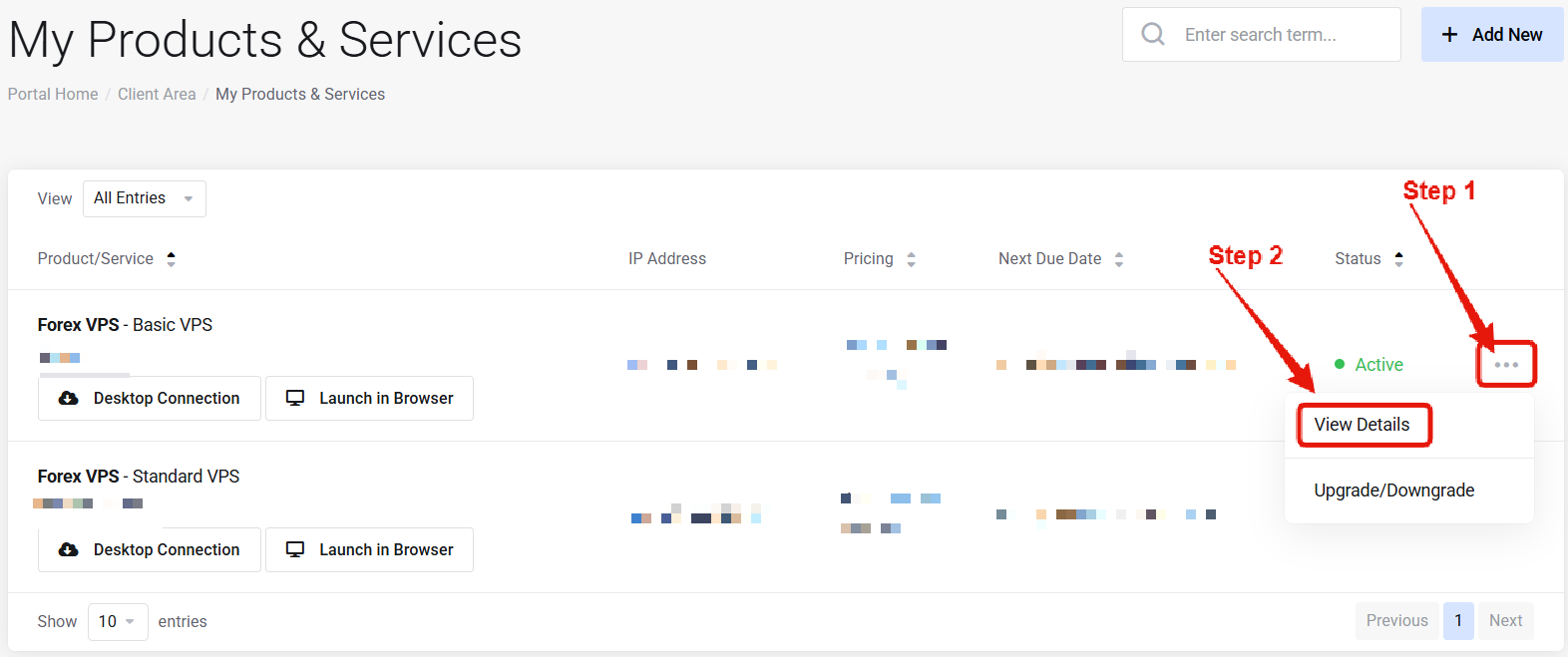
Visit the “My Products & Services” page, and find the specific service that you wish to connect to. Click on the three dots to the right side, and then click “View Details”.
2
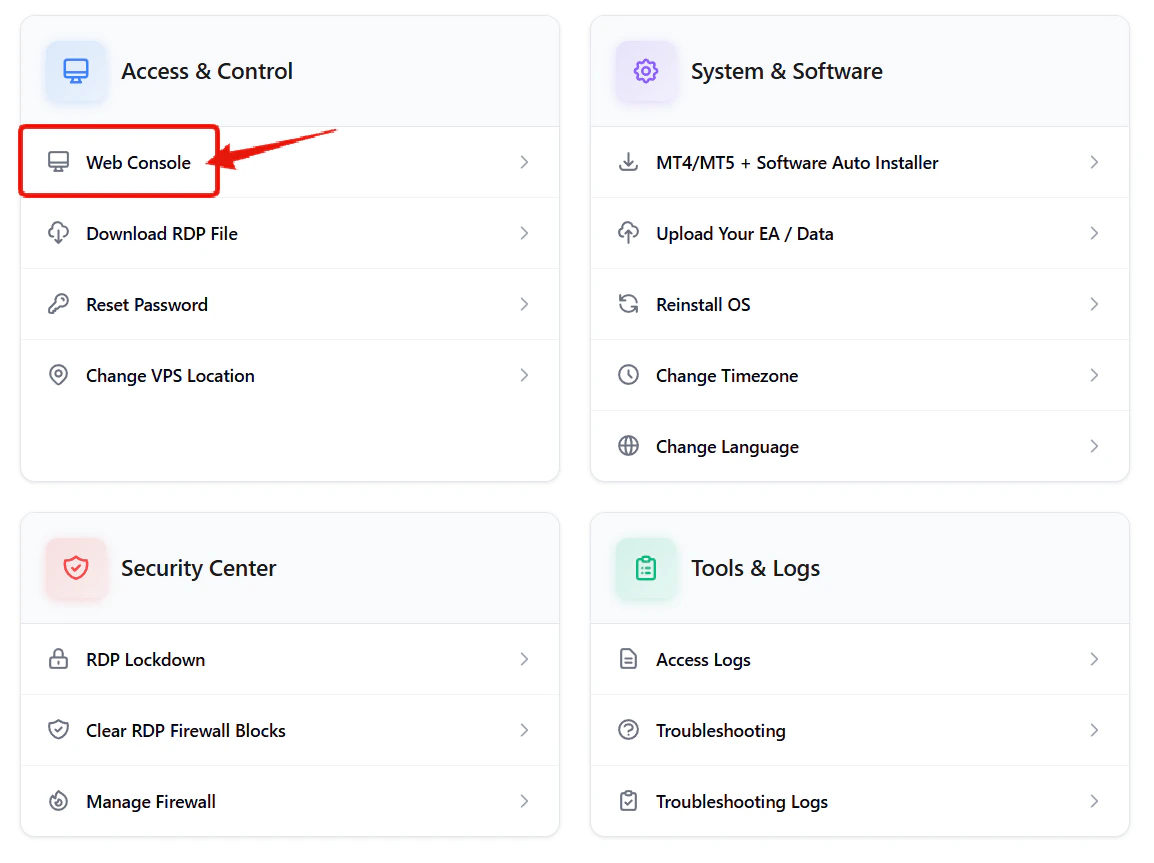
Click Web Console
Under the “Access & Control” section click on “Web Console” to launch the connection to your VPS in the browser.
3
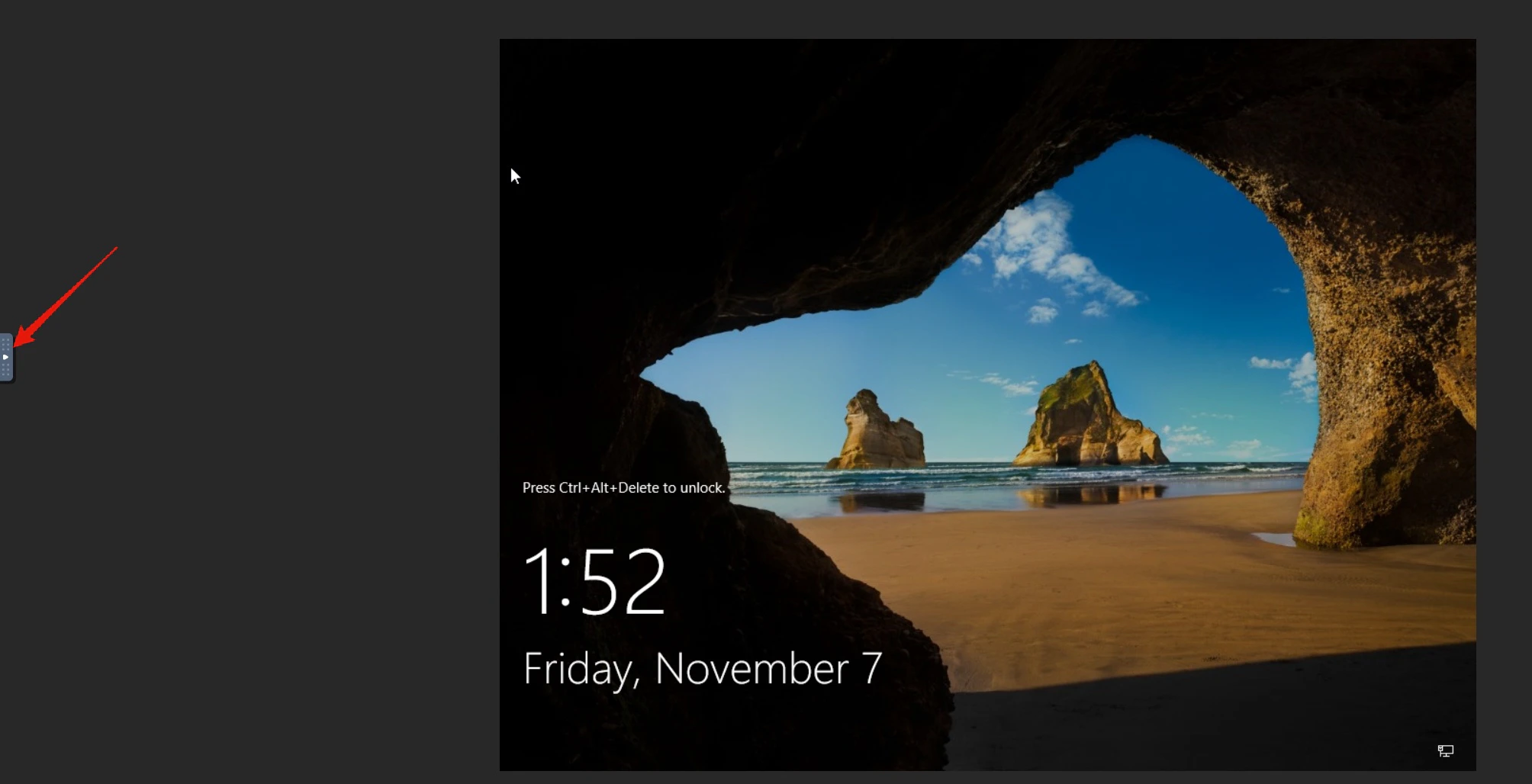
Open Keyboard Shortcut Menu
On the far left side towards the center of the screen, locate and click on the keyboard shortcut menu.
4
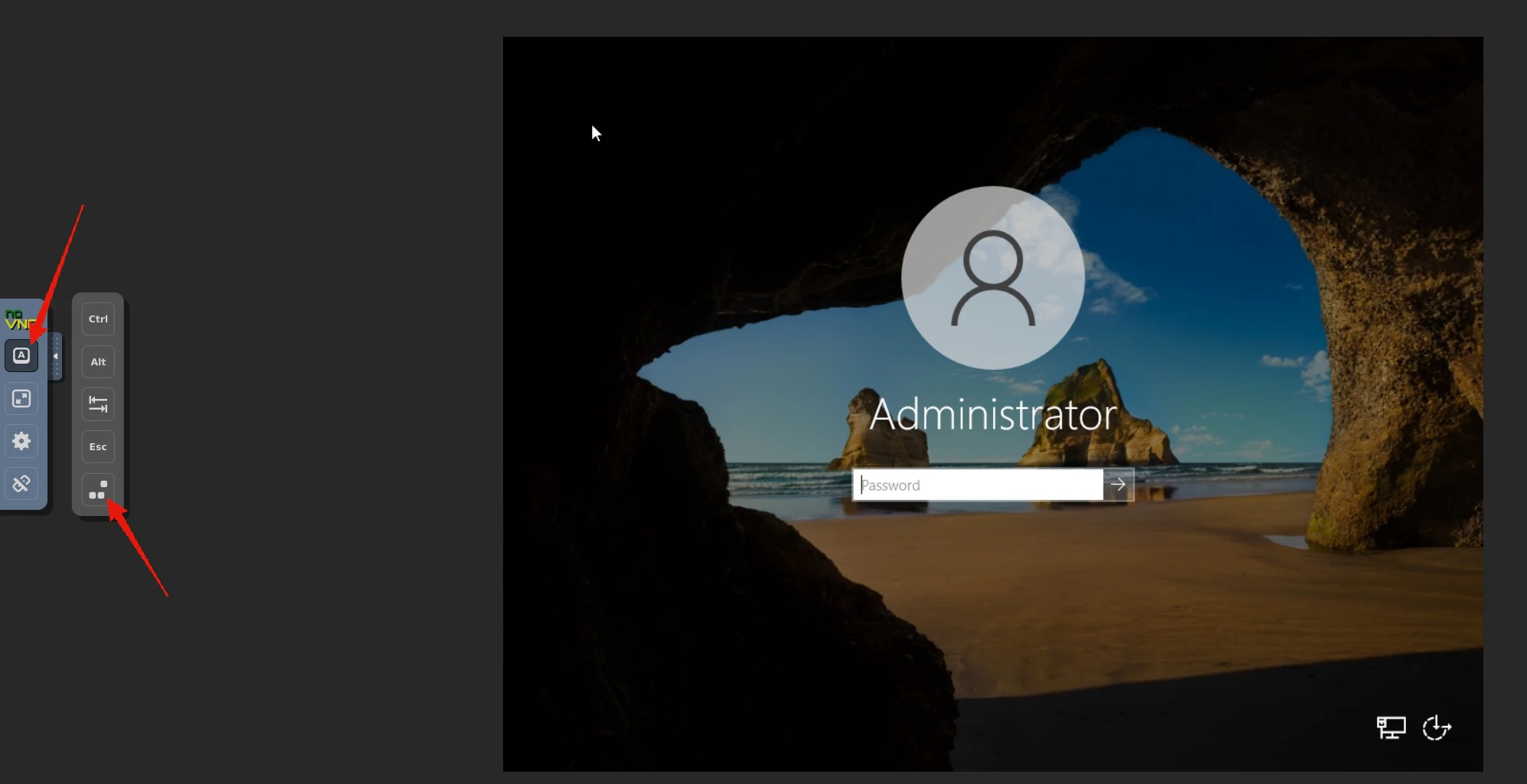
Send CTRL + ALT + DEL
Click the first option for keyboard shortcut (logo with A in it). Then click the very bottom shortcut, which will send the CTRL + ALT + DEL keybind to your VPS. This will display the password field on your VPS.Enter your VPS access password and log in. The VPS desktop will then be streamed right to your browser window.