How to enable audio playback when connected to your VPS via Remote Desktop.
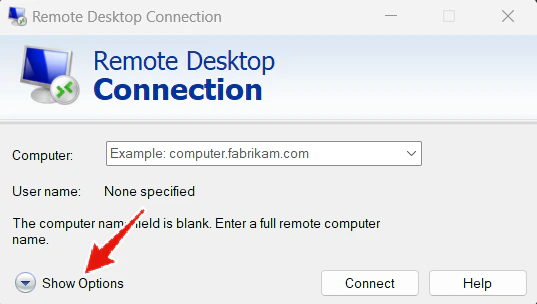
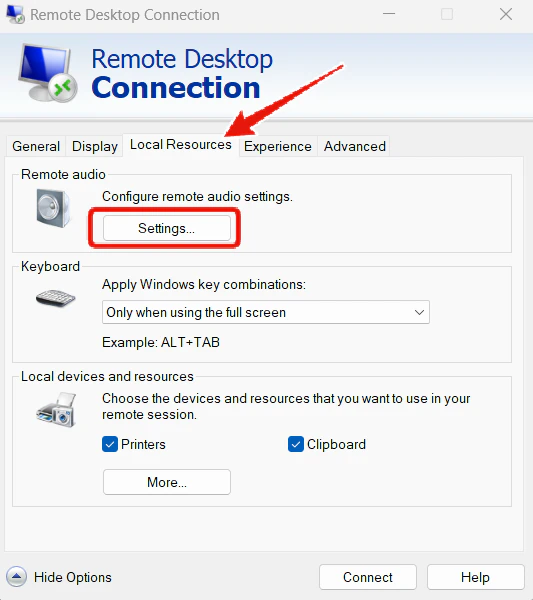
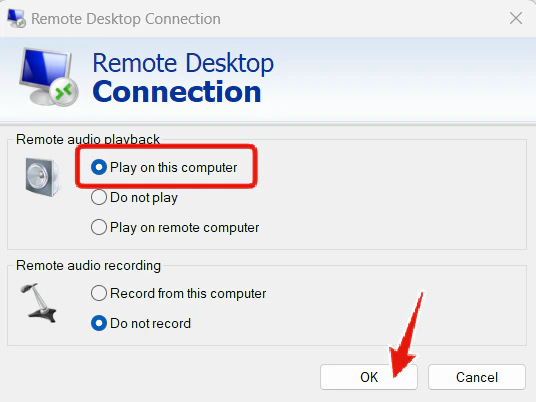
All NYCServers VPS services come with Windows Audio enabled by default. If you are unable to hear audio on your VPS, the issue is most likely caused by the remote desktop application settings on your local computer.Follow the steps below for your operating system to enable audio playback.
If you are using Microsoft Remote Desktop on Mac, follow these steps:
1
Edit Your Connection Settings
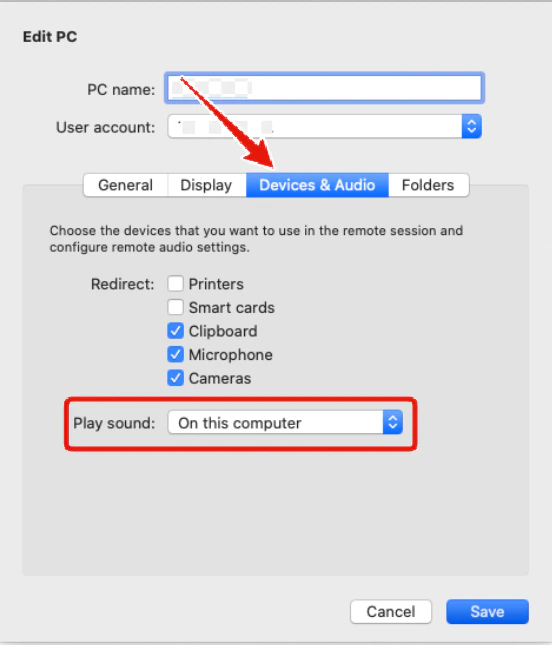
Open Microsoft Remote Desktop, right-click your saved PC connection and select Edit. Click the “Devices & Audio” tab and set “Play sound” to “On this computer”. Click Save.
Reconnect to your VPS. Audio should now play through your Mac.