The live power status of your VPS is available at anytime inside of the client area.
1
Access Services Page
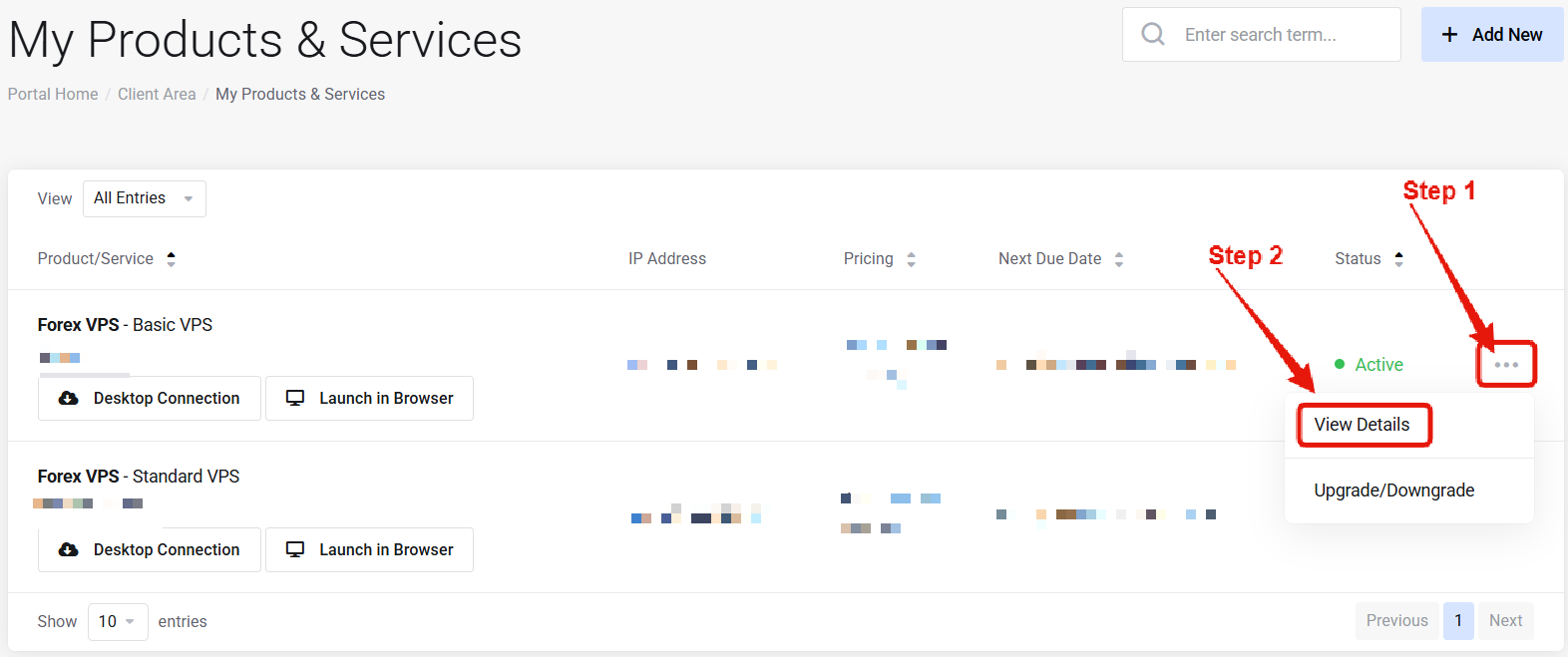
Visit the “My Products & Services” page, and find the specific service that you are not able to access. Click on the three dots to the right side, and then click “View Details”.
2
Locate Power Status
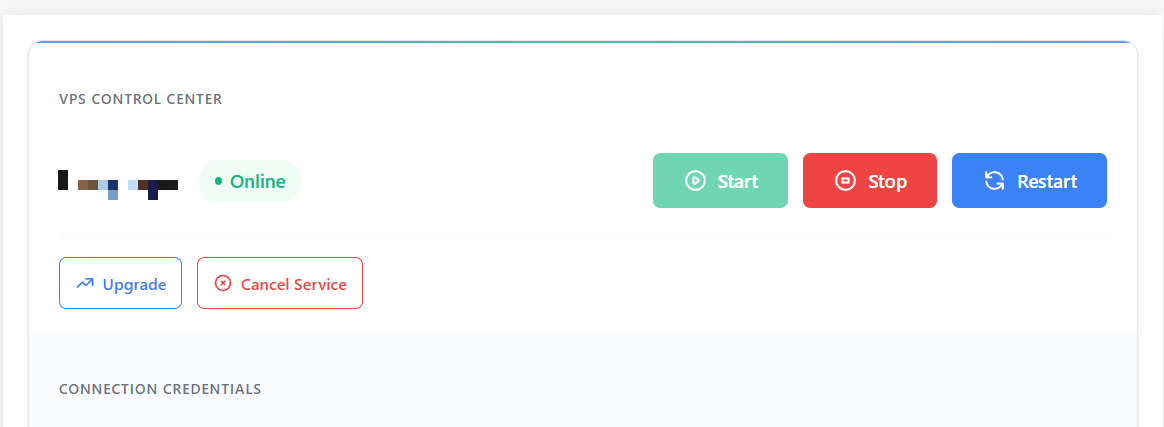
Locate the VPS Control Center section and check the live power status of your VPS.
If the power status is Online — your VPS is running, but something is preventing your connection. Use the web browser access feature to check the VPS screen. If the Windows desktop appears normal, this likely points to a connection issue between your local internet and the VPS. Skip to Step 2 below.If the power status is Offline — click the “Start” button to issue a start signal. Allow 5 minutes for the VPS to come back online. If the start fails or the system does not boot as expected, contact support.
If the VPS is powered on but you still cannot connect via remote desktop, use the web browser access feature to investigate.If you find that the VPS is fully operational (network connected, software running, etc.), then the problem is likely a blockage between your internet service provider and the VPS. Continue to Step 3.
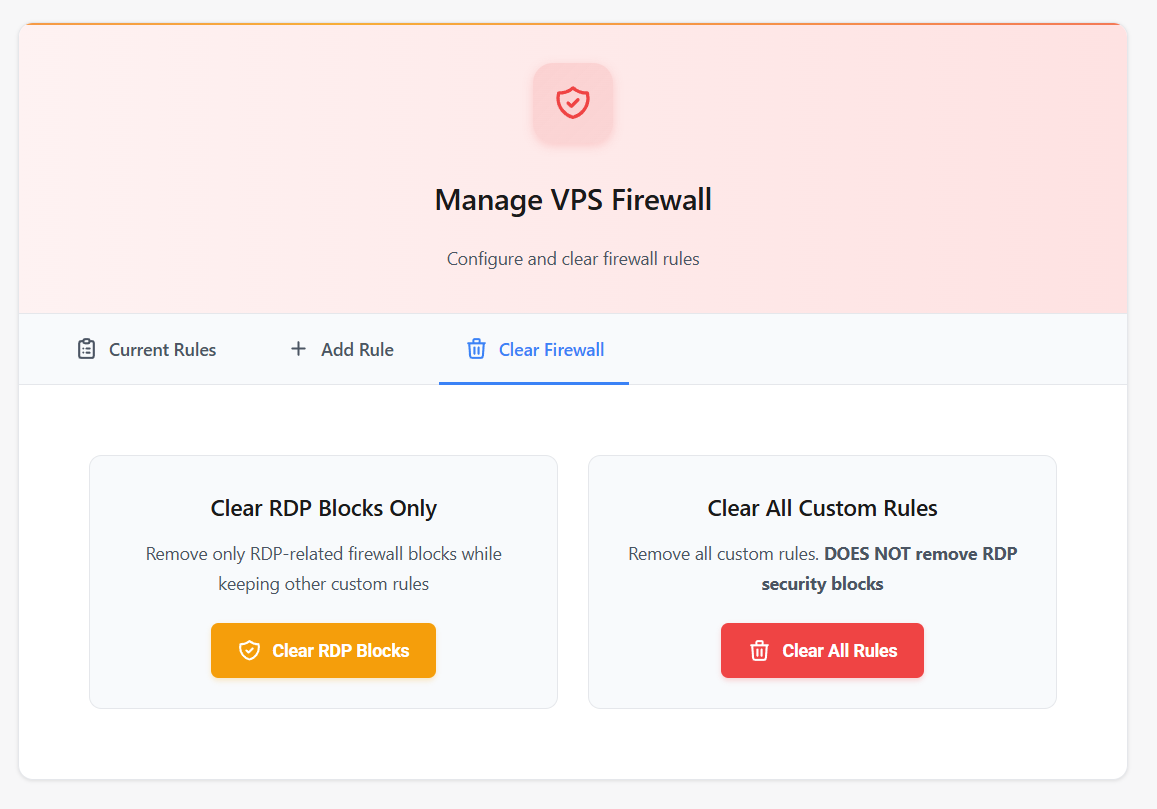
The VPS comes with a security firewall enabled. If you have entered the wrong credentials, it is likely that your connection was blocked by the firewall.Follow the guide for clearing RDP blocks, then try connecting again.
If you are still unable to connect after clearing the RDP blocks, try connecting from a different network (different WiFi).Some networks — especially business, work, school, or hotel networks — block the required remote desktop port. If you can connect from a different network, this confirms your ISP or local network is blocking the connection.
If you are still unable to access the VPS after following the steps above, please contact support and we’ll be happy to assist you.
Please only open one support ticket. Opening multiple tickets or replying to the same ticket multiple times will slow down the support process. All tickets are handled promptly by our 24/7/365 support team.