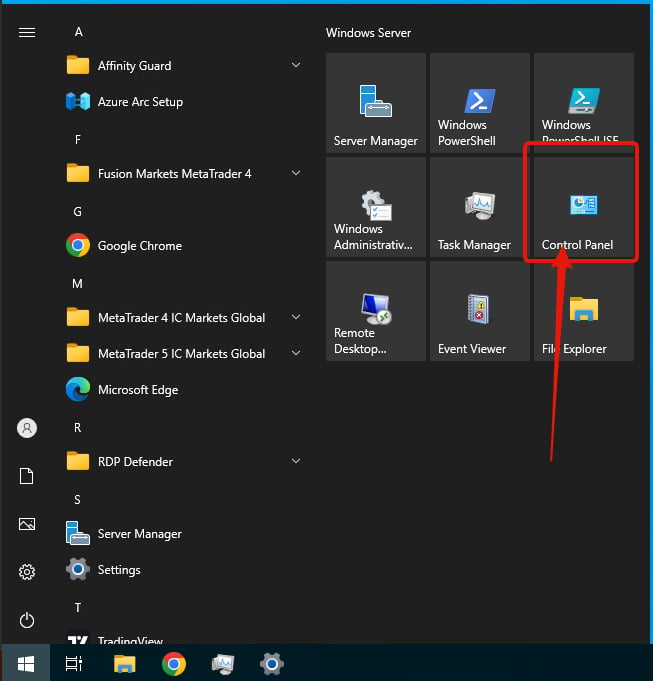
Click the Windows logo located at the bottom left of your VPS screen. Locate the “Control Panel” button on the right side column.
2
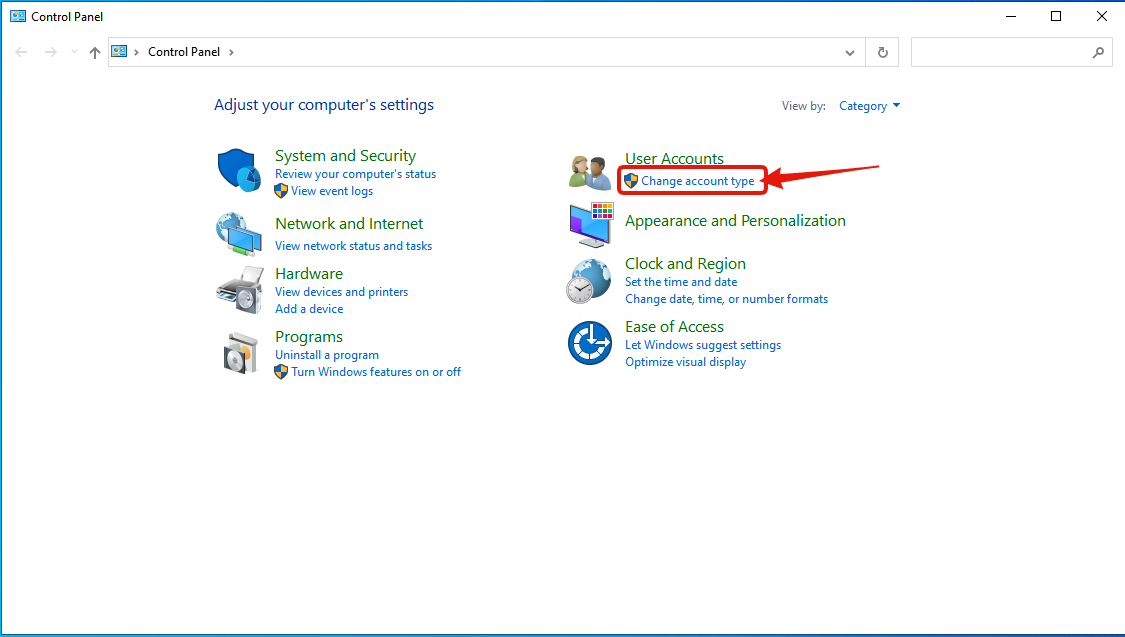
Click Change Account Type
On the right side column under User Accounts, click “Change account type”.
3
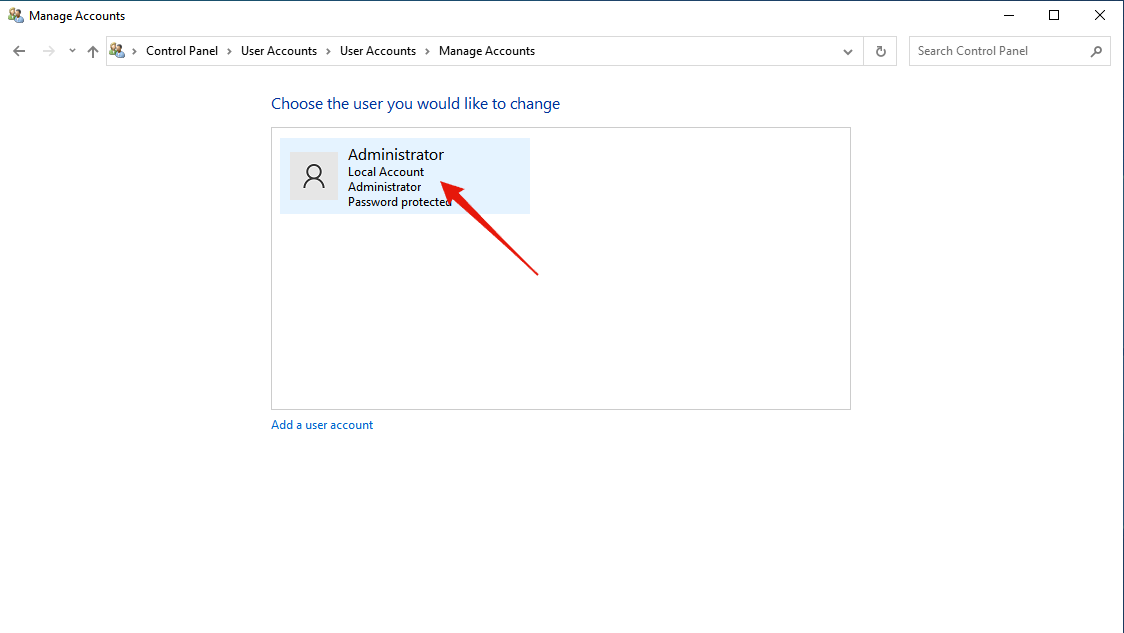
Select User Account
Click on the user account that you wish to change the password for.
4
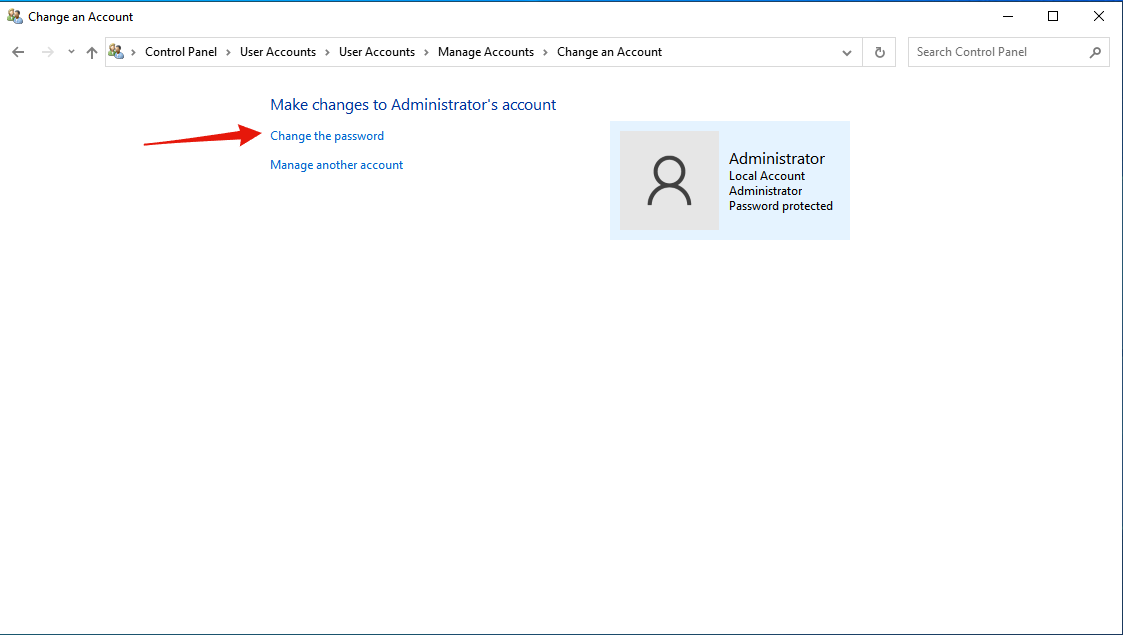
Click Change The Password
On the next window, click on the link for “Change the password”.
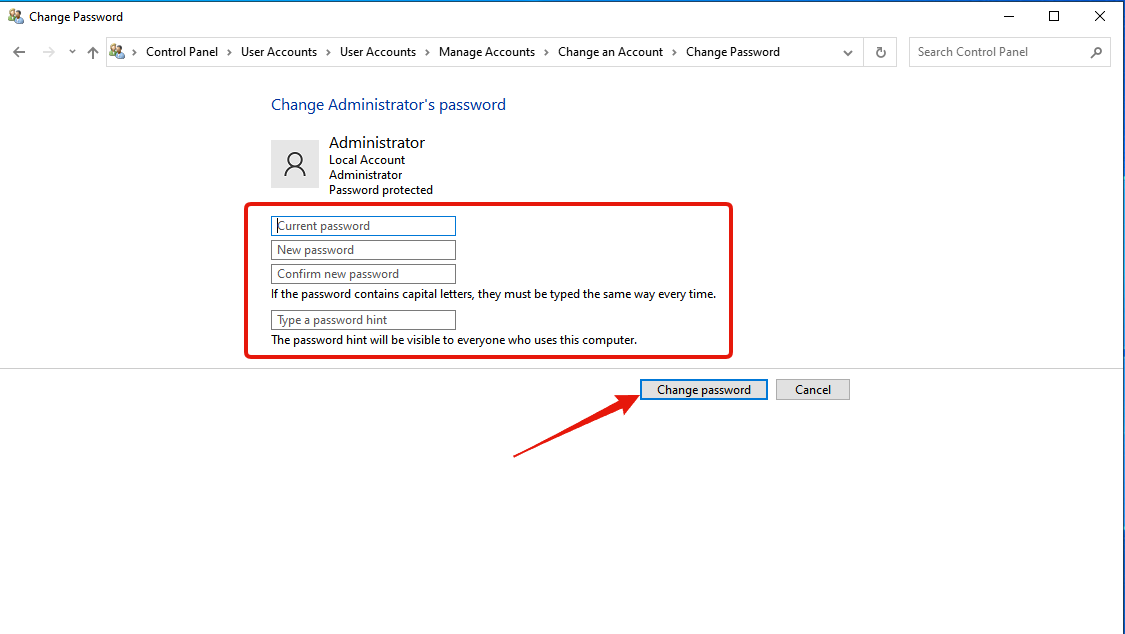
5
Enter New Password
Enter the new password that you wish to use, and then click “Change password”.The new password will take effect immediately and be used for connecting to your VPS going forward.
If you have lost or forgotten the password to access your VPS, you can also reset it directly from the client portal. See the Password Management guide.