Use the official Windows App (by Microsoft) — the modern replacement for the old Remote Desktop app.
1
Wait for Setup
After your order is complete, you’ll receive an email with your VPS login credentials. Wait at least 10 minutes to ensure Windows is fully ready.
2
Install the Windows App
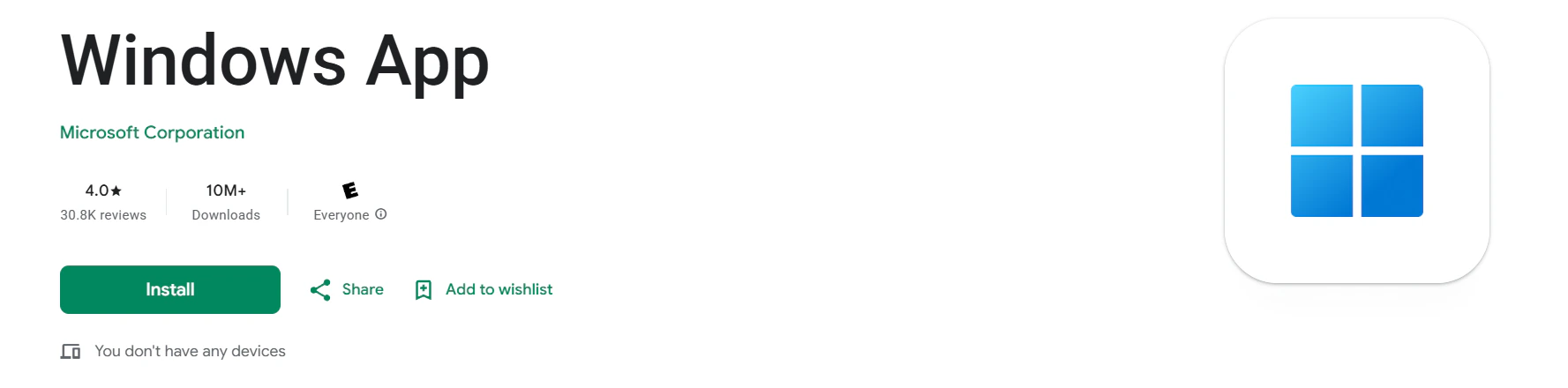
Open the Google Play Store, search for “Windows App”, and install it. Direct Link
Windows App by Microsoft Corporation on the Google Play Store
3
Open the App
Launch Windows App.
4
Add a PC
Tap + Add PC (or PC Connection).
5
Enter VPS IP Address
Type your VPS IP address exactly as shown in the welcome email.
6
Add User Account
Tap Add user account:
Username: Administrator
Password: (copy exactly from email)
Tap Save.
7
Connect
Return to the main screen. Tap the new PC shortcut to connect.
8
Accept Certificate
If prompted, tap Continue or Accept the certificate warning.
9
Access Your Desktop
You’re connected! The VPS desktop will appear full-screen.
Works great on tablets with keyboard — full Windows experience on the go!
Old app? If you have “Microsoft Remote Desktop”, uninstall it — use Windows App instead.
Last modified on April 17, 2026
{"docsConfig":{"theme":"palm","$schema":"https://mintlify.com/docs.json","name":"NYCServers Docs","colors":{"primary":"#0E3A8C","light":"#4F7FFF","dark":"#0A2B66"},"logo":{"light":"https://mintcdn.com/greenhilltechnologiesinc/VDoQGJvJeWg1VqqI/logo/NYC-Servers-Black-Lrg.png?fit=max\u0026auto=format\u0026n=VDoQGJvJeWg1VqqI\u0026q=85\u0026s=f713cff6e25030d6068afdf15daa8d86","dark":"https://mintcdn.com/greenhilltechnologiesinc/VDoQGJvJeWg1VqqI/logo/NYC-Servers-White-Lrg.png?fit=max\u0026auto=format\u0026n=VDoQGJvJeWg1VqqI\u0026q=85\u0026s=55c2f4b2b11f8d76257ad38bbba2e053","href":"https://newyorkcityservers.com"},"favicon":"https://mintcdn.com/greenhilltechnologiesinc/36X4Rb0sflAnhAeF/favicon.svg?fit=max\u0026auto=format\u0026n=36X4Rb0sflAnhAeF\u0026q=85\u0026s=4e4a81beb873b7835993be7b8c954311","navbar":{"links":[{"href":"mailto:support@newyorkcityservers.com","label":"Contact Support"}],"primary":{"type":"button","label":"Client Portal","href":"https://newyorkcityservers.com/billing"}},"footer":{"socials":{"x":"https://x.com/nycservers","website":"https://newyorkcityservers.com"}},"search":{"prompt":"Search VPS guides, troubleshooting..."},"seo":{"indexing":"navigable"},"styling":{"eyebrows":"breadcrumbs","latex":false},"banner":{"content":"Now available in 6 locations: New York, London, Dublin, Tokyo, Singapore \u0026 Hong Kong!","dismissible":true},"contextual":{"options":["copy","view","chatgpt","claude","perplexity","mcp","cursor","vscode"],"display":"header"},"metadata":{"timestamp":true},"navigation":{"pages":[]}},"deployment":{"deploymentMetadataValue":{"subdomain":"greenhilltechnologiesinc","hasAudioNarration":false,"actualSubdomain":"greenhilltechnologiesinc","customDomains":["knowledgebase.newyorkcityservers.com"],"gitSource":{"type":"github","owner":"nycservers","repo":"docs","deployBranch":"main","contentDirectory":"","isPrivate":true,"mountPath":"","label":""},"chroma":{"liveDeploymentHistoryId":"6a21f6af625ace212aa69717","collectionId":"425de61c-7f08-414a-a1fa-b698c9283533","schemaVersion":"v2"},"entitlements":{},"buildId":"6a21f6af625ace212aa69717:success","clientVersion":"0.0.3971","searchFilterCounts":[{"language":"default","tag":"Docs","count":25},{"language":"default","tag":"Guides","count":21},{"language":"default","tag":"Control Panel","count":13},{"language":"default","tag":"Billing \u0026 Account","count":8},{"language":"default","tag":"How To Connect","count":8},{"language":"default","tag":"Guides \u0026 Tutorials","count":8},{"language":"default","tag":"Windows VPS","count":6},{"language":"default","tag":"Troubleshooting","count":5},{"language":"default","tag":"Getting Started","count":4},{"language":"default","tag":"Linux VPS","count":1}]},"assistantConfig":{"enableAskAiButton":false,"enableStarterQuestions":false,"enableAskAiSearchBar":true},"basePath":"","hasChatPermissions":false,"hasWebMcpPermissions":false,"toggles":[{"name":"kill-isr","enabled":true,"variant":{"name":"disabled","enabled":false,"feature_enabled":true},"impressionData":false},{"name":"agent-mintlify-slack","enabled":true,"variant":{"name":"disabled","enabled":false,"feature_enabled":true},"impressionData":false},{"name":"editor-v7-file-tree","enabled":true,"variant":{"name":"disabled","enabled":false,"feature_enabled":true},"impressionData":false},{"name":"agent-integrations-settings","enabled":true,"variant":{"name":"disabled","enabled":false,"feature_enabled":true},"impressionData":false},{"name":"automations-pr-grouping","enabled":true,"variant":{"name":"disabled","enabled":false,"feature_enabled":true},"impressionData":false},{"name":"custom-prefix","enabled":true,"variant":{"name":"disabled","enabled":false,"feature_enabled":true},"impressionData":false},{"name":"analytics-v7","enabled":true,"variant":{"name":"disabled","enabled":false,"feature_enabled":true},"impressionData":false},{"name":"user-flows-analytics","enabled":true,"variant":{"name":"disabled","enabled":false,"feature_enabled":true},"impressionData":false},{"name":"no-publish-flow","enabled":true,"variant":{"name":"disabled","enabled":false,"feature_enabled":true},"impressionData":false},{"name":"workos-onboarding","enabled":true,"variant":{"name":"disabled","enabled":false,"feature_enabled":true},"impressionData":false},{"name":"llms-txt-v2","enabled":true,"variant":{"name":"disabled","enabled":false,"feature_enabled":true},"impressionData":false},{"name":"pause-universal-search-reconcile","enabled":true,"variant":{"name":"disabled","enabled":false,"feature_enabled":true},"impressionData":false},{"name":"snapshot-serving-live","enabled":true,"variant":{"name":"disabled","enabled":false,"feature_enabled":true},"impressionData":false},{"name":"stripTemperatureMiddleware","enabled":true,"variant":{"name":"disabled","enabled":false,"feature_enabled":true},"impressionData":false},{"name":"per-site-search-delta","enabled":true,"variant":{"name":"disabled","enabled":false,"feature_enabled":true},"impressionData":false},{"name":"support-platform-pylon-zendesk","enabled":true,"variant":{"name":"disabled","enabled":false,"feature_enabled":true},"impressionData":false},{"name":"snapshot-serving","enabled":true,"variant":{"name":"disabled","enabled":false,"feature_enabled":true},"impressionData":false},{"name":"instant-rollback","enabled":true,"variant":{"name":"disabled","enabled":false,"feature_enabled":true},"impressionData":false},{"name":"granular-notifications-server","enabled":true,"variant":{"name":"disabled","enabled":false,"feature_enabled":true},"impressionData":false},{"name":"granular-notifications","enabled":true,"variant":{"name":"disabled","enabled":false,"feature_enabled":true},"impressionData":false},{"name":"editor-private-page-search","enabled":true,"variant":{"name":"disabled","enabled":false,"feature_enabled":true},"impressionData":false},{"name":"automations-fable","enabled":true,"variant":{"name":"disabled","enabled":false,"feature_enabled":true},"impressionData":false},{"name":"fixed-ai-action-pricing","enabled":true,"variant":{"name":"disabled","enabled":false,"feature_enabled":true},"impressionData":false},{"name":"automation-resolve-merge-conflict","enabled":true,"variant":{"name":"disabled","enabled":false,"feature_enabled":true},"impressionData":false},{"name":"scoped-publishing","enabled":true,"variant":{"name":"disabled","enabled":false,"feature_enabled":true},"impressionData":false},{"name":"mintql","enabled":true,"variant":{"name":"disabled","enabled":false,"feature_enabled":true},"impressionData":false},{"name":"page-level-analytics","enabled":true,"variant":{"name":"disabled","enabled":false,"feature_enabled":true},"impressionData":false},{"name":"editor-version-history-v2","enabled":true,"variant":{"name":"disabled","enabled":false,"feature_enabled":true},"impressionData":false},{"name":"editor-nav-generations","enabled":true,"variant":{"name":"disabled","enabled":false,"feature_enabled":true},"impressionData":false},{"name":"billing-page-v2","enabled":true,"variant":{"name":"disabled","enabled":false,"feature_enabled":true},"impressionData":false},{"name":"workspace-projects","enabled":true,"variant":{"name":"disabled","enabled":false,"feature_enabled":true},"impressionData":false},{"name":"assistant-v5","enabled":true,"variant":{"name":"disabled","enabled":false,"feature_enabled":true},"impressionData":false},{"name":"byok-sep-25","enabled":true,"variant":{"name":"disabled","enabled":false,"feature_enabled":true},"impressionData":false},{"name":"fork-pr-previews","enabled":true,"variant":{"name":"disabled","enabled":false,"feature_enabled":true},"impressionData":false},{"name":"revalidation-jwt","enabled":true,"variant":{"name":"disabled","enabled":false,"feature_enabled":true},"impressionData":false},{"name":"vite-origin","enabled":true,"variant":{"name":"disabled","enabled":false,"feature_enabled":true},"impressionData":false},{"name":"editor-agent-model-picker","enabled":true,"variant":{"name":"disabled","enabled":false,"feature_enabled":true},"impressionData":false},{"name":"billing-updated-9-15","enabled":true,"variant":{"name":"disabled","enabled":false,"feature_enabled":true},"impressionData":false},{"name":"workos-sso-scim","enabled":true,"variant":{"name":"disabled","enabled":false,"feature_enabled":true},"impressionData":false},{"name":"hobby-abuse-scan","enabled":true,"variant":{"name":"disabled","enabled":false,"feature_enabled":true},"impressionData":false},{"name":"dashboard-inbox","enabled":true,"variant":{"name":"disabled","enabled":false,"feature_enabled":true},"impressionData":false},{"name":"workos-signup","enabled":true,"variant":{"name":"disabled","enabled":false,"feature_enabled":true},"impressionData":false},{"name":"workos-enabled","enabled":true,"variant":{"name":"disabled","enabled":false,"feature_enabled":true},"impressionData":false}],"isAtlas":false,"googleFontsInlined":false},"customCss":[],"page":{"pagePath":"connect/android","slug":"/connect/android","pageMetadata":{"title":"Android","description":"Connect to your NYCServers VPS from Android","href":"/connect/android"},"description":{"compiledSource":"\"use strict\";\nconst {jsx: _jsx} = arguments[0];\nconst {useMDXComponents: _provideComponents} = arguments[0];\nfunction _createMdxContent(props) {\n const _components = {\n p: \"p\",\n ..._provideComponents(),\n ...props.components\n };\n return _jsx(_components.p, {\n children: \"Connect to your NYCServers VPS from Android\"\n });\n}\nfunction MDXContent(props = {}) {\n const {wrapper: MDXLayout} = {\n ..._provideComponents(),\n ...props.components\n };\n return MDXLayout ? _jsx(MDXLayout, {\n ...props,\n children: _jsx(_createMdxContent, {\n ...props\n })\n }) : _createMdxContent(props);\n}\nreturn {\n default: MDXContent\n};\n","frontmatter":{},"scope":{}},"pageType":"default","mdx":{"mdxSource":{"compiledSource":"\"use strict\";const{Fragment:_Fragment,jsx:_jsx,jsxs:_jsxs}=arguments[0];const{useMDXComponents:_provideComponents}=arguments[0];function _createMdxContent(props){const _components={a:`a`,br:`br`,code:`code`,li:`li`,p:`p`,strong:`strong`,ul:`ul`,..._provideComponents(),...props.components},{Callout,Frame,Heading,OptimizedImage,Step,Steps}=_components;if(!Callout)_missingMdxReference(`Callout`,true);if(!Frame)_missingMdxReference(`Frame`,true);if(!Heading)_missingMdxReference(`Heading`,true);if(!OptimizedImage)_missingMdxReference(`OptimizedImage`,true);if(!Step)_missingMdxReference(`Step`,true);if(!Steps)_missingMdxReference(`Steps`,true);return _jsxs(_Fragment,{children:[_jsx(Heading,{level:`1`,id:`connect-from-android`,children:`Connect from Android`}),`\n`,_jsxs(_components.p,{children:[`Use the official `,_jsx(_components.strong,{children:`Windows App`}),` (by Microsoft) — the modern replacement for the old Remote Desktop app.`]}),`\n`,_jsxs(Steps,{titleSize:`h3`,children:[_jsx(Step,{title:`Wait for Setup`,id:`wait-for-setup`,children:_jsxs(_components.p,{children:[`After your order is complete, you’ll receive an email with your VPS login credentials. Wait `,_jsx(_components.strong,{children:`at least 10 minutes`}),` to ensure Windows is fully ready.`]})}),_jsxs(Step,{title:`Install the Windows App`,id:`install-the-windows-app`,children:[_jsxs(_components.p,{children:[`Open the `,_jsx(_components.strong,{children:`Google Play Store`}),`, search for `,_jsx(_components.strong,{children:`“Windows App”`}),`, and install it.`]}),_jsx(`br`,{}),_jsx(_components.p,{children:_jsx(_components.a,{href:`https://play.google.com/store/apps/details?id=com.microsoft.windowsapp`,children:`Direct Link`})}),_jsx(Frame,{caption:`Windows App by Microsoft Corporation on the Google Play Store`,children:_jsx(OptimizedImage,{style:{maxWidth:`400px`},src:`https://mintcdn.com/greenhilltechnologiesinc/jmSCDYz8UW58mj8x/images/connect/android-playstore.png?fit=max\u0026auto=format\u0026n=jmSCDYz8UW58mj8x\u0026q=85\u0026s=b1574ad79b3947ecd64a2e10ad857a16`,alt:`Google Play Store page for Windows App by Microsoft Corporation`,\"data-og-width\":`1777`,width:`1777`,\"data-og-height\":`440`,height:`440`,\"data-path\":`images/connect/android-playstore.png`,\"data-optimize\":`true`,\"data-opv\":`3`,srcset:`https://mintcdn.com/greenhilltechnologiesinc/jmSCDYz8UW58mj8x/images/connect/android-playstore.png?w=280\u0026fit=max\u0026auto=format\u0026n=jmSCDYz8UW58mj8x\u0026q=85\u0026s=10dea428e031e2a3c7c08a77d9109d3d 280w, https://mintcdn.com/greenhilltechnologiesinc/jmSCDYz8UW58mj8x/images/connect/android-playstore.png?w=560\u0026fit=max\u0026auto=format\u0026n=jmSCDYz8UW58mj8x\u0026q=85\u0026s=3c2ee8ce9c232d13b4167ad427b17de0 560w, https://mintcdn.com/greenhilltechnologiesinc/jmSCDYz8UW58mj8x/images/connect/android-playstore.png?w=840\u0026fit=max\u0026auto=format\u0026n=jmSCDYz8UW58mj8x\u0026q=85\u0026s=426961232192287d5e6af769aa915226 840w, https://mintcdn.com/greenhilltechnologiesinc/jmSCDYz8UW58mj8x/images/connect/android-playstore.png?w=1100\u0026fit=max\u0026auto=format\u0026n=jmSCDYz8UW58mj8x\u0026q=85\u0026s=d67ea3af1f1a63d0eb103b96c633b843 1100w, https://mintcdn.com/greenhilltechnologiesinc/jmSCDYz8UW58mj8x/images/connect/android-playstore.png?w=1650\u0026fit=max\u0026auto=format\u0026n=jmSCDYz8UW58mj8x\u0026q=85\u0026s=ae073d87537cccba92037e1b68cfc1ef 1650w, https://mintcdn.com/greenhilltechnologiesinc/jmSCDYz8UW58mj8x/images/connect/android-playstore.png?w=2500\u0026fit=max\u0026auto=format\u0026n=jmSCDYz8UW58mj8x\u0026q=85\u0026s=b39cc4ac9ead4e4121ebb82f49e16a74 2500w`})})]}),_jsx(Step,{title:`Open the App`,id:`open-the-app`,children:_jsxs(_components.p,{children:[`Launch `,_jsx(_components.strong,{children:`Windows App`}),`.`]})}),_jsx(Step,{title:`Add a PC`,id:`add-a-pc`,children:_jsxs(_components.p,{children:[`Tap `,_jsx(_components.strong,{children:`+ Add PC`}),` (or `,_jsx(_components.strong,{children:`PC Connection`}),`).`]})}),_jsx(Step,{title:`Enter VPS IP Address`,id:`enter-vps-ip-address`,children:_jsxs(_components.p,{children:[`Type your `,_jsx(_components.strong,{children:`VPS IP address`}),` exactly as shown in the welcome email.`]})}),_jsxs(Step,{title:`Add User Account`,id:`add-user-account`,children:[_jsxs(_components.p,{children:[`Tap `,_jsx(_components.strong,{children:`Add user account`}),`:`]}),_jsxs(_components.ul,{children:[`\n`,_jsxs(_components.li,{children:[_jsx(_components.strong,{children:`Username`}),`: `,_jsx(_components.code,{children:`Administrator`})]}),`\n`,_jsxs(_components.li,{children:[_jsx(_components.strong,{children:`Password`}),`: (copy exactly from email)`,_jsx(_components.br,{}),`\n`,`Tap `,_jsx(_components.strong,{children:`Save`}),`.`]}),`\n`]})]}),_jsx(Step,{title:`Connect`,id:`connect`,children:_jsxs(_components.p,{children:[`Return to the main screen. `,_jsx(_components.strong,{children:`Tap the new PC shortcut`}),` to connect.`]})}),_jsx(Step,{title:`Accept Certificate`,id:`accept-certificate`,children:_jsxs(_components.p,{children:[`If prompted, tap `,_jsx(_components.strong,{children:`Continue`}),` or `,_jsx(_components.strong,{children:`Accept`}),` the certificate warning.`]})}),_jsx(Step,{title:`Access Your Desktop`,id:`access-your-desktop`,children:_jsx(_components.p,{children:`You’re connected! The VPS desktop will appear full-screen.`})})]}),`\n`,_jsx(Callout,{type:`success`,children:_jsx(_components.p,{children:`Works great on tablets with keyboard — full Windows experience on the go!`})}),`\n`,_jsx(Callout,{type:`warning`,children:_jsxs(_components.p,{children:[_jsx(_components.strong,{children:`Old app?`}),` If you have “Microsoft Remote Desktop”, uninstall it — use `,_jsx(_components.strong,{children:`Windows App`}),` instead.`]})})]})}function MDXContent(props={}){const{wrapper:MDXLayout}={..._provideComponents(),...props.components};return MDXLayout?_jsx(MDXLayout,{...props,children:_jsx(_createMdxContent,{...props})}):_createMdxContent(props)}return{default:MDXContent};function _missingMdxReference(id,component){throw new Error(`Expected `+(component?`component`:`object`)+\" `\"+id+\"` to be defined: you likely forgot to import, pass, or provide it.\")}","frontmatter":{},"scope":{"config":{},"pageMetadata":{"title":"Android","description":"Connect to your NYCServers VPS from Android","href":"/connect/android"}}},"mdxSourceWithNoJs":null},"mdxExtracts":{"tableOfContents":[{"title":"Connect from Android","slug":"connect-from-android","depth":1,"children":[{"title":"Wait for Setup","slug":"wait-for-setup","depth":3,"children":[]},{"title":"Install the Windows App","slug":"install-the-windows-app","depth":3,"children":[]},{"title":"Open the App","slug":"open-the-app","depth":3,"children":[]},{"title":"Add a PC","slug":"add-a-pc","depth":3,"children":[]},{"title":"Enter VPS IP Address","slug":"enter-vps-ip-address","depth":3,"children":[]},{"title":"Add User Account","slug":"add-user-account","depth":3,"children":[]},{"title":"Connect","slug":"connect","depth":3,"children":[]},{"title":"Accept Certificate","slug":"accept-certificate","depth":3,"children":[]},{"title":"Access Your Desktop","slug":"access-your-desktop","depth":3,"children":[]}]}],"codeExamples":{}},"jsLinks":[],"subdomain":"greenhilltechnologiesinc","siteName":"NYCServers Docs","title":"Android - NYCServers Docs","navMaps":{"firstHrefInVersion":{},"firstHrefInLanguage":{}},"lastModified":"2026-04-17T12:19:42.479Z","originalFileLocation":"connect/android.mdx"},"headHtml":"\u003cscript data-mint-head>(function(){var d=document.documentElement,p=null;if(!p){try{p=localStorage.getItem(\"isDarkMode\")}catch(e){}if(p==='true')p='dark';else if(p==='false')p='light';if(p!=='light'\u0026\u0026p!=='dark'\u0026\u0026p!=='system')p=\"system\"}var r=p==='system'?(matchMedia(\"(prefers-color-scheme: dark)\").matches?'dark':'light'):p;d.classList.remove(r==='dark'?'light':'dark');d.classList.add(r);d.setAttribute(\"data-theme-preference\",p)})();\u003c/script>\u003cmeta data-mint-head name=\"description\" content=\"Connect to your NYCServers VPS from Android\">\u003cmeta data-mint-head name=\"application-name\" content=\"NYCServers Docs\">\u003cmeta data-mint-head name=\"generator\" content=\"Mintlify\">\u003clink data-mint-head rel=\"icon\" type=\"image/png\" sizes=\"192x192\" href=\"/mintlify-assets/_mintlify/favicons/greenhilltechnologiesinc/6-fJci8h7mucI9Jx/_generated/favicon/android-chrome-192x192.png\" media=\"(prefers-color-scheme: light)\">\u003clink data-mint-head rel=\"apple-touch-icon\" type=\"image/png\" sizes=\"180x180\" href=\"/mintlify-assets/_mintlify/favicons/greenhilltechnologiesinc/6-fJci8h7mucI9Jx/_generated/favicon/apple-touch-icon.png\">\u003clink data-mint-head rel=\"icon\" type=\"image/png\" sizes=\"16x16\" href=\"/mintlify-assets/_mintlify/favicons/greenhilltechnologiesinc/6-fJci8h7mucI9Jx/_generated/favicon/favicon-16x16.png\" media=\"(prefers-color-scheme: light)\">\u003clink data-mint-head rel=\"icon\" type=\"image/png\" sizes=\"32x32\" href=\"/mintlify-assets/_mintlify/favicons/greenhilltechnologiesinc/6-fJci8h7mucI9Jx/_generated/favicon/favicon-32x32.png\" media=\"(prefers-color-scheme: light)\">\u003clink data-mint-head rel=\"shortcut icon\" type=\"image/x-icon\" href=\"/mintlify-assets/_mintlify/favicons/greenhilltechnologiesinc/6-fJci8h7mucI9Jx/_generated/favicon/favicon.ico\" media=\"(prefers-color-scheme: light)\">\u003clink data-mint-head rel=\"icon\" type=\"image/png\" sizes=\"192x192\" href=\"/mintlify-assets/_mintlify/favicons/greenhilltechnologiesinc/6-fJci8h7mucI9Jx/_generated/favicon-dark/android-chrome-192x192.png\" media=\"(prefers-color-scheme: dark)\">\u003clink data-mint-head rel=\"icon\" type=\"image/png\" sizes=\"16x16\" href=\"/mintlify-assets/_mintlify/favicons/greenhilltechnologiesinc/6-fJci8h7mucI9Jx/_generated/favicon-dark/favicon-16x16.png\" media=\"(prefers-color-scheme: dark)\">\u003clink data-mint-head rel=\"icon\" type=\"image/png\" sizes=\"32x32\" href=\"/mintlify-assets/_mintlify/favicons/greenhilltechnologiesinc/6-fJci8h7mucI9Jx/_generated/favicon-dark/favicon-32x32.png\" media=\"(prefers-color-scheme: dark)\">\u003clink data-mint-head rel=\"shortcut icon\" type=\"image/x-icon\" href=\"/mintlify-assets/_mintlify/favicons/greenhilltechnologiesinc/6-fJci8h7mucI9Jx/_generated/favicon-dark/favicon.ico\" media=\"(prefers-color-scheme: dark)\">\u003cmeta data-mint-head property=\"og:title\" content=\"Android - NYCServers Docs\">\u003cmeta data-mint-head property=\"og:description\" content=\"Connect to your NYCServers VPS from Android\">\u003cmeta data-mint-head property=\"og:site_name\" content=\"NYCServers Docs\">\u003cmeta data-mint-head property=\"og:url\" content=\"https://knowledgebase.newyorkcityservers.com/connect/android\">\u003cmeta data-mint-head property=\"og:type\" content=\"website\">\u003cmeta data-mint-head property=\"og:image\" content=\"https://greenhilltechnologiesinc.mintlify.app/_mintlify/api/og/v2?division=Windows+VPS\u0026amp;title=Android\u0026amp;description=Connect+to+your+NYCServers+VPS+from+Android\u0026amp;theme=a2040db2b128d8836c50af7c\u0026amp;signature=c0a4cbf361495cefab9c1b44e7cb45e6e3357a13b89229c97dcca7a2b960230c\">\u003cmeta data-mint-head property=\"og:image:width\" content=\"1200\">\u003cmeta data-mint-head property=\"og:image:height\" content=\"630\">\u003cmeta data-mint-head name=\"twitter:card\" content=\"summary_large_image\">\u003cmeta data-mint-head name=\"twitter:title\" content=\"Android - NYCServers Docs\">\u003cmeta data-mint-head name=\"twitter:description\" content=\"Connect to your NYCServers VPS from Android\">\u003cmeta data-mint-head name=\"twitter:image\" content=\"https://greenhilltechnologiesinc.mintlify.app/_mintlify/api/og/v2?division=Windows+VPS\u0026amp;title=Android\u0026amp;description=Connect+to+your+NYCServers+VPS+from+Android\u0026amp;theme=a2040db2b128d8836c50af7c\u0026amp;signature=c0a4cbf361495cefab9c1b44e7cb45e6e3357a13b89229c97dcca7a2b960230c\">\u003cmeta data-mint-head name=\"twitter:image:width\" content=\"1200\">\u003cmeta data-mint-head name=\"twitter:image:height\" content=\"630\">\u003cmeta data-mint-head name=\"msapplication-config\" content=\"/mintlify-assets/_mintlify/favicons/greenhilltechnologiesinc/6-fJci8h7mucI9Jx/_generated/favicon/browserconfig.xml\">\u003cmeta data-mint-head name=\"apple-mobile-web-app-title\" content=\"NYCServers Docs\">\u003cmeta data-mint-head name=\"msapplication-TileColor\" content=\"#0E3A8C\">\u003clink data-mint-head rel=\"canonical\" href=\"https://knowledgebase.newyorkcityservers.com/connect/android\">\u003clink data-mint-head rel=\"alternate\" type=\"application/xml\" href=\"/sitemap.xml\">\u003clink data-mint-head rel=\"alternate\" type=\"text/markdown\" href=\"/connect/android.md\">\u003cscript data-mint-head type=\"application/ld+json\">{\"@context\":\"https://schema.org\",\"@graph\":[{\"@type\":\"Organization\",\"@id\":\"https://knowledgebase.newyorkcityservers.com/#organization\",\"name\":\"NYCServers Docs\",\"url\":\"https://knowledgebase.newyorkcityservers.com\",\"logo\":{\"@type\":\"ImageObject\",\"url\":\"https://mintcdn.com/greenhilltechnologiesinc/VDoQGJvJeWg1VqqI/logo/NYC-Servers-Black-Lrg.png?fit=max\u0026auto=format\u0026n=VDoQGJvJeWg1VqqI\u0026q=85\u0026s=f713cff6e25030d6068afdf15daa8d86\"}},{\"@type\":\"WebSite\",\"@id\":\"https://knowledgebase.newyorkcityservers.com#website\",\"name\":\"NYCServers Docs\",\"url\":\"https://knowledgebase.newyorkcityservers.com\",\"publisher\":{\"@id\":\"https://knowledgebase.newyorkcityservers.com/#organization\"}},{\"@type\":\"WebPage\",\"@id\":\"https://knowledgebase.newyorkcityservers.com/connect/android#webpage\",\"url\":\"https://knowledgebase.newyorkcityservers.com/connect/android\",\"name\":\"Android\",\"description\":\"Connect to your NYCServers VPS from Android\",\"dateModified\":\"2026-04-17T12:19:42.479Z\",\"isPartOf\":{\"@id\":\"https://knowledgebase.newyorkcityservers.com#website\"},\"breadcrumb\":{\"@id\":\"https://knowledgebase.newyorkcityservers.com/connect/android#breadcrumb\"}},{\"@type\":\"BreadcrumbList\",\"@id\":\"https://knowledgebase.newyorkcityservers.com/connect/android#breadcrumb\",\"itemListElement\":[{\"@type\":\"ListItem\",\"position\":1,\"name\":\"How To Connect\",\"item\":\"https://knowledgebase.newyorkcityservers.com/connect/overview\"},{\"@type\":\"ListItem\",\"position\":2,\"name\":\"Windows VPS\",\"item\":\"https://knowledgebase.newyorkcityservers.com/connect/windows\"},{\"@type\":\"ListItem\",\"position\":3,\"name\":\"Android\",\"item\":\"https://knowledgebase.newyorkcityservers.com/connect/android\"}]},{\"@type\":[\"Article\",\"TechArticle\"],\"@id\":\"https://knowledgebase.newyorkcityservers.com/connect/android#article\",\"headline\":\"Android\",\"name\":\"Android\",\"description\":\"Connect to your NYCServers VPS from Android\",\"url\":\"https://knowledgebase.newyorkcityservers.com/connect/android\",\"mainEntityOfPage\":{\"@id\":\"https://knowledgebase.newyorkcityservers.com/connect/android#webpage\"},\"dateModified\":\"2026-04-17T12:19:42.479Z\",\"publisher\":{\"@id\":\"https://knowledgebase.newyorkcityservers.com/#organization\"},\"isPartOf\":{\"@id\":\"https://knowledgebase.newyorkcityservers.com#website\"}}]}\u003c/script>\u003cscript data-mint-head type=\"application/ld+json\">{\"@context\":\"https://schema.org\",\"@type\":\"WebSite\",\"name\":\"NYCServers Docs\",\"creator\":{\"@type\":\"Organization\",\"name\":\"Mintlify\",\"url\":\"https://mintlify.com\"}}\u003c/script>","siteName":"NYCServers Docs","nav":{"global":null,"tabs":[{"tab":"Docs","pages":[{"title":"Docs","href":""}]},{"tab":"Guides","groups":[{"group":"How To Connect","icon":"plug","expanded":true,"pages":[{"title":"Connect to Your VPS","href":"/connect/overview"},{"group":"Windows VPS","expanded":true,"pages":[{"title":"Connect from Windows PC","sidebarTitle":"Windows","href":"/connect/windows"},{"title":"Connect from MacOS","sidebarTitle":"MacOS","href":"/connect/macos"},{"title":"iPhone / iOS","sidebarTitle":"iPhone / iOS","description":"Connect to your NYCServers VPS from iPhone or iPad","href":"/connect/ios"},{"title":"Android","href":"/connect/android"},{"title":"Connect from Ubuntu / Linux","description":"Below you can find the step by step process to log into your forex VPS from Ubuntu or other Linux distributions.","sidebarTitle":"Linux","href":"/connect/linux"},{"title":"Web Browser","href":"/connect/web-browser"}]},{"group":"Linux VPS","expanded":true,"pages":[{"title":"SSH to Linux VPS from Windows","sidebarTitle":"Windows PC","href":"/connect/ssh-from-windows"}]}]},{"group":"Guides \u0026 Tutorials","icon":"book","expanded":false,"pages":[{"title":"Multi MT4/MT5 Installations","href":"/guides/multi-mt4-mt5-installation"},{"title":"Disconnect From VPS","href":"/guides/disconnect-from-vps"},{"title":"Monitor CPU and RAM Usage","href":"/guides/monitor-cpu-ram-usage"},{"title":"Windows Update Guide","href":"/guides/windows-updates-guide"},{"title":"Configure VPS Monitor \u0026 Auto Startup","href":"/guides/configure-autostart"},{"title":"Change VPS Password","href":"/guides/change-reset-password"},{"title":"Setting Up Automatic Reboots","sidebarTitle":"Setup Automatic Reboots","href":"/guides/setup-automatic-reboots"},{"title":"Find MetaTrader Logs","href":"/guides/find-metatrader-logs"}]},{"group":"Troubleshooting","icon":"life-ring","expanded":false,"pages":[{"title":"Unable To Connect","href":"/troubleshooting/unable-to-connect"},{"title":"RDP Copy \u0026 Paste Not Working","sidebarTitle":"RDP Copy Paste Not Working","href":"/troubleshooting/copy-paste"},{"title":"Check Connection Strength","href":"/troubleshooting/connection-strength"},{"title":"Understanding Order Execution Time vs VPS Latency","href":"/troubleshooting/order-execution-vs-latency"},{"title":"Remote Desktop Audio Not Working","sidebarTitle":"Remote Desktop Audio","href":"/troubleshooting/remote-desktop-audio"}]}]}]},"title":"Android - NYCServers Docs","buildId":"dpl_DFJrtvUi8HS5F9nkooKuDJsuD5BM","deploymentId":"dpl_DFJrtvUi8HS5F9nkooKuDJsuD5BM","dynamics":["10e4515597","07c022d89b","a74be98ba7"],"chunks":["BannerMarkdown-BVNUlwBc.js","dist-aeztFa9U.js","lib--scc4DXi.js","lib-B8HbPgcC.js","clsx-rL8ZCCw4.js","html-void-elements-mCSPHezU.js","katex-YMM-FMeD.js","marked.esm-CZWythHk.js","Frame-COGkNuA6.js","DynamicMarkdown-85clUA0i.js","zoom-image-lightbox-BZxD9MAj.js","lightbox-handle-r17bVUz3.js"]}