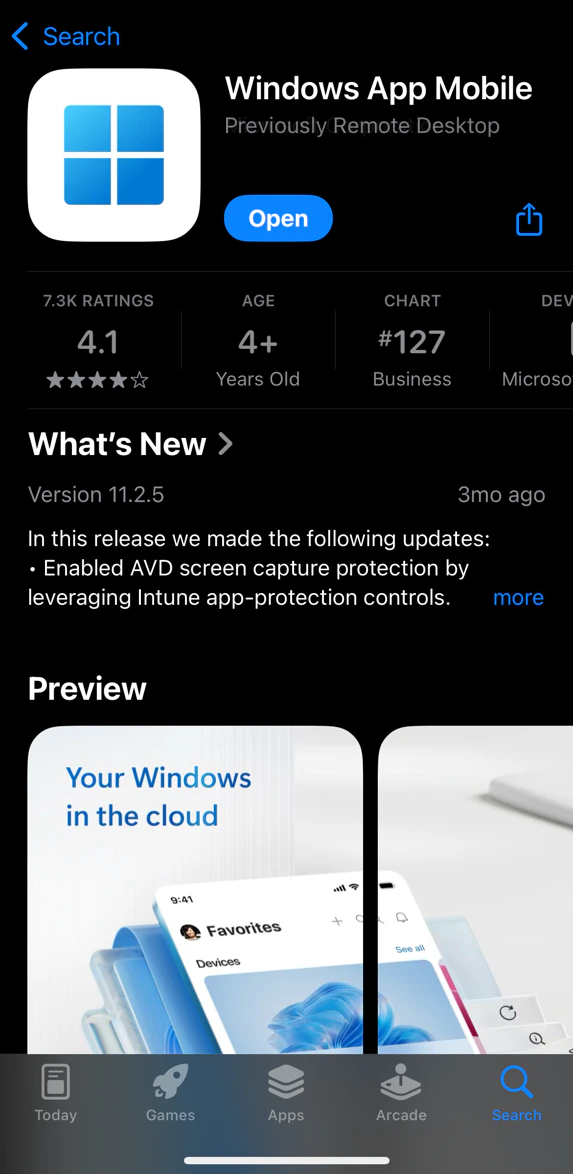
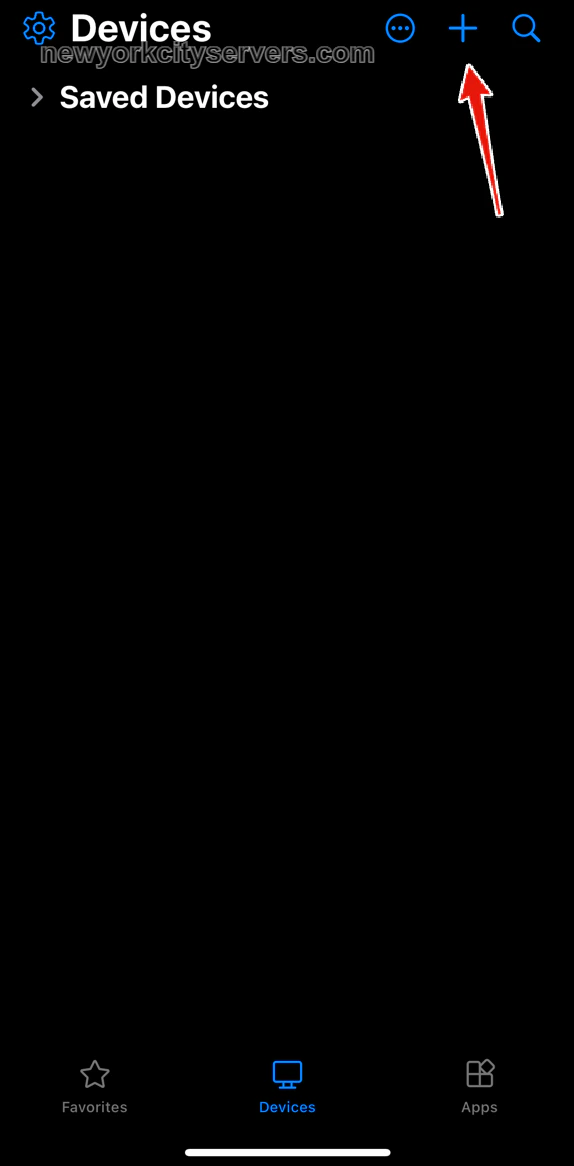
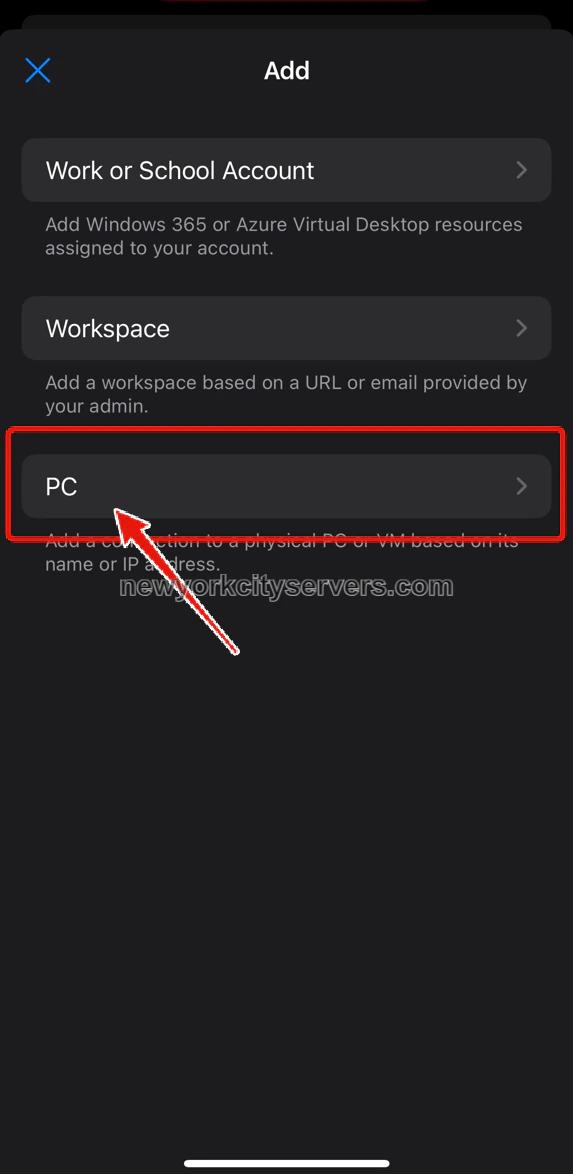
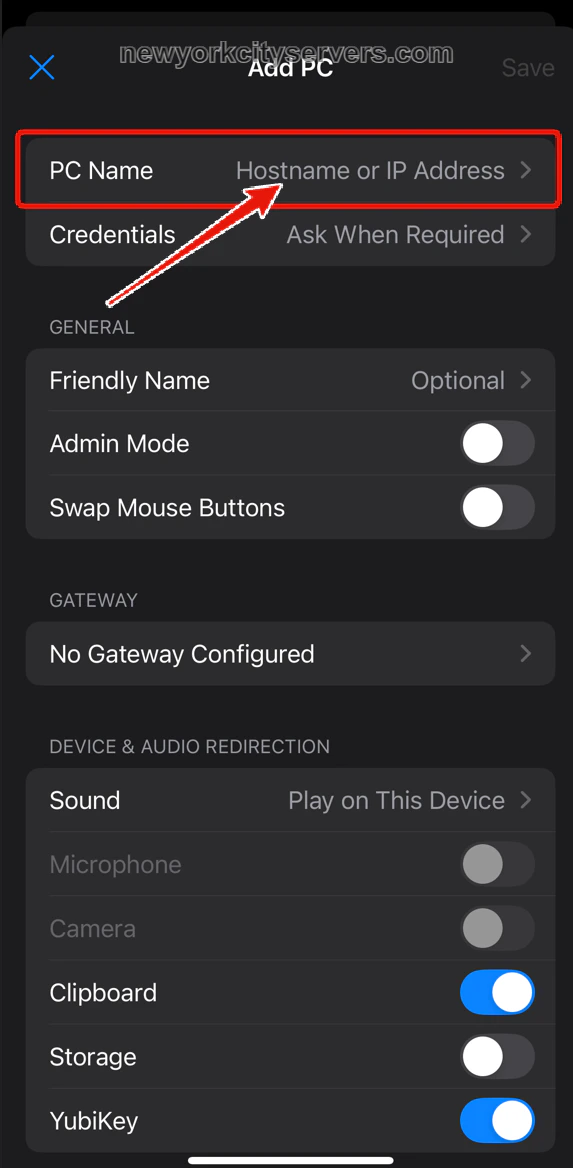
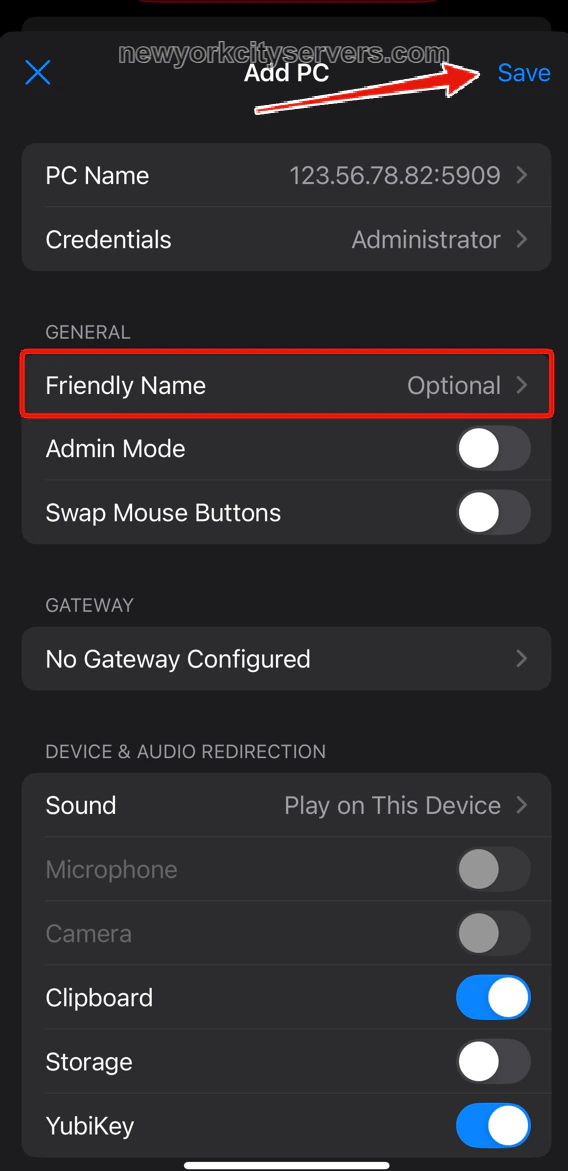
You’ll return to the Add PC screen with your IP address and credentials filled in. You can optionally set a Friendly Name to label this connection.Tap Save in the top-right corner.
Review your settings and tap Save
2
Connect to Your VPS
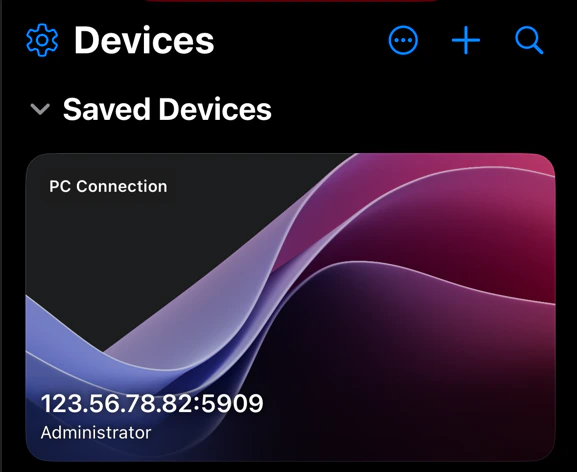
Your saved VPS now appears as a card under Saved Devices. Tap it to connect.If prompted with a certificate warning, tap Continue or Accept.
If you have any problems connecting to your VPS from your iPhone or iPad, contact our support team and we’ll be happy to assist you.
Last modified on April 5, 2026
{"docsConfig":{"theme":"palm","$schema":"https://mintlify.com/docs.json","name":"NYCServers Docs","colors":{"primary":"#0E3A8C","light":"#4F7FFF","dark":"#0A2B66"},"logo":{"light":"https://mintcdn.com/greenhilltechnologiesinc/VDoQGJvJeWg1VqqI/logo/NYC-Servers-Black-Lrg.png?fit=max\u0026auto=format\u0026n=VDoQGJvJeWg1VqqI\u0026q=85\u0026s=f713cff6e25030d6068afdf15daa8d86","dark":"https://mintcdn.com/greenhilltechnologiesinc/VDoQGJvJeWg1VqqI/logo/NYC-Servers-White-Lrg.png?fit=max\u0026auto=format\u0026n=VDoQGJvJeWg1VqqI\u0026q=85\u0026s=55c2f4b2b11f8d76257ad38bbba2e053","href":"https://newyorkcityservers.com"},"favicon":"https://mintcdn.com/greenhilltechnologiesinc/36X4Rb0sflAnhAeF/favicon.svg?fit=max\u0026auto=format\u0026n=36X4Rb0sflAnhAeF\u0026q=85\u0026s=4e4a81beb873b7835993be7b8c954311","navbar":{"links":[{"href":"mailto:support@newyorkcityservers.com","label":"Contact Support"}],"primary":{"type":"button","label":"Client Portal","href":"https://newyorkcityservers.com/billing"}},"footer":{"socials":{"x":"https://x.com/nycservers","website":"https://newyorkcityservers.com"}},"search":{"prompt":"Search VPS guides, troubleshooting..."},"seo":{"indexing":"navigable"},"styling":{"eyebrows":"breadcrumbs","latex":false},"banner":{"content":"Now available in 6 locations: New York, London, Dublin, Tokyo, Singapore \u0026 Hong Kong!","dismissible":true},"contextual":{"options":["copy","view","chatgpt","claude","perplexity","mcp","cursor","vscode"],"display":"header"},"metadata":{"timestamp":true},"navigation":{"pages":[]}},"deployment":{"deploymentMetadataValue":{"subdomain":"greenhilltechnologiesinc","hasAudioNarration":false,"actualSubdomain":"greenhilltechnologiesinc","customDomains":["knowledgebase.newyorkcityservers.com"],"gitSource":{"type":"github","owner":"nycservers","repo":"docs","deployBranch":"main","contentDirectory":"","isPrivate":true,"mountPath":"","label":""},"chroma":{"liveDeploymentHistoryId":"6a21f6af625ace212aa69717","collectionId":"425de61c-7f08-414a-a1fa-b698c9283533","schemaVersion":"v2"},"entitlements":{},"buildId":"6a21f6af625ace212aa69717:success","clientVersion":"0.0.3894","searchFilterCounts":[{"language":"default","tag":"Docs","count":25},{"language":"default","tag":"Guides","count":21},{"language":"default","tag":"Control Panel","count":13},{"language":"default","tag":"Billing \u0026 Account","count":8},{"language":"default","tag":"How To Connect","count":8},{"language":"default","tag":"Guides \u0026 Tutorials","count":8},{"language":"default","tag":"Windows VPS","count":6},{"language":"default","tag":"Troubleshooting","count":5},{"language":"default","tag":"Getting Started","count":4},{"language":"default","tag":"Linux VPS","count":1}]},"assistantConfig":{"enableAskAiButton":false,"enableStarterQuestions":false,"enableAskAiSearchBar":true},"hasChatPermissions":false,"hasWebMcpPermissions":false,"toggles":[],"isAtlas":false,"googleFontsInlined":false},"customCss":[],"page":{"pagePath":"connect/ios","slug":"/connect/ios","pageMetadata":{"title":"iPhone / iOS","sidebarTitle":"iPhone / iOS","description":"Connect to your NYCServers VPS from iPhone or iPad","href":"/connect/ios"},"description":{"compiledSource":"\"use strict\";\nconst {jsx: _jsx} = arguments[0];\nconst {useMDXComponents: _provideComponents} = arguments[0];\nfunction _createMdxContent(props) {\n const _components = {\n p: \"p\",\n ..._provideComponents(),\n ...props.components\n };\n return _jsx(_components.p, {\n children: \"Connect to your NYCServers VPS from iPhone or iPad\"\n });\n}\nfunction MDXContent(props = {}) {\n const {wrapper: MDXLayout} = {\n ..._provideComponents(),\n ...props.components\n };\n return MDXLayout ? _jsx(MDXLayout, {\n ...props,\n children: _jsx(_createMdxContent, {\n ...props\n })\n }) : _createMdxContent(props);\n}\nreturn {\n default: MDXContent\n};\n","frontmatter":{},"scope":{}},"pageType":"default","mdx":{"mdxSource":{"compiledSource":"\"use strict\";const{Fragment:_Fragment,jsx:_jsx,jsxs:_jsxs}=arguments[0];const{useMDXComponents:_provideComponents}=arguments[0];function _createMdxContent(props){const _components={a:`a`,code:`code`,li:`li`,p:`p`,strong:`strong`,ul:`ul`,..._provideComponents(),...props.components},{Callout,Frame,Heading,OptimizedImage,Step,Steps}=_components;if(!Callout)_missingMdxReference(`Callout`,true);if(!Frame)_missingMdxReference(`Frame`,true);if(!Heading)_missingMdxReference(`Heading`,true);if(!OptimizedImage)_missingMdxReference(`OptimizedImage`,true);if(!Step)_missingMdxReference(`Step`,true);if(!Steps)_missingMdxReference(`Steps`,true);return _jsxs(_Fragment,{children:[_jsx(Heading,{level:`2`,id:`install-the-windows-app`,children:`Install the Windows App`}),`\n`,_jsxs(_components.p,{children:[`Open the `,_jsx(_components.strong,{children:`App Store`}),` on your iPhone or iPad, search for `,_jsx(_components.strong,{children:`“Windows App”`}),`, and tap `,_jsx(_components.strong,{children:`Get`}),` to install it.`]}),`\n`,_jsx(_components.p,{children:_jsx(_components.a,{href:`https://apps.apple.com/us/app/windows-app-mobile/id714464092`,children:`Direct App Store Link`})}),`\n`,_jsx(Frame,{caption:`Download Windows App Mobile from the App Store`,children:_jsx(OptimizedImage,{src:`https://mintcdn.com/greenhilltechnologiesinc/F4wMEZ0J1cbUNihh/images/connect/ios1.png?fit=max\u0026auto=format\u0026n=F4wMEZ0J1cbUNihh\u0026q=85\u0026s=2c920c20738014028bd61e058208cfba`,style:{maxWidth:`300px`},alt:`Windows App Mobile listing in the Apple App Store`,\"data-og-width\":`573`,width:`573`,\"data-og-height\":`1174`,height:`1174`,\"data-path\":`images/connect/ios1.png`,\"data-optimize\":`true`,\"data-opv\":`3`,srcset:`https://mintcdn.com/greenhilltechnologiesinc/F4wMEZ0J1cbUNihh/images/connect/ios1.png?w=280\u0026fit=max\u0026auto=format\u0026n=F4wMEZ0J1cbUNihh\u0026q=85\u0026s=48db88bb6229a2c9aa9f539b766fc8b2 280w, https://mintcdn.com/greenhilltechnologiesinc/F4wMEZ0J1cbUNihh/images/connect/ios1.png?w=560\u0026fit=max\u0026auto=format\u0026n=F4wMEZ0J1cbUNihh\u0026q=85\u0026s=30f136f00cf87afb8ce4dcbc5c08361d 560w, https://mintcdn.com/greenhilltechnologiesinc/F4wMEZ0J1cbUNihh/images/connect/ios1.png?w=840\u0026fit=max\u0026auto=format\u0026n=F4wMEZ0J1cbUNihh\u0026q=85\u0026s=259af1382df4731bb88ef7850b3b4014 840w, https://mintcdn.com/greenhilltechnologiesinc/F4wMEZ0J1cbUNihh/images/connect/ios1.png?w=1100\u0026fit=max\u0026auto=format\u0026n=F4wMEZ0J1cbUNihh\u0026q=85\u0026s=1e5eabd672aa4b44730a89ce14cd366a 1100w, https://mintcdn.com/greenhilltechnologiesinc/F4wMEZ0J1cbUNihh/images/connect/ios1.png?w=1650\u0026fit=max\u0026auto=format\u0026n=F4wMEZ0J1cbUNihh\u0026q=85\u0026s=5780e547e1a3c873c5fd43890c3f77d3 1650w, https://mintcdn.com/greenhilltechnologiesinc/F4wMEZ0J1cbUNihh/images/connect/ios1.png?w=2500\u0026fit=max\u0026auto=format\u0026n=F4wMEZ0J1cbUNihh\u0026q=85\u0026s=4070f6f6ee43a062cad0d242a230e7b1 2500w`})}),`\n`,_jsx(Callout,{type:`warning`,children:_jsxs(_components.p,{children:[`Using the old “Microsoft Remote Desktop” app? `,_jsx(_components.strong,{children:`Uninstall it`}),` and use `,_jsx(_components.strong,{children:`Windows App`}),` instead.`]})}),`\n`,_jsx(Heading,{level:`2`,id:`add-a-new-connection`,children:`Add a New Connection`}),`\n`,_jsxs(Steps,{children:[_jsxs(Step,{title:`Open the App`,children:[_jsxs(_components.p,{children:[`Launch `,_jsx(_components.strong,{children:`Windows App`}),`. You’ll land on the `,_jsx(_components.strong,{children:`Devices`}),` tab. Tap the `,_jsx(_components.strong,{children:`+`}),` button in the top-right corner.`]}),_jsx(Frame,{caption:`Tap the + button to add a new device`,children:_jsx(OptimizedImage,{src:`https://mintcdn.com/greenhilltechnologiesinc/F4wMEZ0J1cbUNihh/images/connect/ios2.png?fit=max\u0026auto=format\u0026n=F4wMEZ0J1cbUNihh\u0026q=85\u0026s=31152af949c190bd6fc94a2da221ceeb`,style:{maxWidth:`300px`},alt:`Devices screen with arrow pointing to the plus button`,\"data-og-width\":`574`,width:`574`,\"data-og-height\":`1166`,height:`1166`,\"data-path\":`images/connect/ios2.png`,\"data-optimize\":`true`,\"data-opv\":`3`,srcset:`https://mintcdn.com/greenhilltechnologiesinc/F4wMEZ0J1cbUNihh/images/connect/ios2.png?w=280\u0026fit=max\u0026auto=format\u0026n=F4wMEZ0J1cbUNihh\u0026q=85\u0026s=1f007e03e37dd2a0b8cec502447d0f48 280w, https://mintcdn.com/greenhilltechnologiesinc/F4wMEZ0J1cbUNihh/images/connect/ios2.png?w=560\u0026fit=max\u0026auto=format\u0026n=F4wMEZ0J1cbUNihh\u0026q=85\u0026s=894f3f18610b7d1481a2218336619f14 560w, https://mintcdn.com/greenhilltechnologiesinc/F4wMEZ0J1cbUNihh/images/connect/ios2.png?w=840\u0026fit=max\u0026auto=format\u0026n=F4wMEZ0J1cbUNihh\u0026q=85\u0026s=a387403373398ac669864e602fb9c1ac 840w, https://mintcdn.com/greenhilltechnologiesinc/F4wMEZ0J1cbUNihh/images/connect/ios2.png?w=1100\u0026fit=max\u0026auto=format\u0026n=F4wMEZ0J1cbUNihh\u0026q=85\u0026s=425d565a15249fc2190e62b05f969e77 1100w, https://mintcdn.com/greenhilltechnologiesinc/F4wMEZ0J1cbUNihh/images/connect/ios2.png?w=1650\u0026fit=max\u0026auto=format\u0026n=F4wMEZ0J1cbUNihh\u0026q=85\u0026s=ff6e3a58a1298709196cee7e7e082f9a 1650w, https://mintcdn.com/greenhilltechnologiesinc/F4wMEZ0J1cbUNihh/images/connect/ios2.png?w=2500\u0026fit=max\u0026auto=format\u0026n=F4wMEZ0J1cbUNihh\u0026q=85\u0026s=8b2eeac8684f851c4a65d98e9587d47d 2500w`})})]}),_jsxs(Step,{title:`Select \"PC\"`,children:[_jsxs(_components.p,{children:[`From the `,_jsx(_components.strong,{children:`Add`}),` menu, tap `,_jsx(_components.strong,{children:`PC`}),` at the bottom.`]}),_jsx(Frame,{caption:`Select PC to add a VPS connection`,children:_jsx(OptimizedImage,{src:`https://mintcdn.com/greenhilltechnologiesinc/F4wMEZ0J1cbUNihh/images/connect/ios3.png?fit=max\u0026auto=format\u0026n=F4wMEZ0J1cbUNihh\u0026q=85\u0026s=81fefabc219bec806379359f1252a7ec`,style:{maxWidth:`300px`},alt:`Add menu with PC option highlighted`,\"data-og-width\":`573`,width:`573`,\"data-og-height\":`1174`,height:`1174`,\"data-path\":`images/connect/ios3.png`,\"data-optimize\":`true`,\"data-opv\":`3`,srcset:`https://mintcdn.com/greenhilltechnologiesinc/F4wMEZ0J1cbUNihh/images/connect/ios3.png?w=280\u0026fit=max\u0026auto=format\u0026n=F4wMEZ0J1cbUNihh\u0026q=85\u0026s=18f01c73e8c54e3ea7f1b1dc874fce00 280w, https://mintcdn.com/greenhilltechnologiesinc/F4wMEZ0J1cbUNihh/images/connect/ios3.png?w=560\u0026fit=max\u0026auto=format\u0026n=F4wMEZ0J1cbUNihh\u0026q=85\u0026s=f8d337114c12f0093e7513e7f3d7a52d 560w, https://mintcdn.com/greenhilltechnologiesinc/F4wMEZ0J1cbUNihh/images/connect/ios3.png?w=840\u0026fit=max\u0026auto=format\u0026n=F4wMEZ0J1cbUNihh\u0026q=85\u0026s=168ba69ae0d72a81e5333536976cdc41 840w, https://mintcdn.com/greenhilltechnologiesinc/F4wMEZ0J1cbUNihh/images/connect/ios3.png?w=1100\u0026fit=max\u0026auto=format\u0026n=F4wMEZ0J1cbUNihh\u0026q=85\u0026s=479d94fbe941ee0ab429716d218e0a43 1100w, https://mintcdn.com/greenhilltechnologiesinc/F4wMEZ0J1cbUNihh/images/connect/ios3.png?w=1650\u0026fit=max\u0026auto=format\u0026n=F4wMEZ0J1cbUNihh\u0026q=85\u0026s=54c60831b86f0155f56d2620a46d9eab 1650w, https://mintcdn.com/greenhilltechnologiesinc/F4wMEZ0J1cbUNihh/images/connect/ios3.png?w=2500\u0026fit=max\u0026auto=format\u0026n=F4wMEZ0J1cbUNihh\u0026q=85\u0026s=aeb463e777eb316d4167e8ee5508b0e8 2500w`})})]})]}),`\n`,_jsx(Heading,{level:`2`,id:`enter-your-vps-details`,children:`Enter Your VPS Details`}),`\n`,_jsxs(Steps,{children:[_jsxs(Step,{title:`Enter the IP Address`,children:[_jsxs(_components.p,{children:[`On the `,_jsx(_components.strong,{children:`Add PC`}),` screen, tap the `,_jsx(_components.strong,{children:`PC Name`}),` field.`]}),_jsx(Frame,{caption:`Tap PC Name to enter your IP address`,children:_jsx(OptimizedImage,{src:`https://mintcdn.com/greenhilltechnologiesinc/F4wMEZ0J1cbUNihh/images/connect/ios4.png?fit=max\u0026auto=format\u0026n=F4wMEZ0J1cbUNihh\u0026q=85\u0026s=cee184e2ebe7d6ea05626e8a4b76338b`,style:{maxWidth:`300px`},alt:`Add PC screen with PC Name field highlighted`,\"data-og-width\":`573`,width:`573`,\"data-og-height\":`1168`,height:`1168`,\"data-path\":`images/connect/ios4.png`,\"data-optimize\":`true`,\"data-opv\":`3`,srcset:`https://mintcdn.com/greenhilltechnologiesinc/F4wMEZ0J1cbUNihh/images/connect/ios4.png?w=280\u0026fit=max\u0026auto=format\u0026n=F4wMEZ0J1cbUNihh\u0026q=85\u0026s=40a2d7efb91d359c9bc1b487e4a1eca7 280w, https://mintcdn.com/greenhilltechnologiesinc/F4wMEZ0J1cbUNihh/images/connect/ios4.png?w=560\u0026fit=max\u0026auto=format\u0026n=F4wMEZ0J1cbUNihh\u0026q=85\u0026s=3f743d9d3907e0a4930ffa63740f9497 560w, https://mintcdn.com/greenhilltechnologiesinc/F4wMEZ0J1cbUNihh/images/connect/ios4.png?w=840\u0026fit=max\u0026auto=format\u0026n=F4wMEZ0J1cbUNihh\u0026q=85\u0026s=768881d4398ae229442abc88b7beb020 840w, https://mintcdn.com/greenhilltechnologiesinc/F4wMEZ0J1cbUNihh/images/connect/ios4.png?w=1100\u0026fit=max\u0026auto=format\u0026n=F4wMEZ0J1cbUNihh\u0026q=85\u0026s=b81f97d10fd09b629ed485d93785b7c7 1100w, https://mintcdn.com/greenhilltechnologiesinc/F4wMEZ0J1cbUNihh/images/connect/ios4.png?w=1650\u0026fit=max\u0026auto=format\u0026n=F4wMEZ0J1cbUNihh\u0026q=85\u0026s=ec31124f372ad72dcac81b9781289c1b 1650w, https://mintcdn.com/greenhilltechnologiesinc/F4wMEZ0J1cbUNihh/images/connect/ios4.png?w=2500\u0026fit=max\u0026auto=format\u0026n=F4wMEZ0J1cbUNihh\u0026q=85\u0026s=b95f1449f48a435c3c1fcc7eafe3117a 2500w`})}),_jsxs(_components.p,{children:[`Type in your `,_jsx(_components.strong,{children:`VPS IP address and port`}),` exactly as shown in your welcome email (e.g. `,_jsx(_components.code,{children:`123.56.78.82:5909`}),`), then tap the back arrow.`]}),_jsx(Frame,{caption:`Enter the IP address and port from your welcome email`,children:_jsx(OptimizedImage,{src:`https://mintcdn.com/greenhilltechnologiesinc/F4wMEZ0J1cbUNihh/images/connect/ios5.png?fit=max\u0026auto=format\u0026n=F4wMEZ0J1cbUNihh\u0026q=85\u0026s=ae6ab8f09d1e0d86d1221bbc1caeb217`,style:{maxWidth:`300px`},alt:`Entering the VPS IP address and port into the PC Name field`,\"data-og-width\":`574`,width:`574`,\"data-og-height\":`1174`,height:`1174`,\"data-path\":`images/connect/ios5.png`,\"data-optimize\":`true`,\"data-opv\":`3`,srcset:`https://mintcdn.com/greenhilltechnologiesinc/F4wMEZ0J1cbUNihh/images/connect/ios5.png?w=280\u0026fit=max\u0026auto=format\u0026n=F4wMEZ0J1cbUNihh\u0026q=85\u0026s=8202e3d0a3b5411e706df87d5ea701a6 280w, https://mintcdn.com/greenhilltechnologiesinc/F4wMEZ0J1cbUNihh/images/connect/ios5.png?w=560\u0026fit=max\u0026auto=format\u0026n=F4wMEZ0J1cbUNihh\u0026q=85\u0026s=3e667658443efeac2baa6a49d2090bc9 560w, https://mintcdn.com/greenhilltechnologiesinc/F4wMEZ0J1cbUNihh/images/connect/ios5.png?w=840\u0026fit=max\u0026auto=format\u0026n=F4wMEZ0J1cbUNihh\u0026q=85\u0026s=a91e2ec4c6afe46727cf562b82195690 840w, https://mintcdn.com/greenhilltechnologiesinc/F4wMEZ0J1cbUNihh/images/connect/ios5.png?w=1100\u0026fit=max\u0026auto=format\u0026n=F4wMEZ0J1cbUNihh\u0026q=85\u0026s=8a3866c17676beb5c2bbd8ec5f3390a7 1100w, https://mintcdn.com/greenhilltechnologiesinc/F4wMEZ0J1cbUNihh/images/connect/ios5.png?w=1650\u0026fit=max\u0026auto=format\u0026n=F4wMEZ0J1cbUNihh\u0026q=85\u0026s=7168381101e5094390c4d6ebc89007dd 1650w, https://mintcdn.com/greenhilltechnologiesinc/F4wMEZ0J1cbUNihh/images/connect/ios5.png?w=2500\u0026fit=max\u0026auto=format\u0026n=F4wMEZ0J1cbUNihh\u0026q=85\u0026s=251b5a2d6c8784605004711be889ef7a 2500w`})})]}),_jsxs(Step,{title:`Set Up Credentials`,children:[_jsxs(_components.p,{children:[`Tap `,_jsx(_components.strong,{children:`Credentials`}),` (which defaults to “Ask When Required”).`]}),_jsx(Frame,{caption:`Tap Credentials to add your login`,children:_jsx(OptimizedImage,{src:`https://mintcdn.com/greenhilltechnologiesinc/F4wMEZ0J1cbUNihh/images/connect/ios6.png?fit=max\u0026auto=format\u0026n=F4wMEZ0J1cbUNihh\u0026q=85\u0026s=14e9b2482aeae7b5a62509ccb16dd207`,style:{maxWidth:`300px`},alt:`Add PC screen with arrow pointing to Credentials field`,\"data-og-width\":`572`,width:`572`,\"data-og-height\":`315`,height:`315`,\"data-path\":`images/connect/ios6.png`,\"data-optimize\":`true`,\"data-opv\":`3`,srcset:`https://mintcdn.com/greenhilltechnologiesinc/F4wMEZ0J1cbUNihh/images/connect/ios6.png?w=280\u0026fit=max\u0026auto=format\u0026n=F4wMEZ0J1cbUNihh\u0026q=85\u0026s=c8d2b641d79bb45b7c9ee40299a6ce21 280w, https://mintcdn.com/greenhilltechnologiesinc/F4wMEZ0J1cbUNihh/images/connect/ios6.png?w=560\u0026fit=max\u0026auto=format\u0026n=F4wMEZ0J1cbUNihh\u0026q=85\u0026s=0f391677471b11f49eceb31955cf546c 560w, https://mintcdn.com/greenhilltechnologiesinc/F4wMEZ0J1cbUNihh/images/connect/ios6.png?w=840\u0026fit=max\u0026auto=format\u0026n=F4wMEZ0J1cbUNihh\u0026q=85\u0026s=e4a3b775f28d427da7f06eeecab5e552 840w, https://mintcdn.com/greenhilltechnologiesinc/F4wMEZ0J1cbUNihh/images/connect/ios6.png?w=1100\u0026fit=max\u0026auto=format\u0026n=F4wMEZ0J1cbUNihh\u0026q=85\u0026s=57946851111e0ae2a246f7fb769ac378 1100w, https://mintcdn.com/greenhilltechnologiesinc/F4wMEZ0J1cbUNihh/images/connect/ios6.png?w=1650\u0026fit=max\u0026auto=format\u0026n=F4wMEZ0J1cbUNihh\u0026q=85\u0026s=1c71b01c4127ab15e2dd4acb59c99f97 1650w, https://mintcdn.com/greenhilltechnologiesinc/F4wMEZ0J1cbUNihh/images/connect/ios6.png?w=2500\u0026fit=max\u0026auto=format\u0026n=F4wMEZ0J1cbUNihh\u0026q=85\u0026s=1e00728b2b4caf6e63c2891f6267d935 2500w`})})]}),_jsxs(Step,{title:`Enter Username and Password`,children:[_jsxs(_components.p,{children:[`On the `,_jsx(_components.strong,{children:`Add Credentials`}),` screen, enter:`]}),_jsxs(_components.ul,{children:[`\n`,_jsxs(_components.li,{children:[_jsx(_components.strong,{children:`Username`}),`: `,_jsx(_components.code,{children:`Administrator`})]}),`\n`,_jsxs(_components.li,{children:[_jsx(_components.strong,{children:`Password`}),`: paste the password from your welcome email`]}),`\n`]}),_jsxs(_components.p,{children:[`Tap `,_jsx(_components.strong,{children:`Save`}),` in the top-right corner.`]}),_jsx(Frame,{caption:`Enter Administrator and your password, then tap Save`,children:_jsx(OptimizedImage,{src:`https://mintcdn.com/greenhilltechnologiesinc/F4wMEZ0J1cbUNihh/images/connect/ios7.png?fit=max\u0026auto=format\u0026n=F4wMEZ0J1cbUNihh\u0026q=85\u0026s=2cb27f3f243f2bbb61ec54878299f365`,style:{maxWidth:`300px`},alt:`Add Credentials screen with Administrator username and Save button`,\"data-og-width\":`572`,width:`572`,\"data-og-height\":`1166`,height:`1166`,\"data-path\":`images/connect/ios7.png`,\"data-optimize\":`true`,\"data-opv\":`3`,srcset:`https://mintcdn.com/greenhilltechnologiesinc/F4wMEZ0J1cbUNihh/images/connect/ios7.png?w=280\u0026fit=max\u0026auto=format\u0026n=F4wMEZ0J1cbUNihh\u0026q=85\u0026s=34f5b34dcf231c9c1740647622cb7bc2 280w, https://mintcdn.com/greenhilltechnologiesinc/F4wMEZ0J1cbUNihh/images/connect/ios7.png?w=560\u0026fit=max\u0026auto=format\u0026n=F4wMEZ0J1cbUNihh\u0026q=85\u0026s=ea9d4d09fa9d01c965ed3457f8453f0f 560w, https://mintcdn.com/greenhilltechnologiesinc/F4wMEZ0J1cbUNihh/images/connect/ios7.png?w=840\u0026fit=max\u0026auto=format\u0026n=F4wMEZ0J1cbUNihh\u0026q=85\u0026s=71f4903bc96004b74a946d4b4b22dd40 840w, https://mintcdn.com/greenhilltechnologiesinc/F4wMEZ0J1cbUNihh/images/connect/ios7.png?w=1100\u0026fit=max\u0026auto=format\u0026n=F4wMEZ0J1cbUNihh\u0026q=85\u0026s=0bbfb6f6561c5e4500ff185f4ada2fc9 1100w, https://mintcdn.com/greenhilltechnologiesinc/F4wMEZ0J1cbUNihh/images/connect/ios7.png?w=1650\u0026fit=max\u0026auto=format\u0026n=F4wMEZ0J1cbUNihh\u0026q=85\u0026s=c660ff22c1a48e7d5d92297ad9acf434 1650w, https://mintcdn.com/greenhilltechnologiesinc/F4wMEZ0J1cbUNihh/images/connect/ios7.png?w=2500\u0026fit=max\u0026auto=format\u0026n=F4wMEZ0J1cbUNihh\u0026q=85\u0026s=8d98a23bd378fa01a363d4cb7bbfbe51 2500w`})})]})]}),`\n`,_jsx(Heading,{level:`2`,id:`save-and-connect`,children:`Save and Connect`}),`\n`,_jsxs(Steps,{children:[_jsxs(Step,{title:`Save the Connection`,children:[_jsxs(_components.p,{children:[`You’ll return to the `,_jsx(_components.strong,{children:`Add PC`}),` screen with your IP address and credentials filled in. You can optionally set a `,_jsx(_components.strong,{children:`Friendly Name`}),` to label this connection.`]}),_jsxs(_components.p,{children:[`Tap `,_jsx(_components.strong,{children:`Save`}),` in the top-right corner.`]}),_jsx(Frame,{caption:`Review your settings and tap Save`,children:_jsx(OptimizedImage,{src:`https://mintcdn.com/greenhilltechnologiesinc/F4wMEZ0J1cbUNihh/images/connect/ios8.png?fit=max\u0026auto=format\u0026n=F4wMEZ0J1cbUNihh\u0026q=85\u0026s=1493e6cc6d9c52e983aafae91f28aff1`,style:{maxWidth:`300px`},alt:`Completed Add PC screen showing IP and credentials with Save button`,\"data-og-width\":`568`,width:`568`,\"data-og-height\":`1171`,height:`1171`,\"data-path\":`images/connect/ios8.png`,\"data-optimize\":`true`,\"data-opv\":`3`,srcset:`https://mintcdn.com/greenhilltechnologiesinc/F4wMEZ0J1cbUNihh/images/connect/ios8.png?w=280\u0026fit=max\u0026auto=format\u0026n=F4wMEZ0J1cbUNihh\u0026q=85\u0026s=2af9e32ffdac4f32b6d7064015725c48 280w, https://mintcdn.com/greenhilltechnologiesinc/F4wMEZ0J1cbUNihh/images/connect/ios8.png?w=560\u0026fit=max\u0026auto=format\u0026n=F4wMEZ0J1cbUNihh\u0026q=85\u0026s=43c62bb4f1b4207035cebef134f98e20 560w, https://mintcdn.com/greenhilltechnologiesinc/F4wMEZ0J1cbUNihh/images/connect/ios8.png?w=840\u0026fit=max\u0026auto=format\u0026n=F4wMEZ0J1cbUNihh\u0026q=85\u0026s=256f18e55ef44f00937b0074e03d9a61 840w, https://mintcdn.com/greenhilltechnologiesinc/F4wMEZ0J1cbUNihh/images/connect/ios8.png?w=1100\u0026fit=max\u0026auto=format\u0026n=F4wMEZ0J1cbUNihh\u0026q=85\u0026s=e9fb31e6ffdb0697f3a1213cf191e14b 1100w, https://mintcdn.com/greenhilltechnologiesinc/F4wMEZ0J1cbUNihh/images/connect/ios8.png?w=1650\u0026fit=max\u0026auto=format\u0026n=F4wMEZ0J1cbUNihh\u0026q=85\u0026s=727a0396d15c28d5a2a280b18f213dfb 1650w, https://mintcdn.com/greenhilltechnologiesinc/F4wMEZ0J1cbUNihh/images/connect/ios8.png?w=2500\u0026fit=max\u0026auto=format\u0026n=F4wMEZ0J1cbUNihh\u0026q=85\u0026s=be1497b8b9b2a1676ed201170cafbd5f 2500w`})})]}),_jsxs(Step,{title:`Connect to Your VPS`,children:[_jsxs(_components.p,{children:[`Your saved VPS now appears as a card under `,_jsx(_components.strong,{children:`Saved Devices`}),`. Tap it to connect.`]}),_jsxs(_components.p,{children:[`If prompted with a certificate warning, tap `,_jsx(_components.strong,{children:`Continue`}),` or `,_jsx(_components.strong,{children:`Accept`}),`.`]}),_jsx(Frame,{caption:`Tap the saved device card to connect`,children:_jsx(OptimizedImage,{src:`https://mintcdn.com/greenhilltechnologiesinc/F4wMEZ0J1cbUNihh/images/connect/ios9.png?fit=max\u0026auto=format\u0026n=F4wMEZ0J1cbUNihh\u0026q=85\u0026s=e33b44fabdbf3f27e7e2532f127deb16`,style:{maxWidth:`350px`},alt:`Saved device card showing the VPS connection ready to use`,\"data-og-width\":`577`,width:`577`,\"data-og-height\":`472`,height:`472`,\"data-path\":`images/connect/ios9.png`,\"data-optimize\":`true`,\"data-opv\":`3`,srcset:`https://mintcdn.com/greenhilltechnologiesinc/F4wMEZ0J1cbUNihh/images/connect/ios9.png?w=280\u0026fit=max\u0026auto=format\u0026n=F4wMEZ0J1cbUNihh\u0026q=85\u0026s=d44afaf80e4ce025bba7294ac11475aa 280w, https://mintcdn.com/greenhilltechnologiesinc/F4wMEZ0J1cbUNihh/images/connect/ios9.png?w=560\u0026fit=max\u0026auto=format\u0026n=F4wMEZ0J1cbUNihh\u0026q=85\u0026s=119cec639ee1173aaa0c817489e55e3f 560w, https://mintcdn.com/greenhilltechnologiesinc/F4wMEZ0J1cbUNihh/images/connect/ios9.png?w=840\u0026fit=max\u0026auto=format\u0026n=F4wMEZ0J1cbUNihh\u0026q=85\u0026s=ee0941290b52d4e8e885d4b8a0598867 840w, https://mintcdn.com/greenhilltechnologiesinc/F4wMEZ0J1cbUNihh/images/connect/ios9.png?w=1100\u0026fit=max\u0026auto=format\u0026n=F4wMEZ0J1cbUNihh\u0026q=85\u0026s=84651ae41f2427fe20533b278f50b30b 1100w, https://mintcdn.com/greenhilltechnologiesinc/F4wMEZ0J1cbUNihh/images/connect/ios9.png?w=1650\u0026fit=max\u0026auto=format\u0026n=F4wMEZ0J1cbUNihh\u0026q=85\u0026s=e1a835f0afc87767d4a3581a0d98abce 1650w, https://mintcdn.com/greenhilltechnologiesinc/F4wMEZ0J1cbUNihh/images/connect/ios9.png?w=2500\u0026fit=max\u0026auto=format\u0026n=F4wMEZ0J1cbUNihh\u0026q=85\u0026s=a4ead441391bdf2a2fc8824fb0b7914b 2500w`})})]})]}),`\n`,_jsx(Heading,{level:`2`,id:`need-help`,children:`Need Help?`}),`\n`,_jsxs(_components.p,{children:[`If you have any problems connecting to your VPS from your iPhone or iPad, `,_jsx(_components.a,{href:`mailto:support@newyorkcityservers.com`,children:`contact our support team`}),` and we’ll be happy to assist you.`]})]})}function MDXContent(props={}){const{wrapper:MDXLayout}={..._provideComponents(),...props.components};return MDXLayout?_jsx(MDXLayout,{...props,children:_jsx(_createMdxContent,{...props})}):_createMdxContent(props)}return{default:MDXContent};function _missingMdxReference(id,component){throw new Error(`Expected `+(component?`component`:`object`)+\" `\"+id+\"` to be defined: you likely forgot to import, pass, or provide it.\")}","frontmatter":{},"scope":{"config":{},"pageMetadata":{"title":"iPhone / iOS","sidebarTitle":"iPhone / iOS","description":"Connect to your NYCServers VPS from iPhone or iPad","href":"/connect/ios"}}},"mdxSourceWithNoJs":null},"mdxExtracts":{"tableOfContents":[{"title":"Install the Windows App","slug":"install-the-windows-app","depth":2,"children":[]},{"title":"Add a New Connection","slug":"add-a-new-connection","depth":2,"children":[]},{"title":"Enter Your VPS Details","slug":"enter-your-vps-details","depth":2,"children":[]},{"title":"Save and Connect","slug":"save-and-connect","depth":2,"children":[]},{"title":"Need Help?","slug":"need-help","depth":2,"children":[]}],"codeExamples":{}},"jsLinks":[],"subdomain":"greenhilltechnologiesinc","siteName":"NYCServers Docs","title":"iPhone / iOS - NYCServers Docs","navMaps":{"firstHrefInVersion":{},"firstHrefInLanguage":{}},"lastModified":"2026-04-05T16:04:48.573Z","originalFileLocation":"connect/ios.mdx"},"headHtml":"\u003cmeta data-mint-head name=\"description\" content=\"Connect to your NYCServers VPS from iPhone or iPad\">\u003cmeta data-mint-head name=\"application-name\" content=\"NYCServers Docs\">\u003cmeta data-mint-head name=\"generator\" content=\"Mintlify\">\u003clink data-mint-head rel=\"icon\" type=\"image/png\" sizes=\"192x192\" href=\"/mintlify-assets/_mintlify/favicons/greenhilltechnologiesinc/6-fJci8h7mucI9Jx/_generated/favicon/android-chrome-192x192.png\" media=\"(prefers-color-scheme: light)\">\u003clink data-mint-head rel=\"apple-touch-icon\" type=\"image/png\" sizes=\"180x180\" href=\"/mintlify-assets/_mintlify/favicons/greenhilltechnologiesinc/6-fJci8h7mucI9Jx/_generated/favicon/apple-touch-icon.png\">\u003clink data-mint-head rel=\"icon\" type=\"image/png\" sizes=\"16x16\" href=\"/mintlify-assets/_mintlify/favicons/greenhilltechnologiesinc/6-fJci8h7mucI9Jx/_generated/favicon/favicon-16x16.png\" media=\"(prefers-color-scheme: light)\">\u003clink data-mint-head rel=\"icon\" type=\"image/png\" sizes=\"32x32\" href=\"/mintlify-assets/_mintlify/favicons/greenhilltechnologiesinc/6-fJci8h7mucI9Jx/_generated/favicon/favicon-32x32.png\" media=\"(prefers-color-scheme: light)\">\u003clink data-mint-head rel=\"shortcut icon\" type=\"image/x-icon\" href=\"/mintlify-assets/_mintlify/favicons/greenhilltechnologiesinc/6-fJci8h7mucI9Jx/_generated/favicon/favicon.ico\" media=\"(prefers-color-scheme: light)\">\u003clink data-mint-head rel=\"icon\" type=\"image/png\" sizes=\"192x192\" href=\"/mintlify-assets/_mintlify/favicons/greenhilltechnologiesinc/6-fJci8h7mucI9Jx/_generated/favicon-dark/android-chrome-192x192.png\" media=\"(prefers-color-scheme: dark)\">\u003clink data-mint-head rel=\"icon\" type=\"image/png\" sizes=\"16x16\" href=\"/mintlify-assets/_mintlify/favicons/greenhilltechnologiesinc/6-fJci8h7mucI9Jx/_generated/favicon-dark/favicon-16x16.png\" media=\"(prefers-color-scheme: dark)\">\u003clink data-mint-head rel=\"icon\" type=\"image/png\" sizes=\"32x32\" href=\"/mintlify-assets/_mintlify/favicons/greenhilltechnologiesinc/6-fJci8h7mucI9Jx/_generated/favicon-dark/favicon-32x32.png\" media=\"(prefers-color-scheme: dark)\">\u003clink data-mint-head rel=\"shortcut icon\" type=\"image/x-icon\" href=\"/mintlify-assets/_mintlify/favicons/greenhilltechnologiesinc/6-fJci8h7mucI9Jx/_generated/favicon-dark/favicon.ico\" media=\"(prefers-color-scheme: dark)\">\u003cmeta data-mint-head property=\"og:title\" content=\"iPhone / iOS - NYCServers Docs\">\u003cmeta data-mint-head property=\"og:description\" content=\"Connect to your NYCServers VPS from iPhone or iPad\">\u003cmeta data-mint-head property=\"og:site_name\" content=\"NYCServers Docs\">\u003cmeta data-mint-head property=\"og:url\" content=\"https://knowledgebase.newyorkcityservers.com/connect/ios\">\u003cmeta data-mint-head property=\"og:type\" content=\"website\">\u003cmeta data-mint-head name=\"twitter:card\" content=\"summary_large_image\">\u003cmeta data-mint-head name=\"twitter:title\" content=\"iPhone / iOS - NYCServers Docs\">\u003cmeta data-mint-head name=\"twitter:description\" content=\"Connect to your NYCServers VPS from iPhone or iPad\">\u003cmeta data-mint-head name=\"msapplication-config\" content=\"/mintlify-assets/_mintlify/favicons/greenhilltechnologiesinc/6-fJci8h7mucI9Jx/_generated/favicon/browserconfig.xml\">\u003cmeta data-mint-head name=\"apple-mobile-web-app-title\" content=\"NYCServers Docs\">\u003cmeta data-mint-head name=\"msapplication-TileColor\" content=\"#0E3A8C\">\u003clink data-mint-head rel=\"canonical\" href=\"https://knowledgebase.newyorkcityservers.com/connect/ios\">\u003clink data-mint-head rel=\"alternate\" type=\"application/xml\" href=\"/sitemap.xml\">\u003clink data-mint-head rel=\"alternate\" type=\"text/markdown\" href=\"/connect/ios.md\">\u003cscript data-mint-head type=\"application/ld+json\">{\"@context\":\"https://schema.org\",\"@graph\":[{\"@type\":\"Organization\",\"@id\":\"https://knowledgebase.newyorkcityservers.com/#organization\",\"name\":\"NYCServers Docs\",\"url\":\"https://knowledgebase.newyorkcityservers.com\",\"logo\":{\"@type\":\"ImageObject\",\"url\":\"https://mintcdn.com/greenhilltechnologiesinc/VDoQGJvJeWg1VqqI/logo/NYC-Servers-Black-Lrg.png?fit=max\u0026auto=format\u0026n=VDoQGJvJeWg1VqqI\u0026q=85\u0026s=f713cff6e25030d6068afdf15daa8d86\"}},{\"@type\":\"WebSite\",\"@id\":\"https://knowledgebase.newyorkcityservers.com#website\",\"name\":\"NYCServers Docs\",\"url\":\"https://knowledgebase.newyorkcityservers.com\",\"publisher\":{\"@id\":\"https://knowledgebase.newyorkcityservers.com/#organization\"}},{\"@type\":\"WebPage\",\"@id\":\"https://knowledgebase.newyorkcityservers.com/connect/ios#webpage\",\"url\":\"https://knowledgebase.newyorkcityservers.com/connect/ios\",\"name\":\"iPhone / iOS\",\"description\":\"Connect to your NYCServers VPS from iPhone or iPad\",\"dateModified\":\"2026-04-05T16:04:48.573Z\",\"isPartOf\":{\"@id\":\"https://knowledgebase.newyorkcityservers.com#website\"},\"breadcrumb\":{\"@id\":\"https://knowledgebase.newyorkcityservers.com/connect/ios#breadcrumb\"}},{\"@type\":\"BreadcrumbList\",\"@id\":\"https://knowledgebase.newyorkcityservers.com/connect/ios#breadcrumb\",\"itemListElement\":[{\"@type\":\"ListItem\",\"position\":1,\"name\":\"How To Connect\",\"item\":\"https://knowledgebase.newyorkcityservers.com/connect/overview\"},{\"@type\":\"ListItem\",\"position\":2,\"name\":\"Windows VPS\",\"item\":\"https://knowledgebase.newyorkcityservers.com/connect/windows\"},{\"@type\":\"ListItem\",\"position\":3,\"name\":\"iPhone / iOS\",\"item\":\"https://knowledgebase.newyorkcityservers.com/connect/ios\"}]},{\"@type\":[\"Article\",\"TechArticle\"],\"@id\":\"https://knowledgebase.newyorkcityservers.com/connect/ios#article\",\"headline\":\"iPhone / iOS\",\"name\":\"iPhone / iOS\",\"description\":\"Connect to your NYCServers VPS from iPhone or iPad\",\"url\":\"https://knowledgebase.newyorkcityservers.com/connect/ios\",\"mainEntityOfPage\":{\"@id\":\"https://knowledgebase.newyorkcityservers.com/connect/ios#webpage\"},\"dateModified\":\"2026-04-05T16:04:48.573Z\",\"publisher\":{\"@id\":\"https://knowledgebase.newyorkcityservers.com/#organization\"},\"isPartOf\":{\"@id\":\"https://knowledgebase.newyorkcityservers.com#website\"}}]}\u003c/script>\u003cscript data-mint-head type=\"application/ld+json\">{\"@context\":\"https://schema.org\",\"@type\":\"WebSite\",\"name\":\"NYCServers Docs\",\"creator\":{\"@type\":\"Organization\",\"name\":\"Mintlify\",\"url\":\"https://mintlify.com\"}}\u003c/script>","siteName":"NYCServers Docs","nav":{"global":null,"tabs":[{"tab":"Docs","pages":[{"title":"Docs","href":""}]},{"tab":"Guides","groups":[{"group":"How To Connect","icon":"plug","expanded":true,"pages":[{"title":"Connect to Your VPS","href":"/connect/overview"},{"group":"Windows VPS","expanded":true,"pages":[{"title":"Connect from Windows PC","sidebarTitle":"Windows","href":"/connect/windows"},{"title":"Connect from MacOS","description":"Connect to your NYCServers VPS from macOS","sidebarTitle":"MacOS","href":"/connect/macos"},{"title":"iPhone / iOS","sidebarTitle":"iPhone / iOS","href":"/connect/ios"},{"title":"Android","description":"Connect to your NYCServers VPS from Android","href":"/connect/android"},{"title":"Connect from Ubuntu / Linux","sidebarTitle":"Linux","href":"/connect/linux"},{"title":"Web Browser","href":"/connect/web-browser"}]},{"group":"Linux VPS","expanded":true,"pages":[{"title":"SSH to Linux VPS from Windows","sidebarTitle":"Windows PC","href":"/connect/ssh-from-windows"}]}]},{"group":"Guides \u0026 Tutorials","icon":"book","expanded":false,"pages":[{"title":"Multi MT4/MT5 Installations","href":"/guides/multi-mt4-mt5-installation"},{"title":"Disconnect From VPS","href":"/guides/disconnect-from-vps"},{"title":"Monitor CPU and RAM Usage","href":"/guides/monitor-cpu-ram-usage"},{"title":"Windows Update Guide","href":"/guides/windows-updates-guide"},{"title":"Configure VPS Monitor \u0026 Auto Startup","href":"/guides/configure-autostart"},{"title":"Change VPS Password","href":"/guides/change-reset-password"},{"title":"Setting Up Automatic Reboots","sidebarTitle":"Setup Automatic Reboots","href":"/guides/setup-automatic-reboots"},{"title":"Find MetaTrader Logs","href":"/guides/find-metatrader-logs"}]},{"group":"Troubleshooting","icon":"life-ring","expanded":false,"pages":[{"title":"Unable To Connect","href":"/troubleshooting/unable-to-connect"},{"title":"RDP Copy \u0026 Paste Not Working","sidebarTitle":"RDP Copy Paste Not Working","href":"/troubleshooting/copy-paste"},{"title":"Check Connection Strength","href":"/troubleshooting/connection-strength"},{"title":"Understanding Order Execution Time vs VPS Latency","href":"/troubleshooting/order-execution-vs-latency"},{"title":"Remote Desktop Audio Not Working","sidebarTitle":"Remote Desktop Audio","href":"/troubleshooting/remote-desktop-audio"}]}]}]},"title":"iPhone / iOS - NYCServers Docs","buildId":"dpl_8LJVMfxYNq6LJkohTrn2iyWT8umj","deploymentId":"dpl_8LJVMfxYNq6LJkohTrn2iyWT8umj","dynamics":["10e4515597","07c022d89b","a74be98ba7"],"chunks":["BannerMarkdown-IiEQNrcc.js","dist-dK59mPLe.js","lib-B6V4jynN.js","lib-vtHBCq3V.js","clsx-trXNtT1g.js","html-void-elements-mCSPHezU.js","katex-Cnv50rb0.js","marked.esm-BKo0Hl1x.js","Frame-DgIorxK1.js","DynamicMarkdown-43fmNsOD.js","zoom-image-lightbox-D9lJgLSo.js","PlusIcon-C1lem43w.js","lightbox-handle-r17bVUz3.js"]}