
In this guide, we will cover the troubleshooting steps for fixing copy and paste functionality between your local computer and the VPS. Restarting RDP Clip Process The rdpclip.exe process controls copy and paste functionality. Restarting the process fixes the functionality in most cases. The steps to restart the process can be found below:

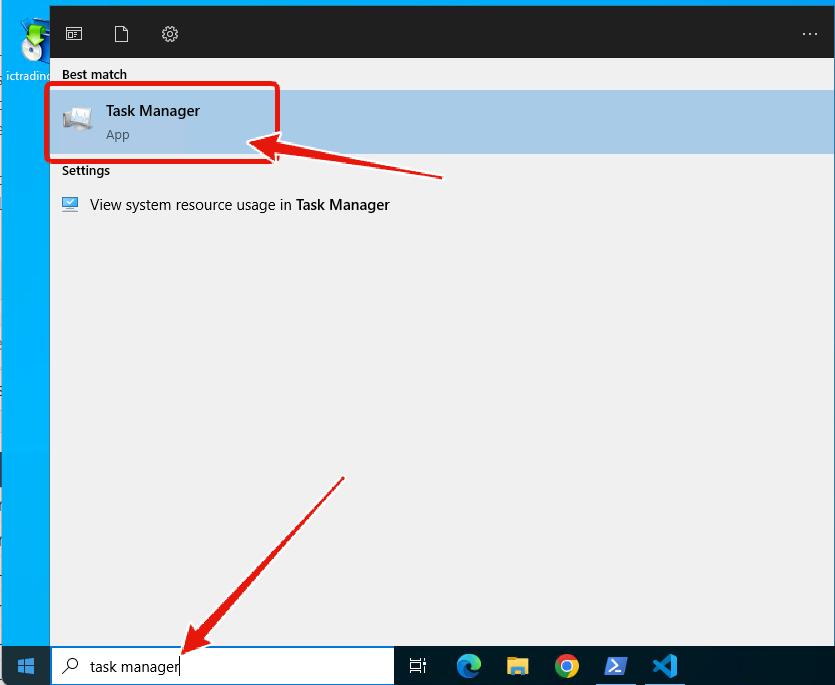
Step 1) Open Task Manager

Open Task Manager
On your VPS, use the Windows search feature and open task manager

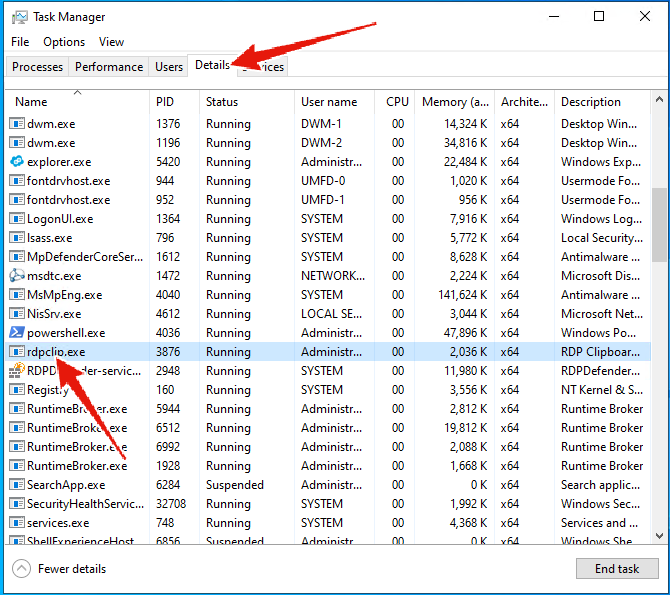
Step 2) Locate the rdpclip.exe process

Locate the rdpclip.exe process in Task Manager
Navigate to the details tab, and locate the rdpclip.exe process. If you do not see the rdpclip process, skip to step 4.

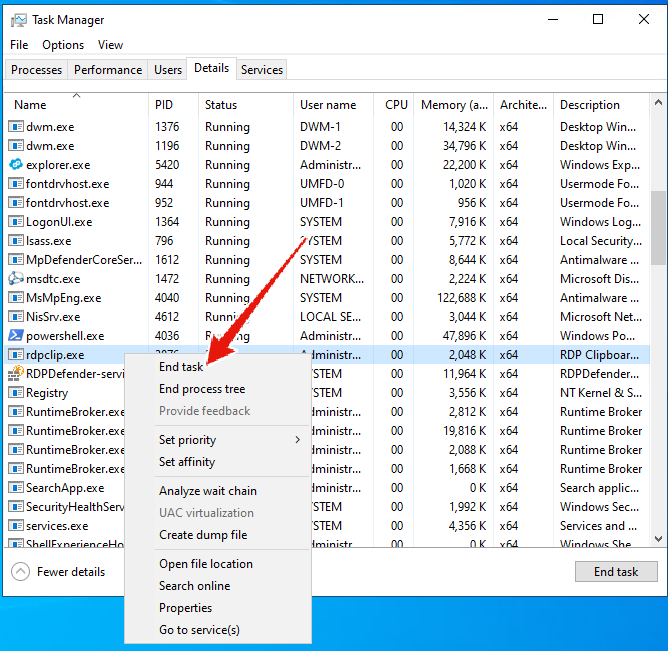
Step 3) End the rdpclip.exe process

End the rdpclip.exe process
Right click on the rdpclip.exe process, and click end task

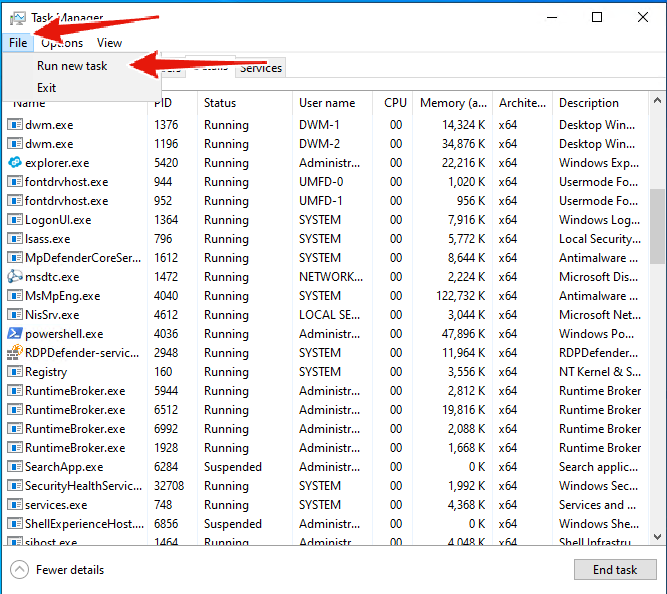
Step 4) Open run new task dialog

Open the Run new task dialog in Task Manager
Inside the Task Manager program, click file > run new task.

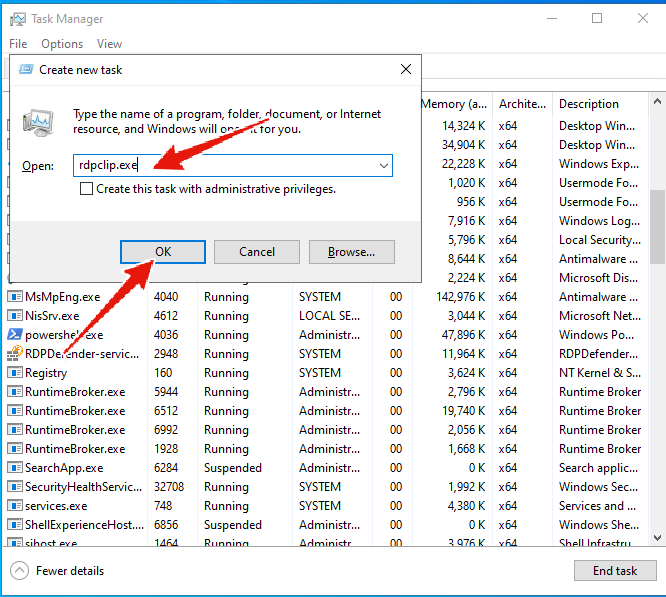
Step 5) Run new rdpclip.exe process

Run rdpclip.exe from the Create new task dialog
Inside of the create new task dialog, enter “rdpclip.exe” and click the ok button.
RDP copy and paste functionality should now be restored. If you are still experiencing problems with copy and paste functionality, the problem is likely caused caused by Remote Desktop settings on your local computer. You may use the steps below to troubleshoot and fix copy/paste settings.

Fixing Remote Desktop Clipboard Permissions

These steps should be performed on your local computer before connecting to the VPS.

Step 1) Open Remote Desktop Connection Program

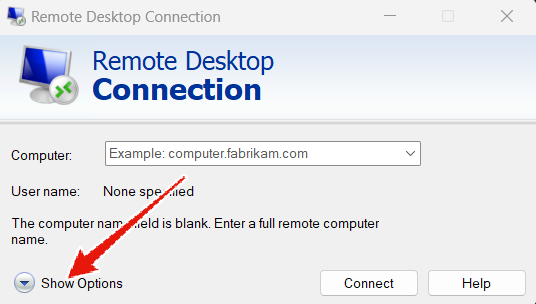
Open Remote Desktop Connection and show options
Open the remote desktop connection program on your computer, and click “show options”

Step 2) Local Resources Tab + Settings

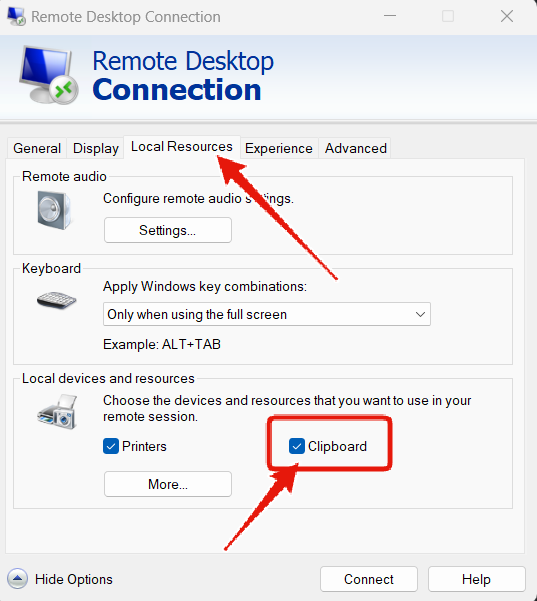
Enable Clipboard under Local Resources settings
Click on the local resources tab, and check the clipboard settings under local devices and resources. The clipboard option needs to be checked in order to allow for copy and paste. The settings display should match the screenshot above exactly.

Step 3) Save Settings + Re-Connect

Once the clipboard setting has been checked and enabled, you can then click the “hide options” button and connect to your service.

Contact Support

If problems persist with copy & paste after following the steps in this guide, please contact support regarding the problem and we’ll be happy to assist you.