> ## Documentation Index
> Fetch the complete documentation index at: https://knowledgebase.newyorkcityservers.com/llms.txt
> Use this file to discover all available pages before exploring further.
# Remote Desktop Audio Not Working
> How to enable audio playback when connected to your VPS via Remote Desktop.
All NYCServers VPS services come with Windows Audio enabled by default. If you are unable to hear audio on your VPS, the issue is most likely caused by the remote desktop application settings on your local computer.
Follow the steps below for your operating system to enable audio playback.
## Windows
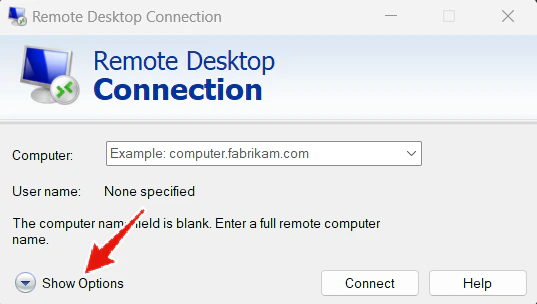 Open the **Remote Desktop Connection** program on your computer and click **"Show Options"** to expand the settings.
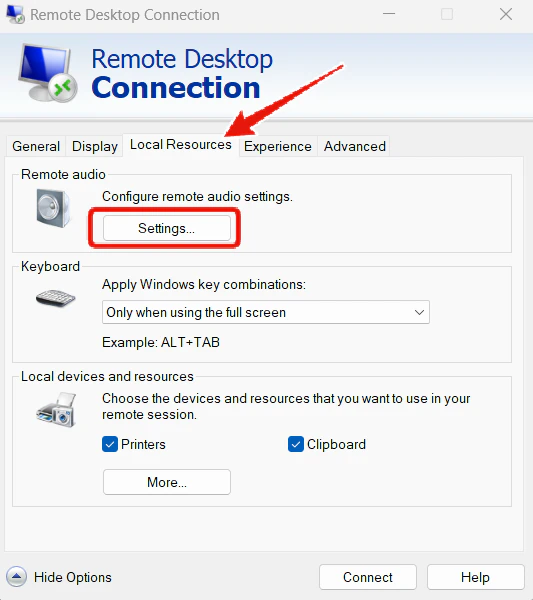 Click the **Local Resources** tab. Under "Remote audio", click the **"Settings..."** button.
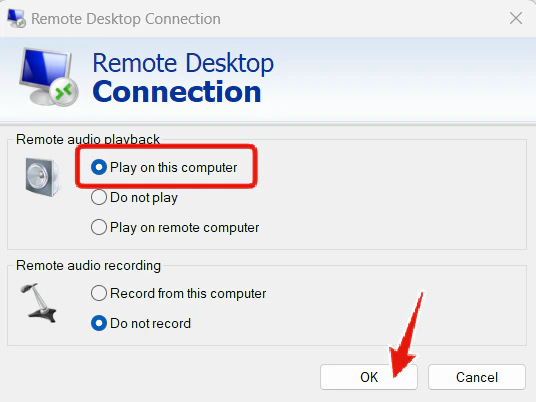 Under "Remote audio playback", select **"Play on this computer"** and click **OK**.
Reconnect to your VPS. Audio should now play through your local computer.
***
## Mac
If you are using **Microsoft Remote Desktop** on Mac, follow these steps:
Under "Remote audio playback", select **"Play on this computer"** and click **OK**.
Reconnect to your VPS. Audio should now play through your local computer.
***
## Mac
If you are using **Microsoft Remote Desktop** on Mac, follow these steps:
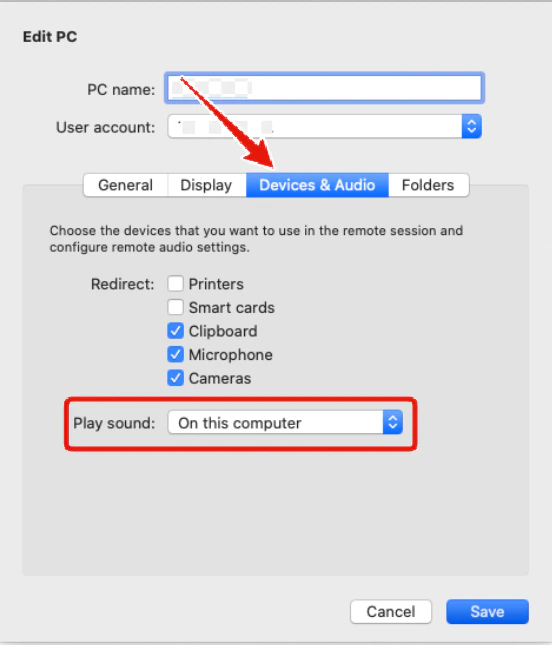 Open Microsoft Remote Desktop, right-click your saved PC connection and select **Edit**. Click the **"Devices & Audio"** tab and set **"Play sound"** to **"On this computer"**. Click **Save**.
Reconnect to your VPS. Audio should now play through your Mac.
***
## Contact Support
If you are still unable to hear audio after following these steps, please [contact support](mailto:support@newyorkcityservers.com) and we'll be happy to assist you.
Open Microsoft Remote Desktop, right-click your saved PC connection and select **Edit**. Click the **"Devices & Audio"** tab and set **"Play sound"** to **"On this computer"**. Click **Save**.
Reconnect to your VPS. Audio should now play through your Mac.
***
## Contact Support
If you are still unable to hear audio after following these steps, please [contact support](mailto:support@newyorkcityservers.com) and we'll be happy to assist you.