> ## Documentation Index
> Fetch the complete documentation index at: https://knowledgebase.newyorkcityservers.com/llms.txt
> Use this file to discover all available pages before exploring further.
# RDP Lockdown
> Restrict RDP access for your VPS
The VPS security panel offers the ability to enable RDP Lockdown, restricting access to specific IPs only and blocking all other RDP traffic.
## Where To Find RDP Lockdown
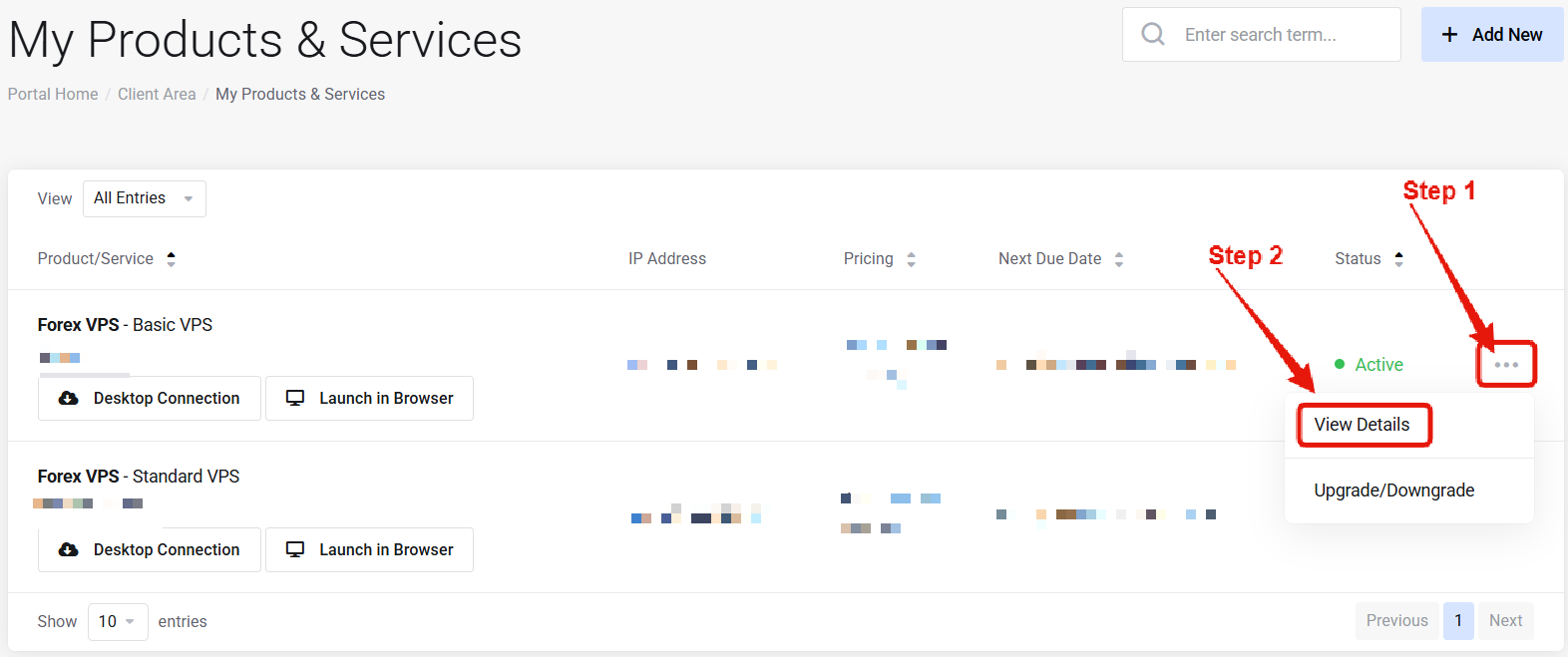 Visit the ["My Products & Services" page](https://newyorkcityservers.com/billing/clientarea.php), and find the specific service that you wish to manage. Click on the three dots to the right side, and then click "View Details".
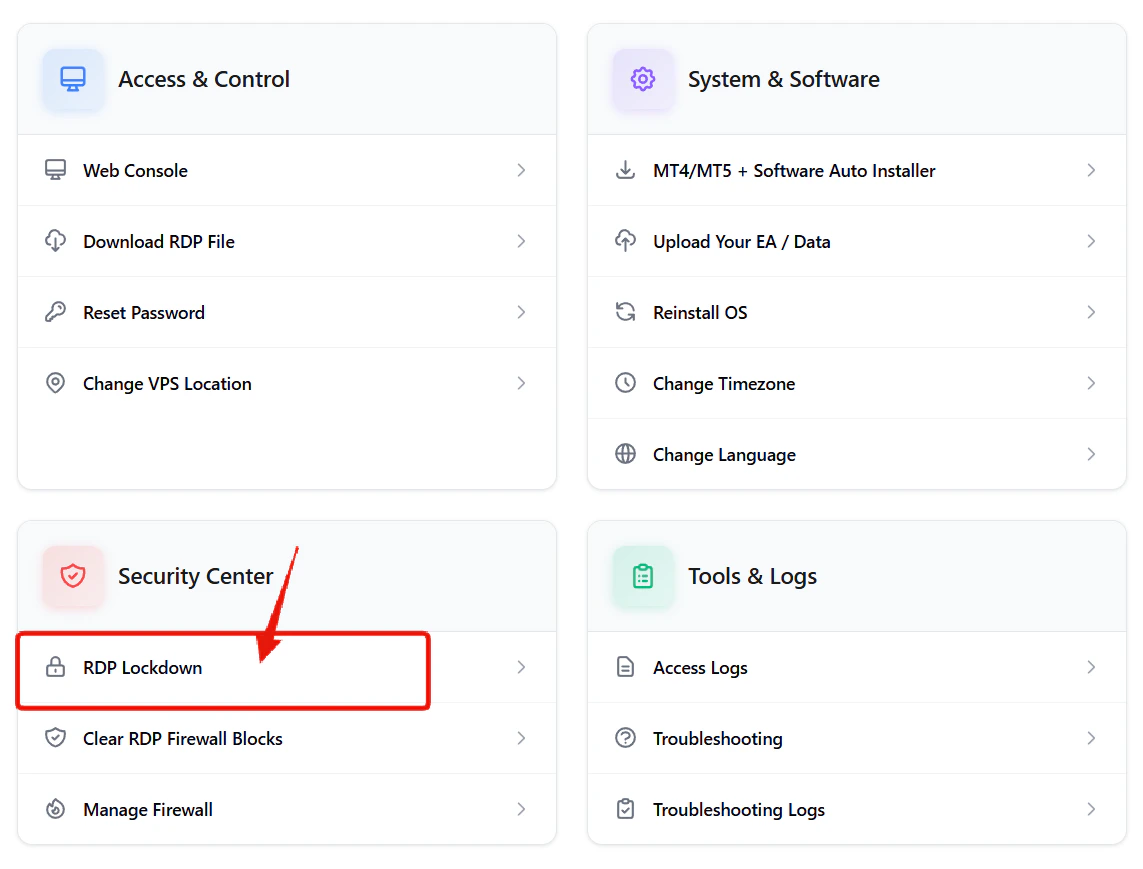 Scroll down the page until you locate the "VPS Security" section. Look for the RDP Lockdown option.
***
## How to Enable RDP Lockdown
Scroll down the page until you locate the "VPS Security" section. Look for the RDP Lockdown option.
***
## How to Enable RDP Lockdown
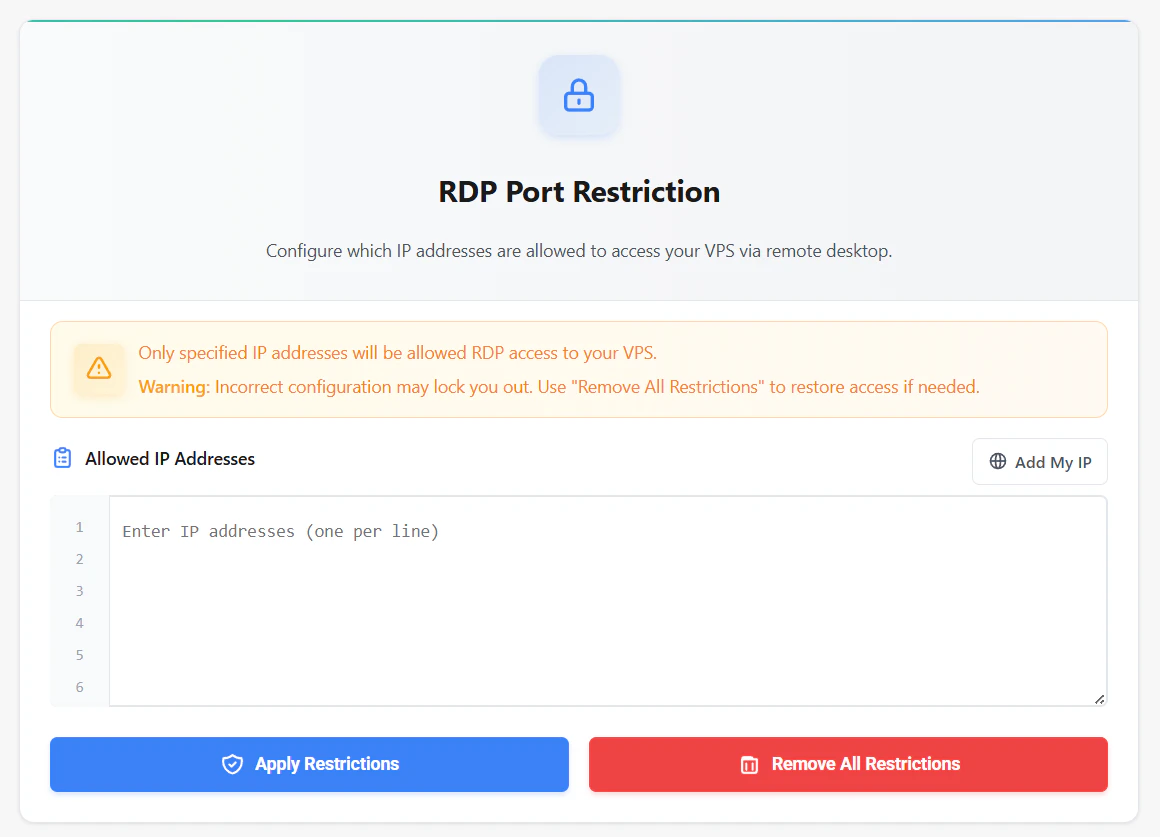 Fill in the **"Allowed IP Addresses"** box with a list of IP addresses that are authorized to access your VPS via RDP. Each IP address should be entered on a dedicated line.
The input supports individual IPs, as well as network block notation such as `192.168.0/24`.
After all authorized IPs are entered, click **"Apply Restrictions"**. The restrictions will be applied immediately. Going forward, only the allowed IPs will be able to access remote desktop for your VPS — all other RDP traffic will be blocked.
***
## How to Remove RDP Lockdown
If you accidentally lock yourself out of RDP access, you can remove the restrictions from the client area — no VPS access required.
Simply click the **"Remove All Restrictions"** button. Any restrictions put in place will be removed and all IPs will be able to connect again.
***
## Common Questions
The allowed IP address field supports IP address ranges (`192.168.0/24`) so that you can easily whitelist a range of IPs.
No — only RDP traffic. Use the [Firewall](/management/vps-security/firewall) for other port protections.
Fill in the **"Allowed IP Addresses"** box with a list of IP addresses that are authorized to access your VPS via RDP. Each IP address should be entered on a dedicated line.
The input supports individual IPs, as well as network block notation such as `192.168.0/24`.
After all authorized IPs are entered, click **"Apply Restrictions"**. The restrictions will be applied immediately. Going forward, only the allowed IPs will be able to access remote desktop for your VPS — all other RDP traffic will be blocked.
***
## How to Remove RDP Lockdown
If you accidentally lock yourself out of RDP access, you can remove the restrictions from the client area — no VPS access required.
Simply click the **"Remove All Restrictions"** button. Any restrictions put in place will be removed and all IPs will be able to connect again.
***
## Common Questions
The allowed IP address field supports IP address ranges (`192.168.0/24`) so that you can easily whitelist a range of IPs.
No — only RDP traffic. Use the [Firewall](/management/vps-security/firewall) for other port protections.