> ## Documentation Index
> Fetch the complete documentation index at: https://knowledgebase.newyorkcityservers.com/llms.txt
> Use this file to discover all available pages before exploring further.
# Firewall
> Create and manage custom firewall rules for your VPS
The manage firewall page allows users to create and manage custom firewall rules for their VPS. Secure your VPS your way!
## Where To Find Firewall
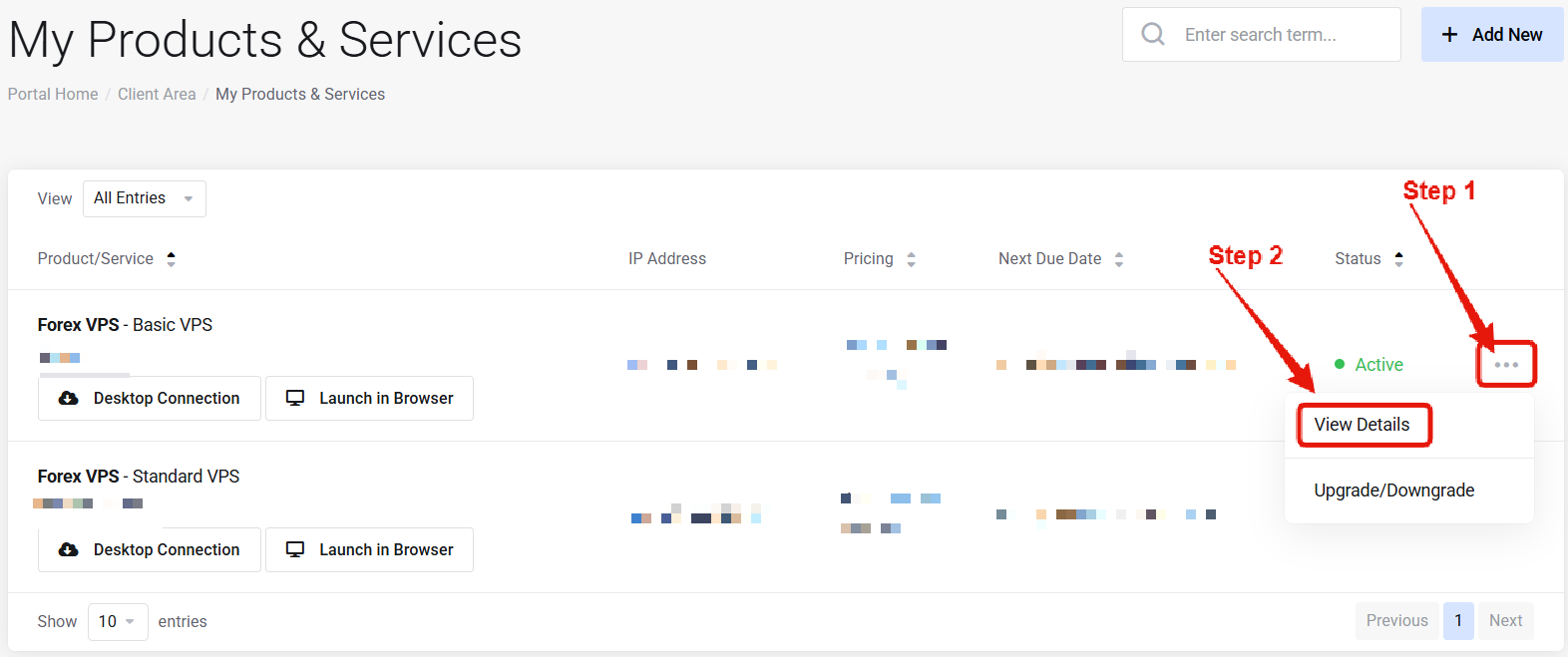 Visit the ["My Products & Services" page](https://newyorkcityservers.com/billing/clientarea.php), and find the specific service that you wish to manage. Click on the three dots to the right side, and then click "View Details".
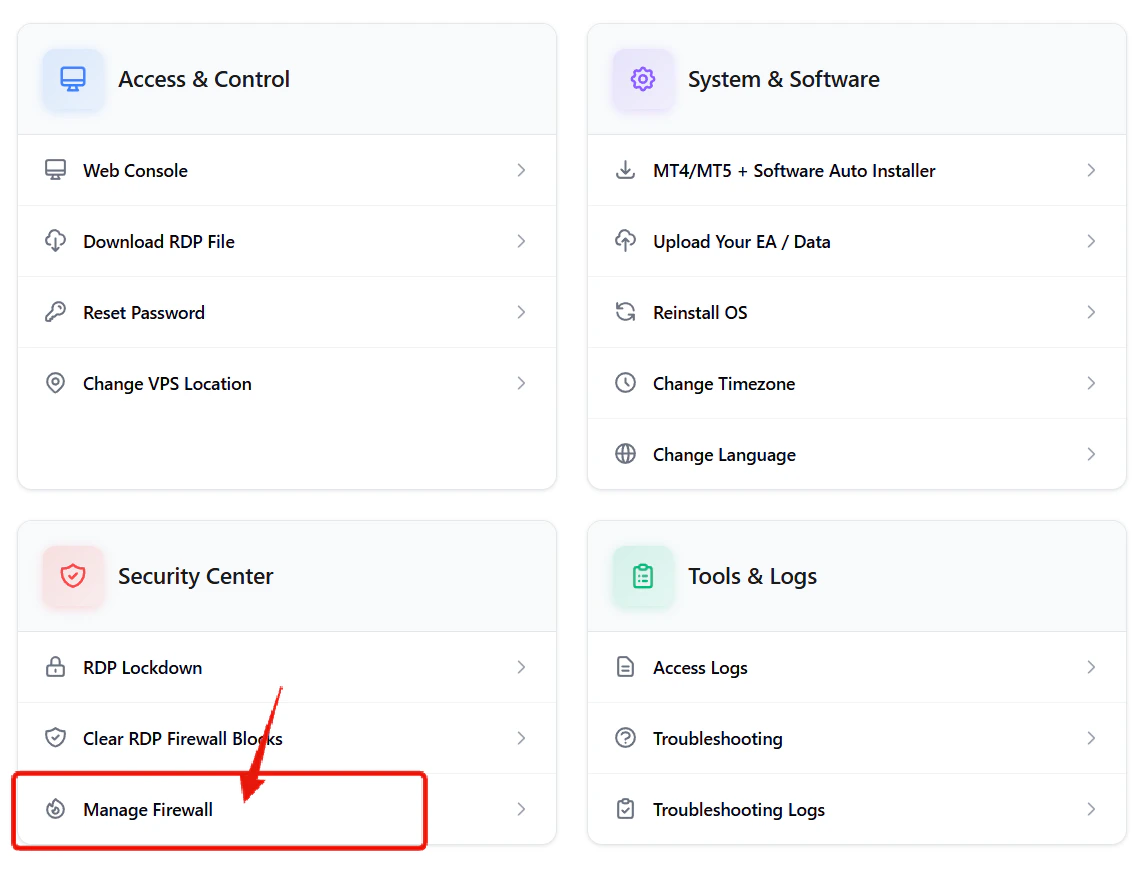 Scroll down the page until you locate the "VPS Security" section. Look for the Firewall option inside of the security center section.
***
## Create & Manage Custom Firewall Rules
Scroll down the page until you locate the "VPS Security" section. Look for the Firewall option inside of the security center section.
***
## Create & Manage Custom Firewall Rules
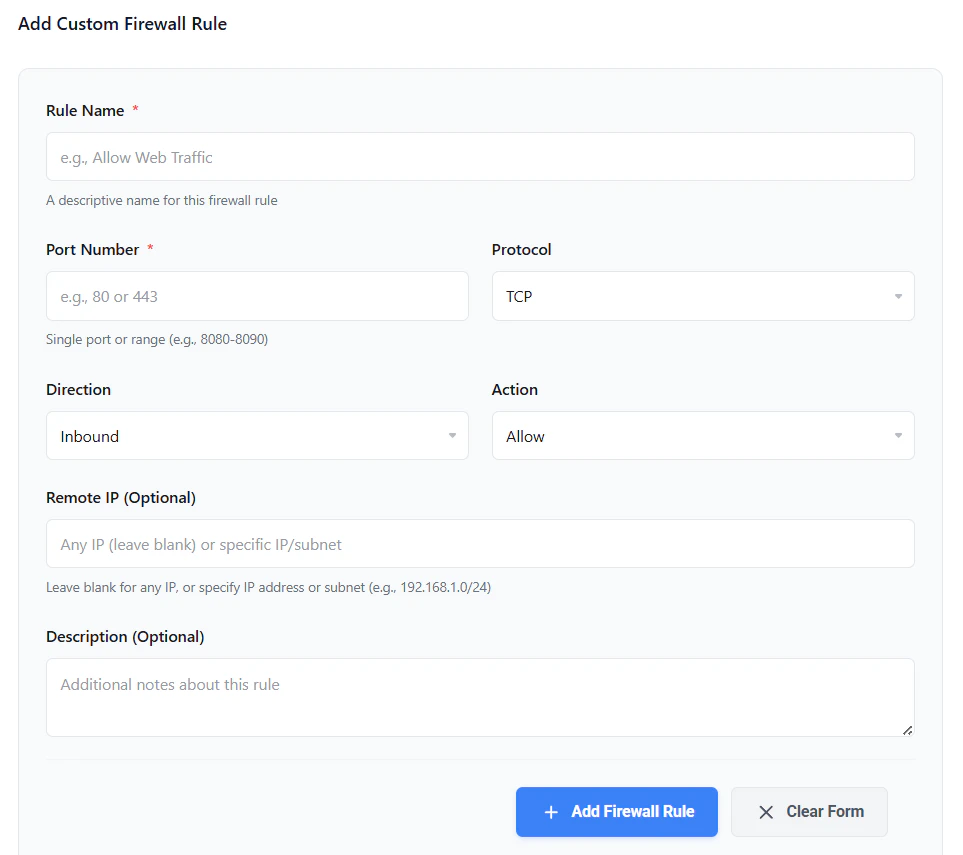 The manage firewall rules page allows you to view and manage all of your current custom firewall rules.
* **Add a rule**: Click the **"Add Rule"** tab, complete the custom firewall rule form, and click **"Add Firewall Rule"**. The rule will be implemented instantly.
* **Clear all rules**: Click the **"Clear Firewall"** tab and select **"Clear All Custom Rules"**. This will delete all custom rules at once and reset the firewall to a clean default state.
***
## Common Questions
Yes. All services come with default firewall rules. Any custom rules are an addition to the default rules.
No — all rules are applied instantly without the need for a reboot.
The manage firewall rules page allows you to view and manage all of your current custom firewall rules.
* **Add a rule**: Click the **"Add Rule"** tab, complete the custom firewall rule form, and click **"Add Firewall Rule"**. The rule will be implemented instantly.
* **Clear all rules**: Click the **"Clear Firewall"** tab and select **"Clear All Custom Rules"**. This will delete all custom rules at once and reset the firewall to a clean default state.
***
## Common Questions
Yes. All services come with default firewall rules. Any custom rules are an addition to the default rules.
No — all rules are applied instantly without the need for a reboot.