> ## Documentation Index
> Fetch the complete documentation index at: https://knowledgebase.newyorkcityservers.com/llms.txt
> Use this file to discover all available pages before exploring further.
# Upload EA & Data
> Upload your EAs and data directly to your VPS from the web browser!
The VPS control panel offers the ability to upload EAs, files, or setups directly to your VPS right from the client area.
## Where To Find Upload EA & Data
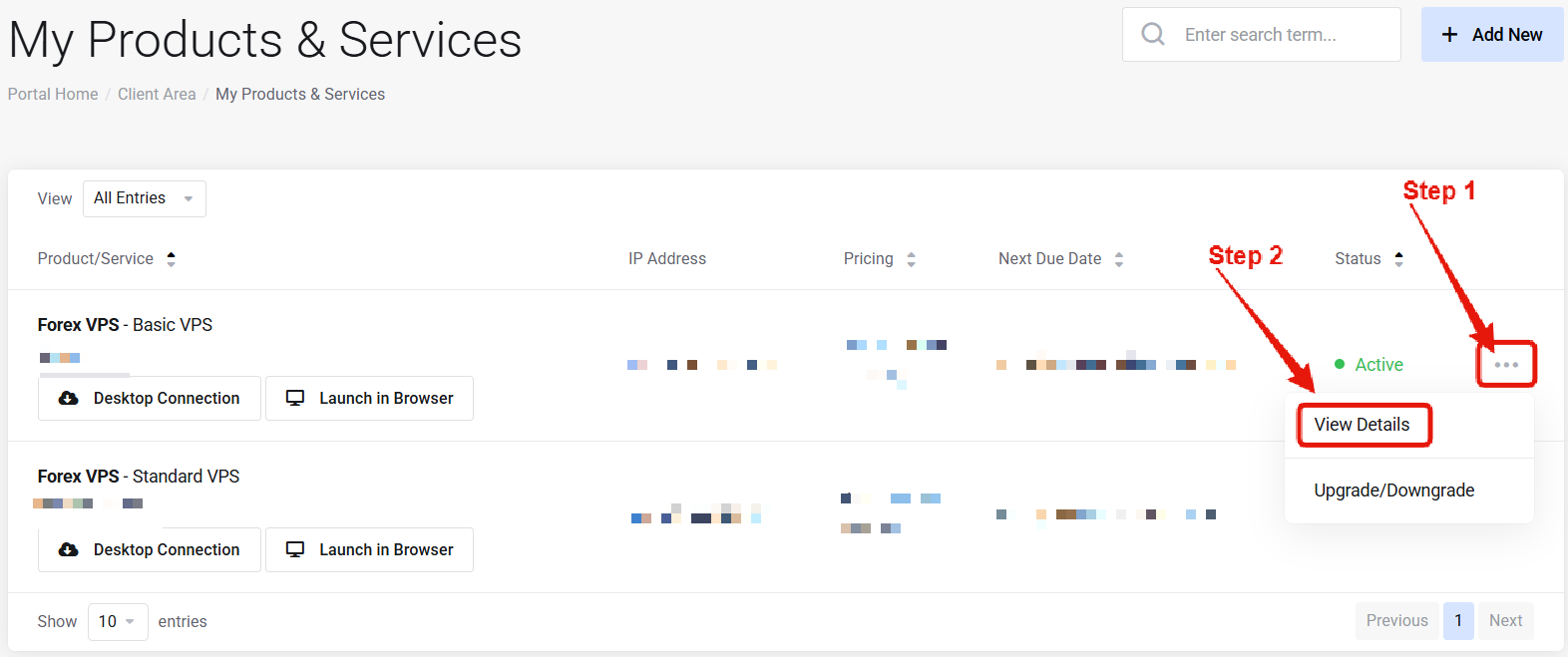 Visit the ["My Products & Services" page](https://newyorkcityservers.com/billing/clientarea.php), and find the specific service that you wish to manage. Click on the three dots to the right side, and then click "View Details".
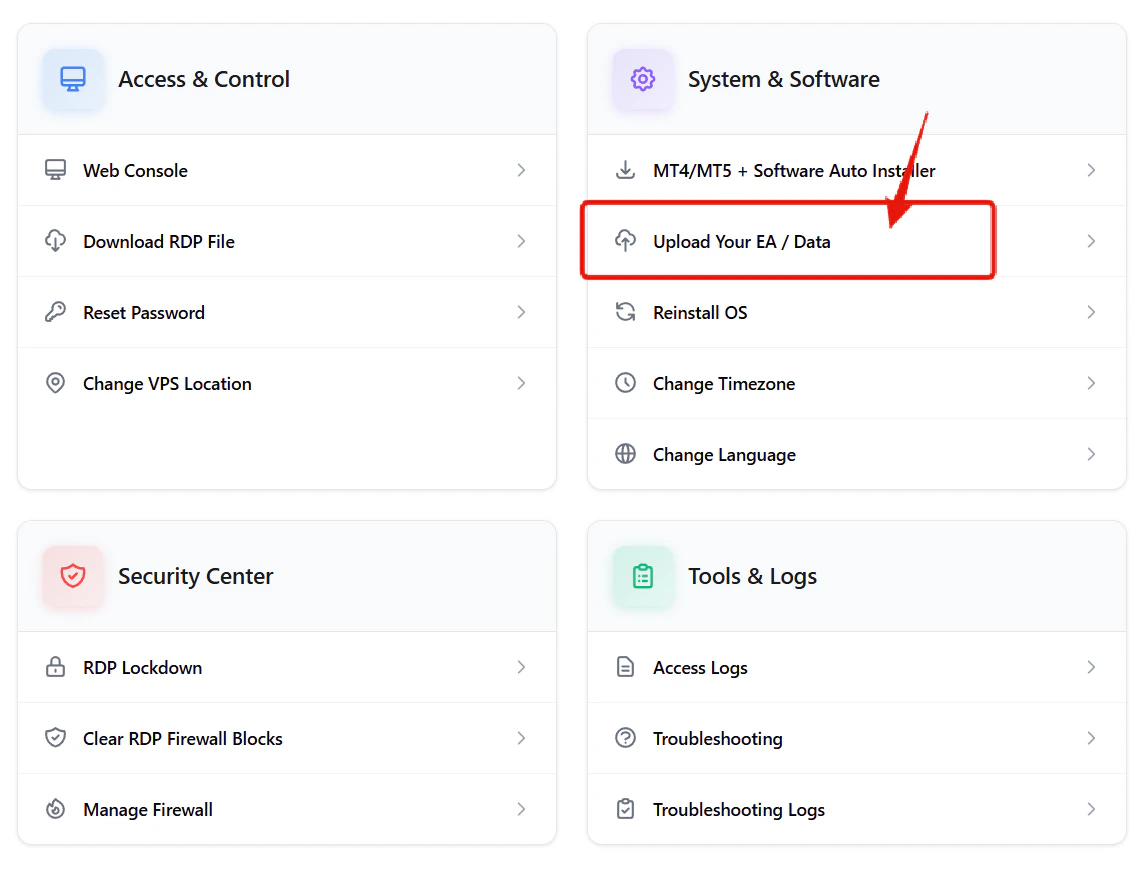 Scroll down the page until you locate the "VPS Control Panel" section. Look for the Upload EA & Data link under "System and Software".
***
## How to Upload Your EA & Data
Scroll down the page until you locate the "VPS Control Panel" section. Look for the Upload EA & Data link under "System and Software".
***
## How to Upload Your EA & Data
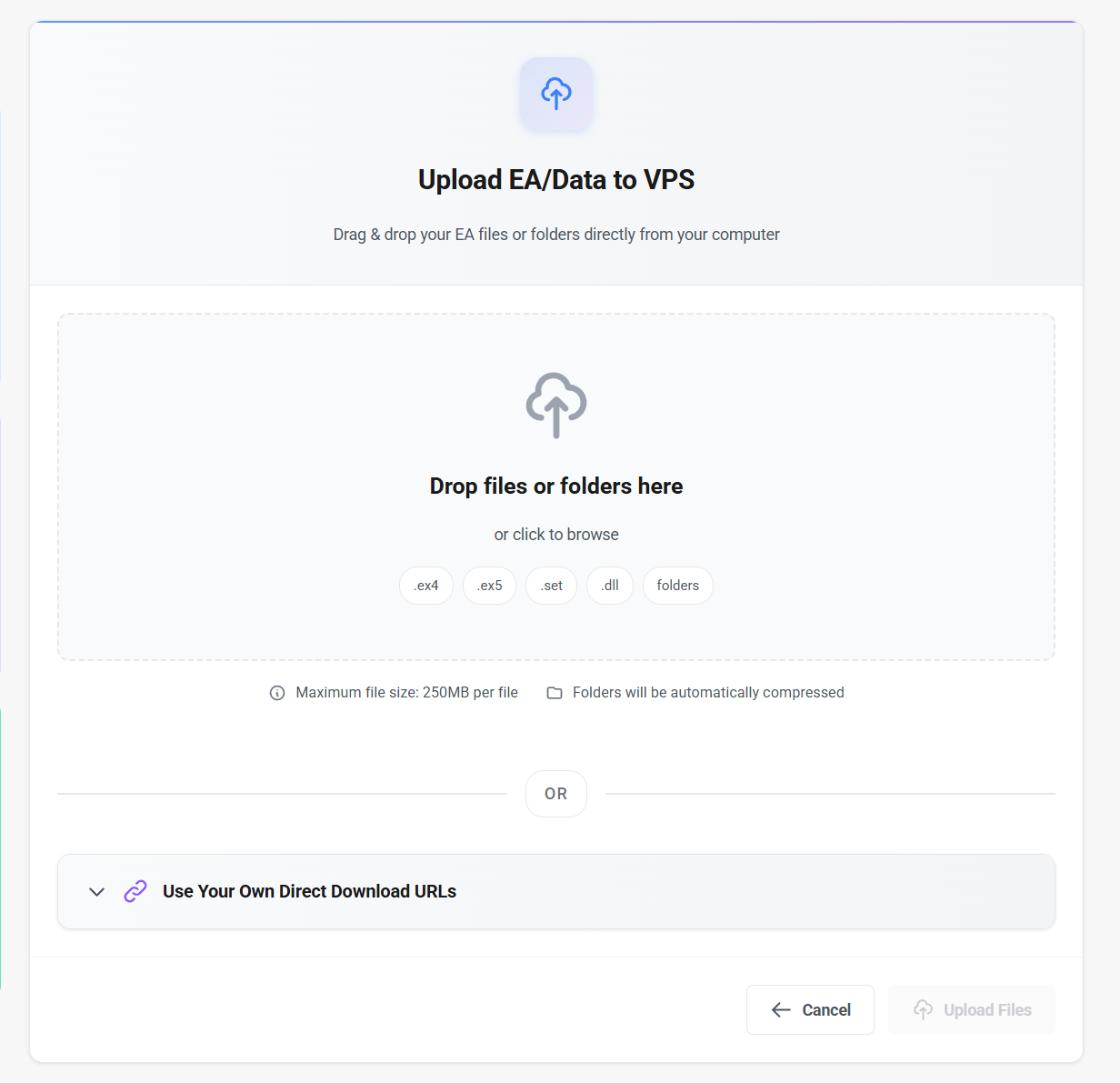 Drag and drop your EAs and files directly onto the page. Supports `.ex4`, `.ex5`, `.set`, `.dll`, and folders/zip files up to 200MB.
Upload via a publicly accessible URL (Google Drive, Dropbox, etc). Paste the link and your VPS will download the data directly.
Once the upload is complete, files will be located in a folder on the VPS desktop titled **"NYCServers File Transfer"**.
***
## Common Questions
Drag and drop supports common trading files like .ex4/.ex5 EAs, .set presets, indicators, or data folders. You may use any file type with the direct download URL option.
A folder titled "NYCServers File Transfer" is created on the VPS desktop. All uploaded data will be stored here.
Use the direct download URL option for larger files — there is no size limit when downloading from an external URL.
Drag and drop your EAs and files directly onto the page. Supports `.ex4`, `.ex5`, `.set`, `.dll`, and folders/zip files up to 200MB.
Upload via a publicly accessible URL (Google Drive, Dropbox, etc). Paste the link and your VPS will download the data directly.
Once the upload is complete, files will be located in a folder on the VPS desktop titled **"NYCServers File Transfer"**.
***
## Common Questions
Drag and drop supports common trading files like .ex4/.ex5 EAs, .set presets, indicators, or data folders. You may use any file type with the direct download URL option.
A folder titled "NYCServers File Transfer" is created on the VPS desktop. All uploaded data will be stored here.
Use the direct download URL option for larger files — there is no size limit when downloading from an external URL.