> ## Documentation Index
> Fetch the complete documentation index at: https://knowledgebase.newyorkcityservers.com/llms.txt
> Use this file to discover all available pages before exploring further.
# Reinstall OS
> Reinstall Windows on your VPS
The VPS control panel offers the ability to reinstall Windows on your VPS, wiping and resetting it to a fresh state.
This operation will result in all data being deleted on your VPS. Backup any data that is needed before proceeding. We cannot recover data after a reinstall is performed.
## Where To Find Reinstall OS Page
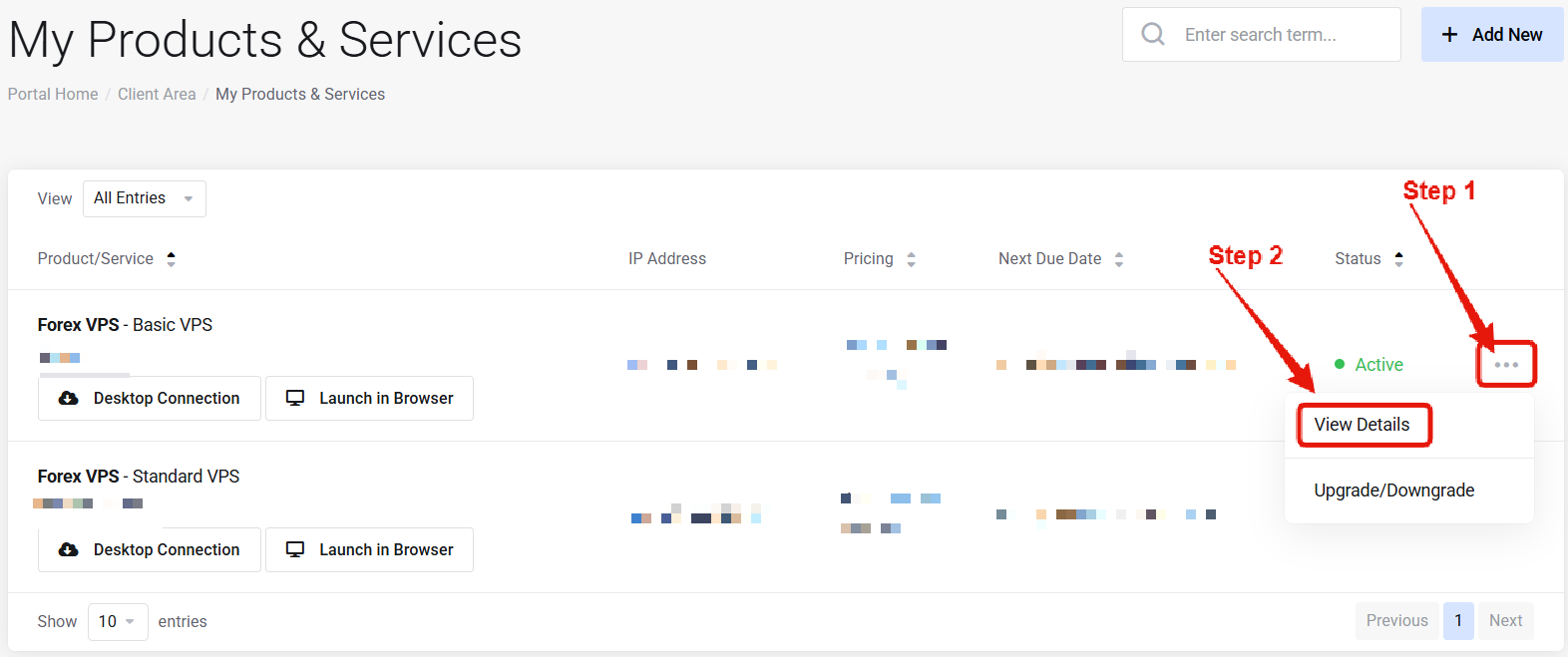 Visit the ["My Products & Services" page](https://newyorkcityservers.com/billing/clientarea.php), and find the specific service that you wish to manage. Click on the three dots to the right side, and then click "View Details".
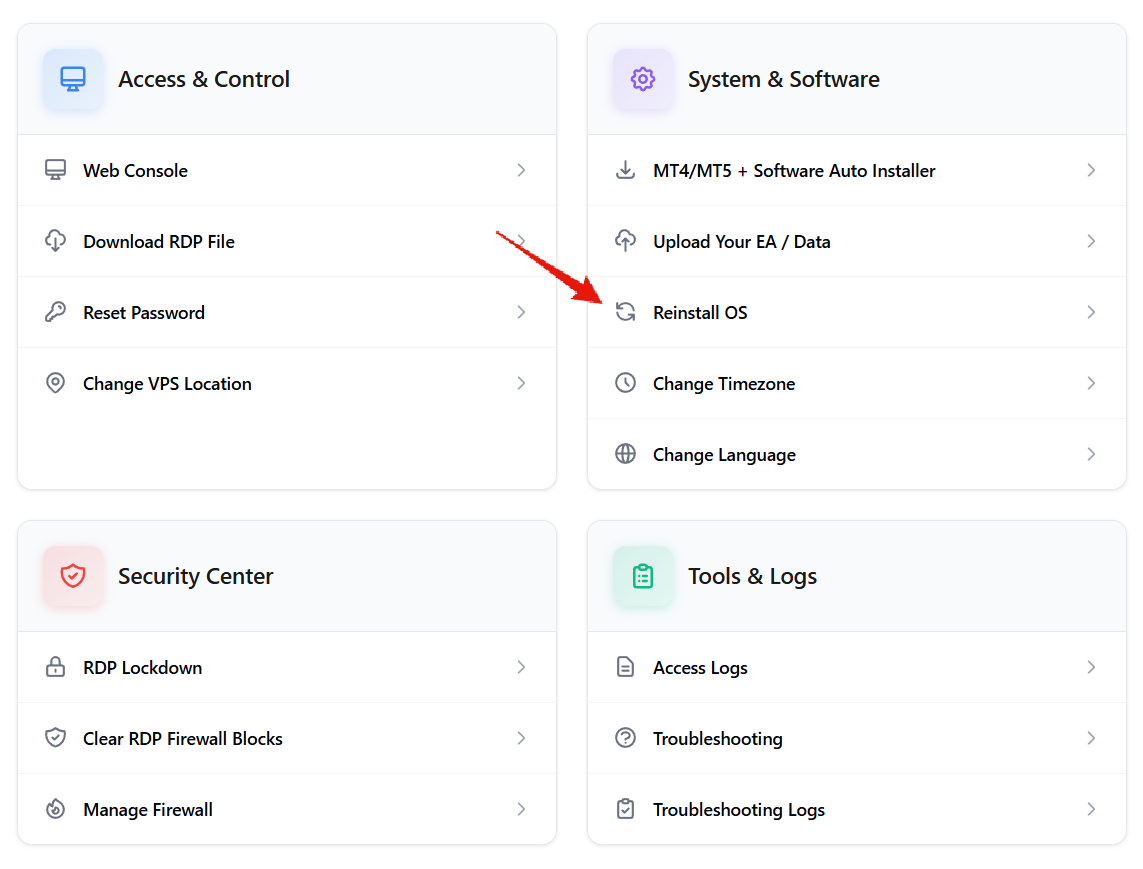 Scroll down the page until you locate the "VPS Control Panel" section. Under the "System & Software" section locate and click on Reinstall OS.
***
## How to Reinstall OS on Your VPS
Scroll down the page until you locate the "VPS Control Panel" section. Under the "System & Software" section locate and click on Reinstall OS.
***
## How to Reinstall OS on Your VPS
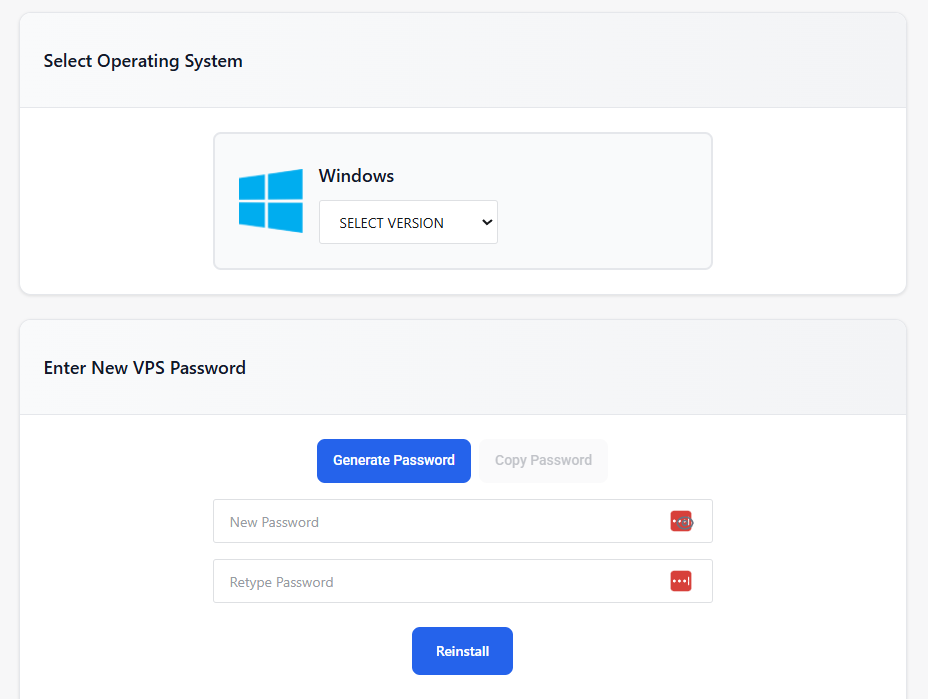 Use the drop down menu to select the Windows version that you wish to reinstall on your VPS.
Enter the new access password that you wish to use for the Windows installation. This will be the password used to access the VPS from remote desktop going forward.
Click the "Reinstall" button, and then wait for the process to complete — usually 10 minutes or less.
Once the success message appears, the install is complete and you will be able to log in using remote desktop within a few minutes.
***
## Common Questions
Yes — reinstall wipes all files and setups. Back up important data before proceeding. We cannot recover data after a reinstall has been issued.
Approximately 10 minutes. The reinstall OS page will inform you once the reinstall is completed.
No — IP, plan, and other settings remain the same.
Use the drop down menu to select the Windows version that you wish to reinstall on your VPS.
Enter the new access password that you wish to use for the Windows installation. This will be the password used to access the VPS from remote desktop going forward.
Click the "Reinstall" button, and then wait for the process to complete — usually 10 minutes or less.
Once the success message appears, the install is complete and you will be able to log in using remote desktop within a few minutes.
***
## Common Questions
Yes — reinstall wipes all files and setups. Back up important data before proceeding. We cannot recover data after a reinstall has been issued.
Approximately 10 minutes. The reinstall OS page will inform you once the reinstall is completed.
No — IP, plan, and other settings remain the same.