> ## Documentation Index
> Fetch the complete documentation index at: https://knowledgebase.newyorkcityservers.com/llms.txt
> Use this file to discover all available pages before exploring further.
# Password Management
> View and manage remote desktop password for your VPS
This password management feature applies to your VPS access only. It does not affect the password used to log into your client portal.
The VPS control panel offers the ability to change or reset the password to access your VPS remotely.
## Where To Find Password Management
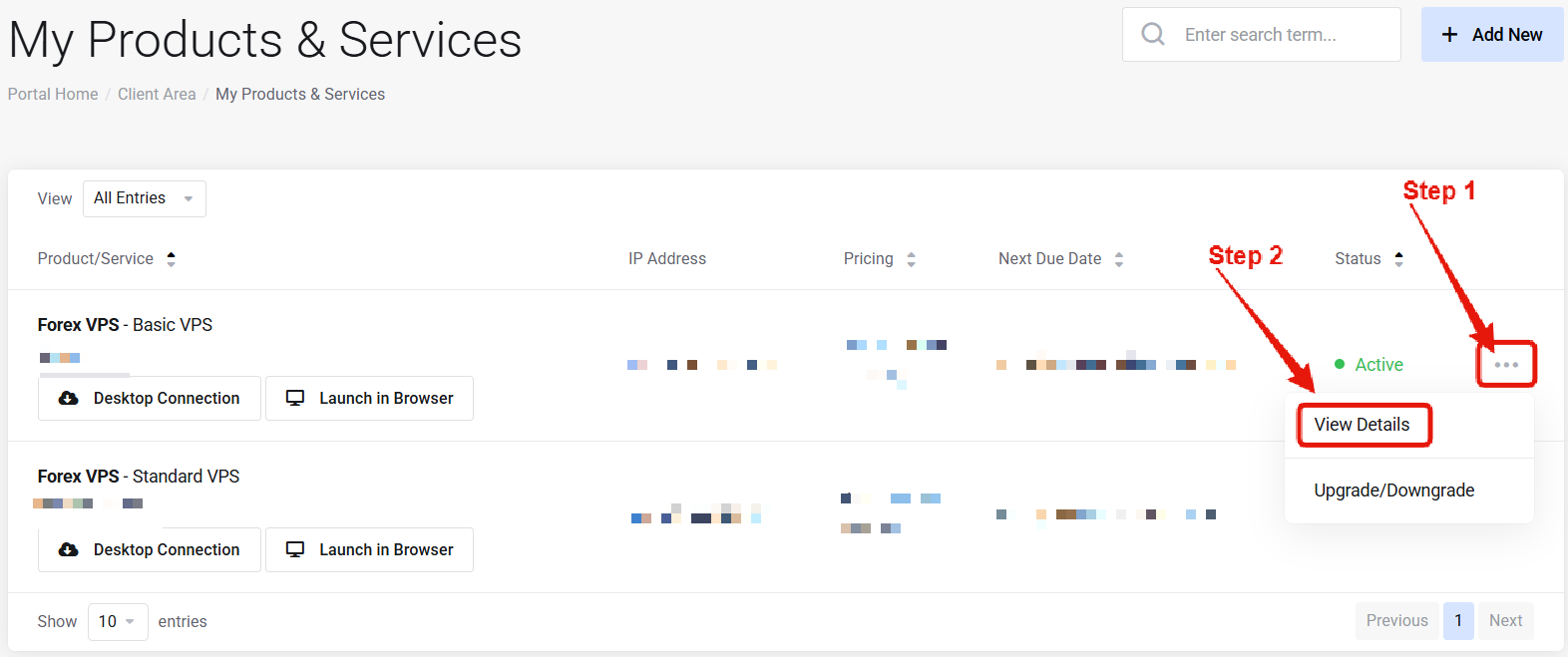 Visit the ["My Products & Services" page](https://newyorkcityservers.com/billing/clientarea.php), and find the specific service that you wish to manage. Click on the three dots to the right side, and then click "View Details".
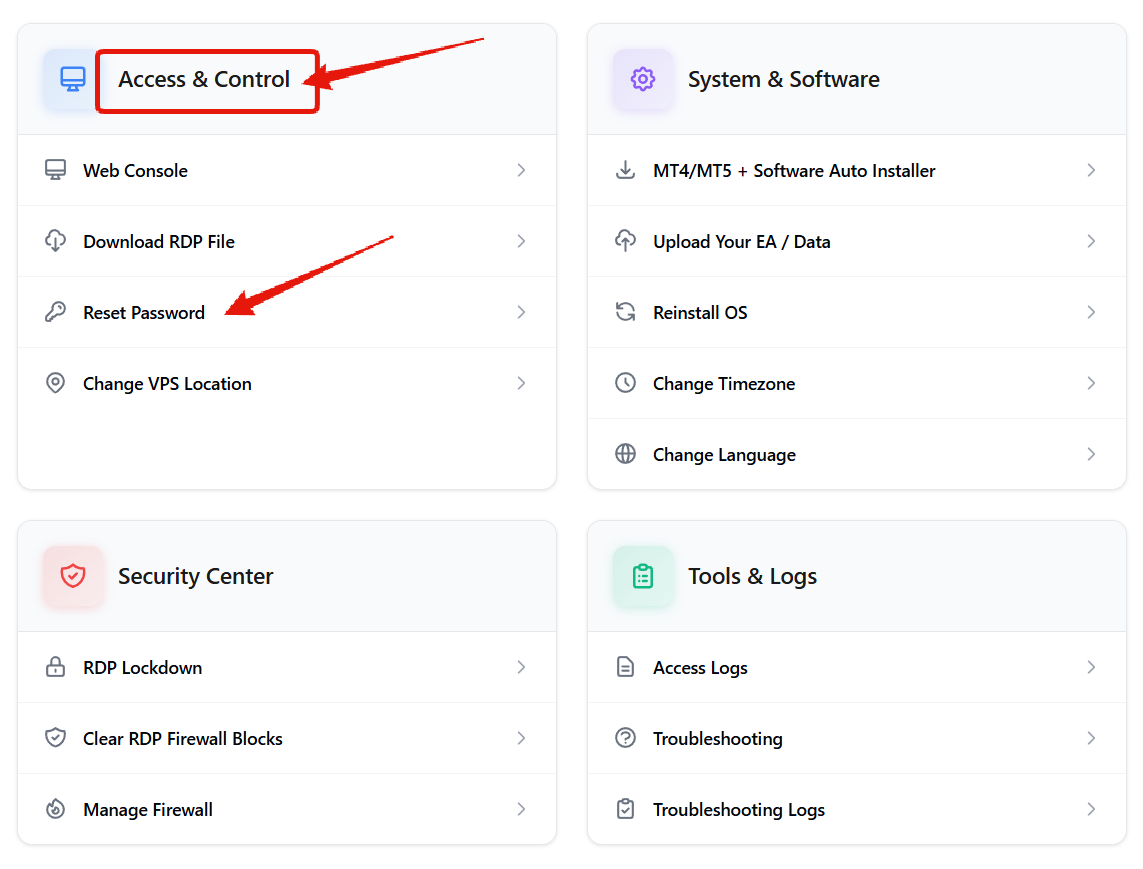 Scroll down the page until you find the "Access & Control" section. In this section locate and click on "Reset Password".
***
## How to Reset Your VPS Password
Scroll down the page until you find the "Access & Control" section. In this section locate and click on "Reset Password".
***
## How to Reset Your VPS Password
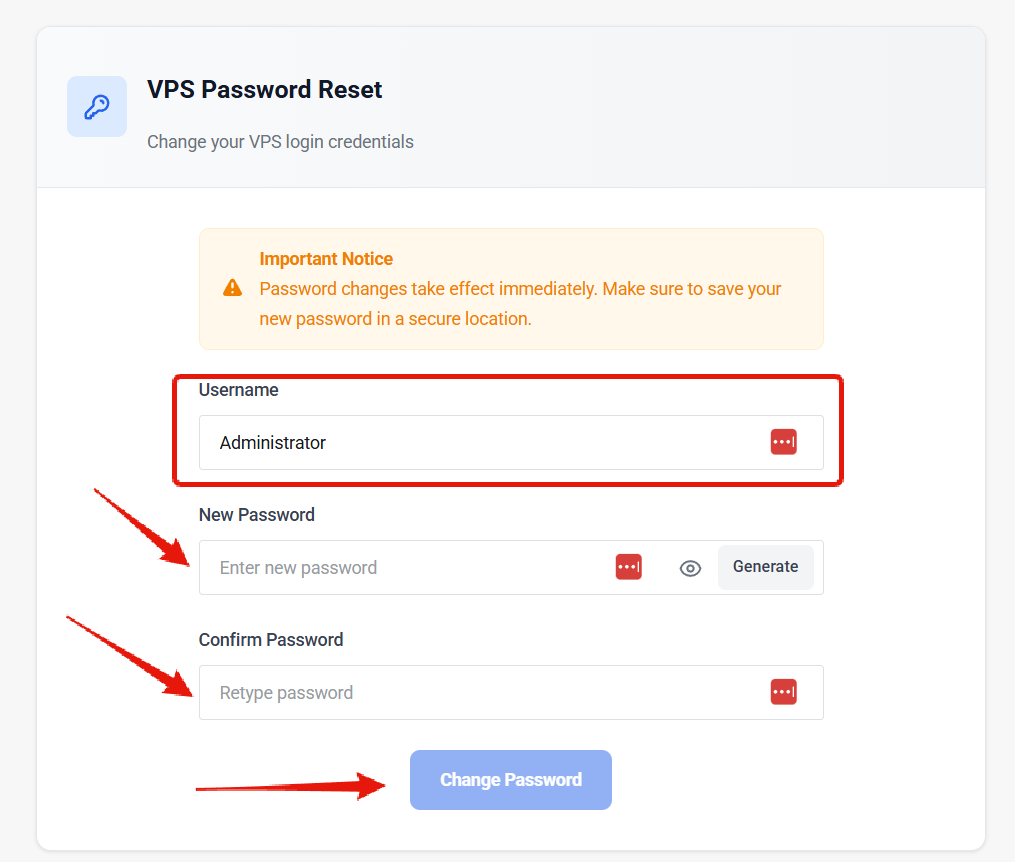 If you are using a custom Windows username, update the username field for the correct username you wish to change the password for. By default, `Administrator` is the correct username.
Enter the new password that you would like to use, and then confirm it.
After clicking the change password button, allow a few moments for the action to complete. Once the page displays the success message you will be able to access the VPS using the new password.
***
## Common Questions
No — all data will remain unchanged on the VPS. The only thing that changes is the password to access the VPS.
Immediate — reconnect right away with the new password.
If you are using a custom Windows username, update the username field for the correct username you wish to change the password for. By default, `Administrator` is the correct username.
Enter the new password that you would like to use, and then confirm it.
After clicking the change password button, allow a few moments for the action to complete. Once the page displays the success message you will be able to access the VPS using the new password.
***
## Common Questions
No — all data will remain unchanged on the VPS. The only thing that changes is the password to access the VPS.
Immediate — reconnect right away with the new password.