> ## Documentation Index
> Fetch the complete documentation index at: https://knowledgebase.newyorkcityservers.com/llms.txt
> Use this file to discover all available pages before exploring further.
# Control Panel Overview
> An overview of the NYCServers VPS control panel and service management tools inside the client area.
NYCServers has developed a custom service management portal for clients to control their VPS on demand — handle power, software installations, data upload, and more with ease and automation.
Use this page as the high-level control panel overview. The related control panel feature and VPS security docs are listed under the **Control Panel** section.
## Where Can I Find the Management Features?
The VPS control features are available on your service's management page. To get here:
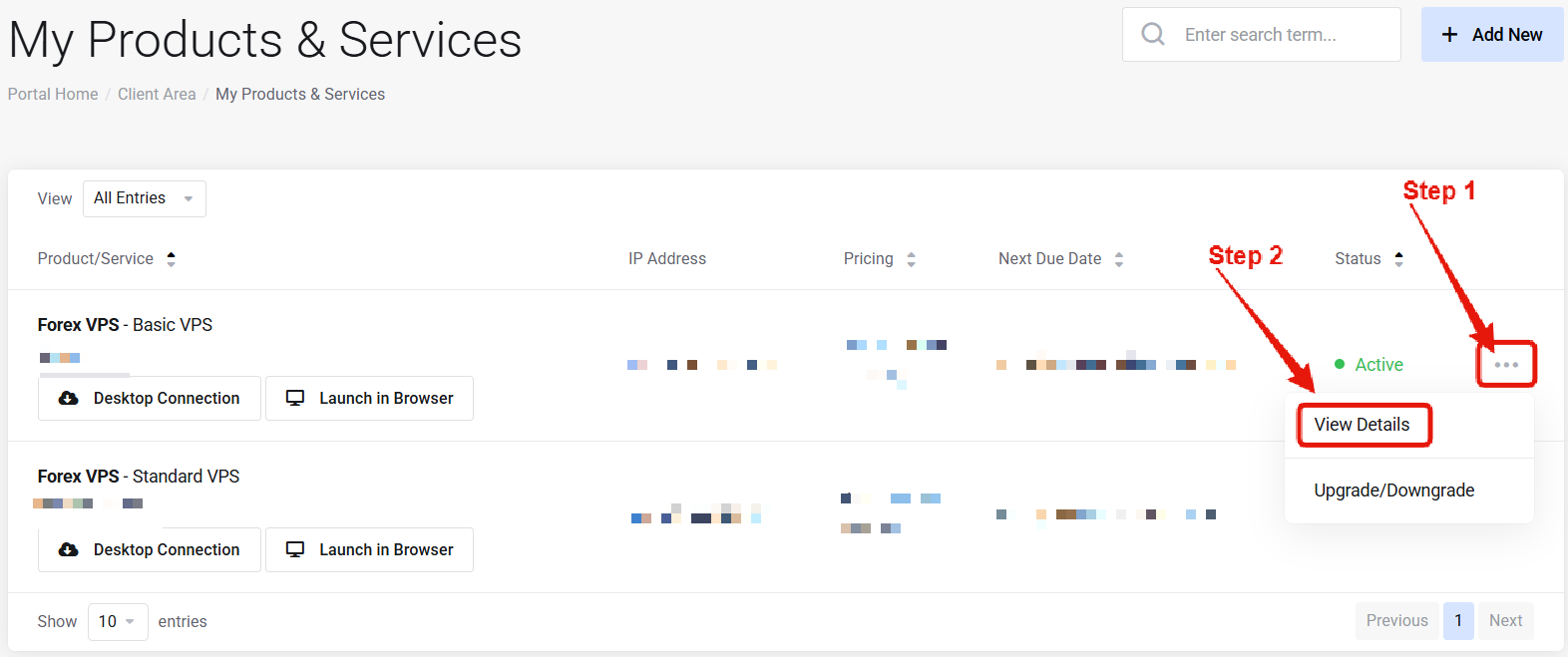 Visit the ["My Products & Services" page](https://newyorkcityservers.com/billing/clientarea.php), and find the specific service that you wish to manage. Click on the three dots to the right side, and then click "View Details".
Scroll down the service management page until you find the "VPS Control Panel" section.
***
## Key Features
Remote VPS power control — start, stop, and reboot.
Reset or change your VPS access password.
Reinstall Windows to a fresh state.
Install MT4/MT5 and other tools with one click.
Upload EAs and files directly to your VPS.
Set your preferred Windows timezone.
Adjust the Windows display language.
View RDP access logs for your VPS.
Visit the ["My Products & Services" page](https://newyorkcityservers.com/billing/clientarea.php), and find the specific service that you wish to manage. Click on the three dots to the right side, and then click "View Details".
Scroll down the service management page until you find the "VPS Control Panel" section.
***
## Key Features
Remote VPS power control — start, stop, and reboot.
Reset or change your VPS access password.
Reinstall Windows to a fresh state.
Install MT4/MT5 and other tools with one click.
Upload EAs and files directly to your VPS.
Set your preferred Windows timezone.
Adjust the Windows display language.
View RDP access logs for your VPS.