> ## Documentation Index
> Fetch the complete documentation index at: https://knowledgebase.newyorkcityservers.com/llms.txt
> Use this file to discover all available pages before exploring further.
# Change VPS Location
> How to migrate your VPS to a different server location using the client area.
You can migrate your VPS to a different server location at any time from the client area. This is useful if your broker changes their server location or if you switch to a broker hosted in a different region.
Your service includes **one free migration every 30 days**. Additional migrations within that period are subject to a \$10 administration fee.
## How To Migrate
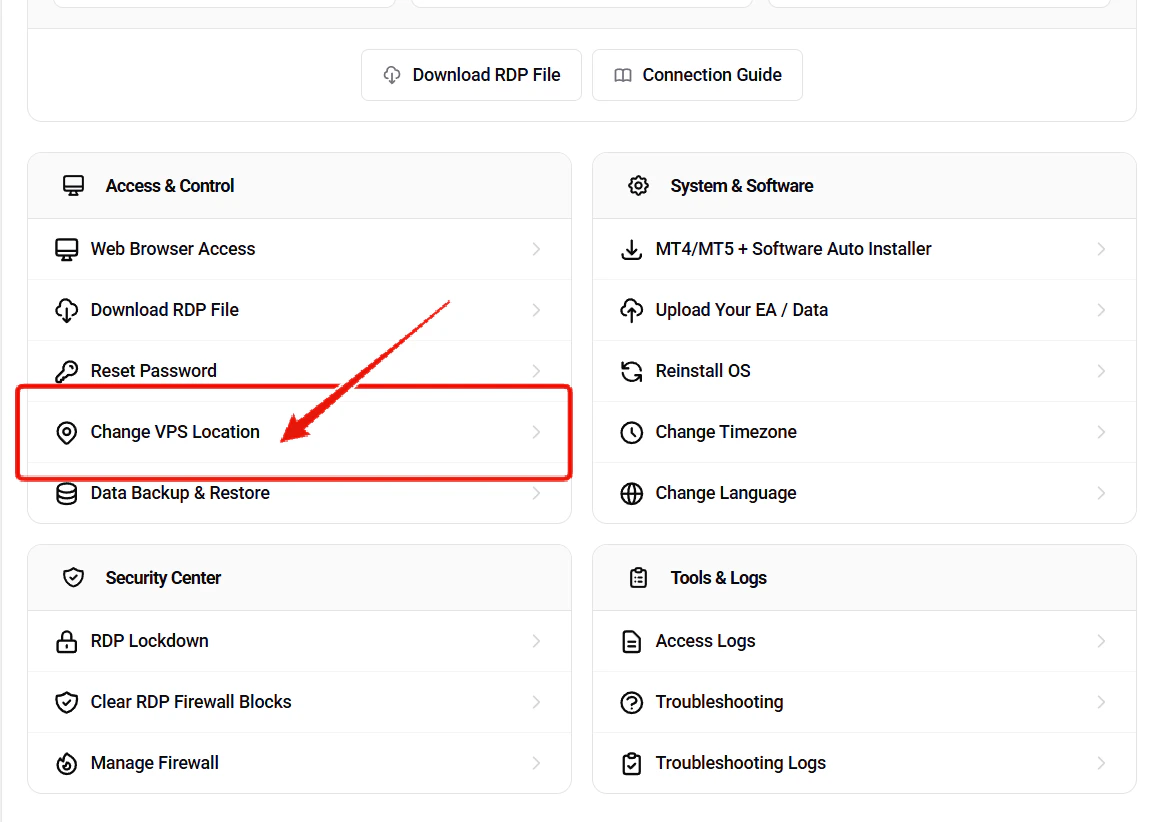 Log in to the [client area](https://newyorkcityservers.com/billing) and navigate to your VPS service. Under **Access & Control**, click **Change VPS Location**.
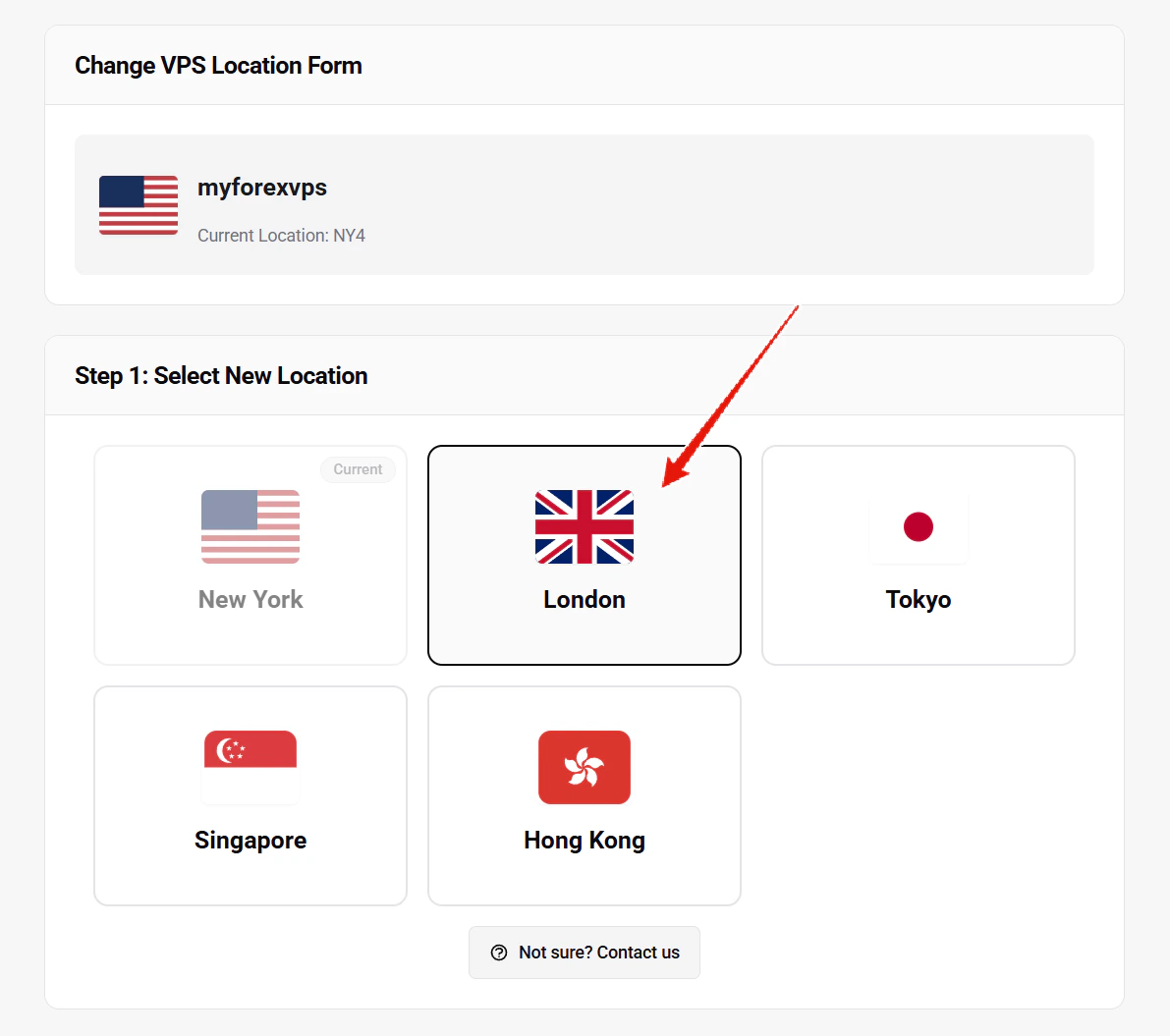 The form will display your current server location. Under **Step 1**, select the new location you would like to migrate to. Available locations include:
* New York
* London
* Dublin
* Tokyo
* Singapore
* Hong Kong
Your current location will be labeled with a **Current** badge.
In **Step 2**, select the reason for your migration request. This helps our team process your request.
The form will display your current server location. Under **Step 1**, select the new location you would like to migrate to. Available locations include:
* New York
* London
* Dublin
* Tokyo
* Singapore
* Hong Kong
Your current location will be labeled with a **Current** badge.
In **Step 2**, select the reason for your migration request. This helps our team process your request.
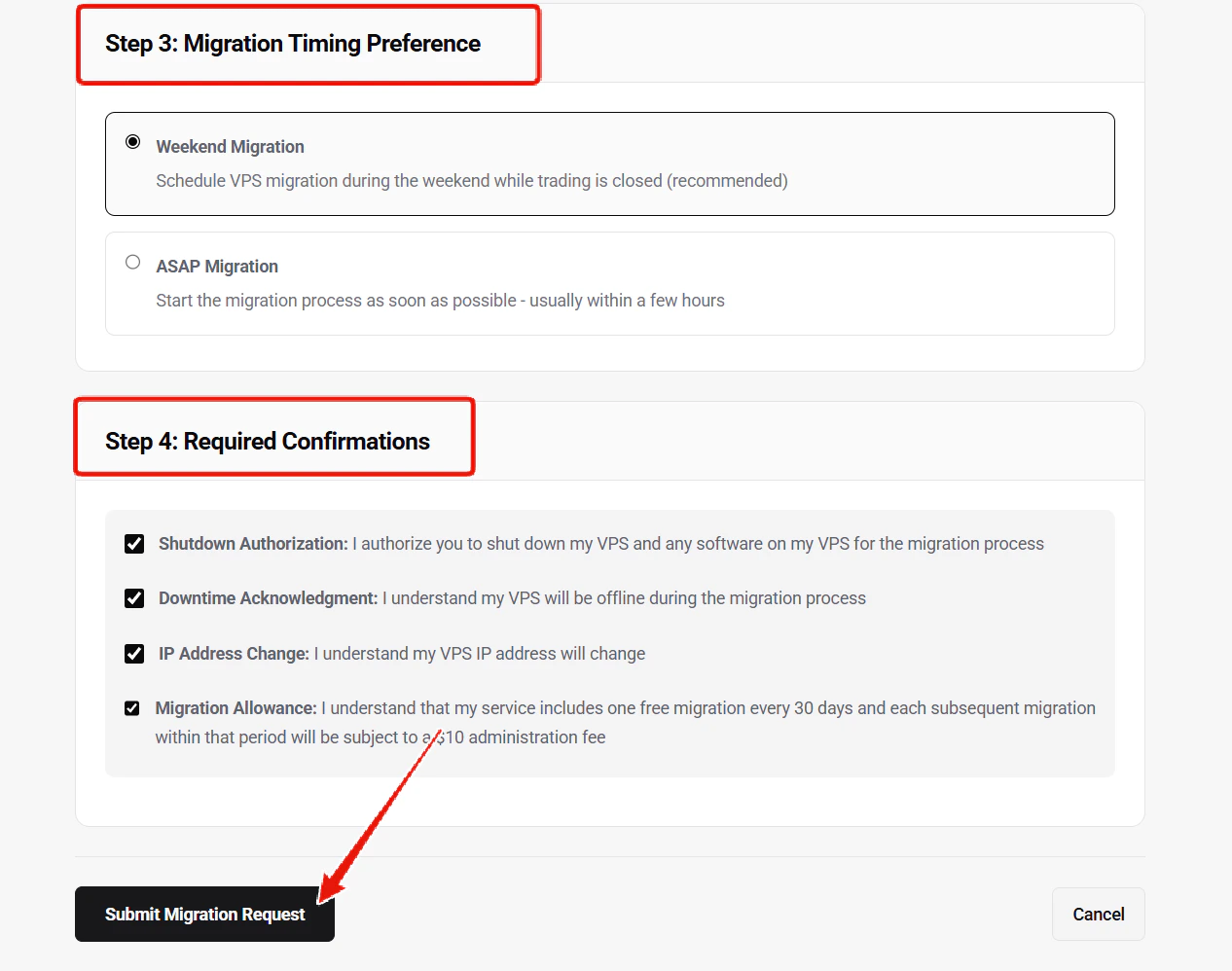 In **Step 3**, choose when you would like the migration to take place:
* **Weekend Migration** (recommended) — your VPS will be migrated during the weekend while trading markets are closed
* **ASAP Migration** — the migration process will start as soon as possible, usually within a few hours
In **Step 4**, review and check all required confirmations before submitting:
* **Shutdown Authorization** — your VPS and any running software will be shut down during the migration
* **Downtime Acknowledgment** — your VPS will be offline during the migration process
* **IP Address Change** — your VPS IP address will change after the migration
* **Migration Allowance** — one free migration is included every 30 days; additional migrations are subject to a \$10 fee
Click **Submit Migration Request** to confirm. You will see a confirmation page showing the status of your migration.
In **Step 3**, choose when you would like the migration to take place:
* **Weekend Migration** (recommended) — your VPS will be migrated during the weekend while trading markets are closed
* **ASAP Migration** — the migration process will start as soon as possible, usually within a few hours
In **Step 4**, review and check all required confirmations before submitting:
* **Shutdown Authorization** — your VPS and any running software will be shut down during the migration
* **Downtime Acknowledgment** — your VPS will be offline during the migration process
* **IP Address Change** — your VPS IP address will change after the migration
* **Migration Allowance** — one free migration is included every 30 days; additional migrations are subject to a \$10 fee
Click **Submit Migration Request** to confirm. You will see a confirmation page showing the status of your migration.
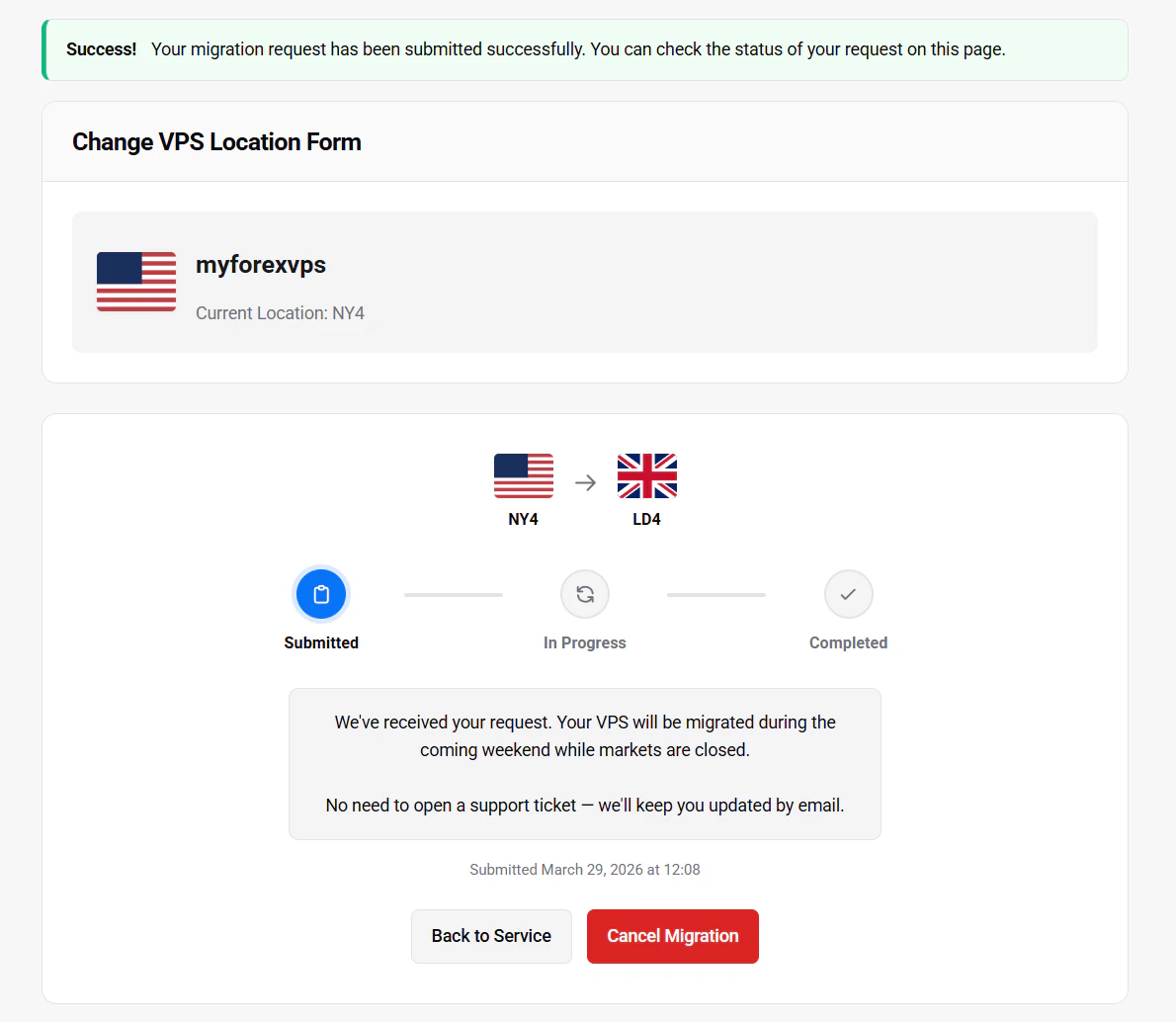 You can track the progress of your migration on this page. The status will update from **Submitted** to **In Progress** to **Completed**. You can also cancel the migration from this page if needed.
## After Migration
* You will receive an **email notification** when the migration starts and another when it is completed
* Your VPS **username and password will not change** — only the IP address will be different
* Update your remote desktop connection with the **new IP address** provided in the completion email
***
## Contact Support
If you have questions about the migration process or need help choosing the best location, please [contact support](mailto:support@newyorkcityservers.com).
You can track the progress of your migration on this page. The status will update from **Submitted** to **In Progress** to **Completed**. You can also cancel the migration from this page if needed.
## After Migration
* You will receive an **email notification** when the migration starts and another when it is completed
* Your VPS **username and password will not change** — only the IP address will be different
* Update your remote desktop connection with the **new IP address** provided in the completion email
***
## Contact Support
If you have questions about the migration process or need help choosing the best location, please [contact support](mailto:support@newyorkcityservers.com).