> ## Documentation Index
> Fetch the complete documentation index at: https://knowledgebase.newyorkcityservers.com/llms.txt
> Use this file to discover all available pages before exploring further.
# Windows Update Guide
> A guide covering Windows updates for VPS services.
Microsoft releases Windows updates regularly. It is recommended that clients keep the Windows operating system on their VPS up to date by installing updates when they are available.
Windows updates almost always require a reboot. We recommend performing updates during the weekend while markets are closed.
## How To Install Windows Updates
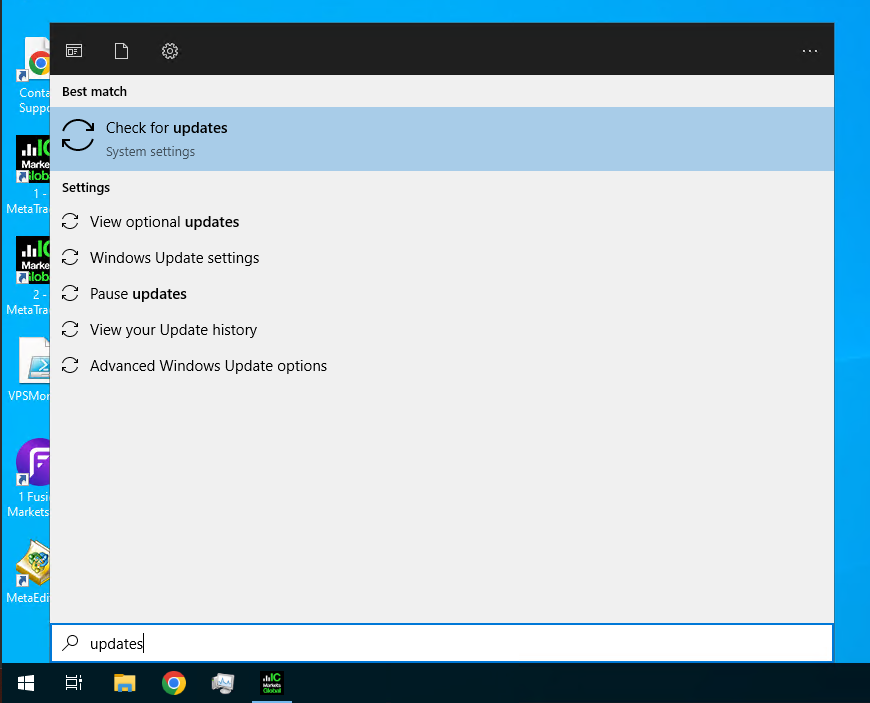 At the bottom left of your remote desktop screen, click the Windows logo and search for "updates". Click on **"Check for updates"** to launch the Windows update center.
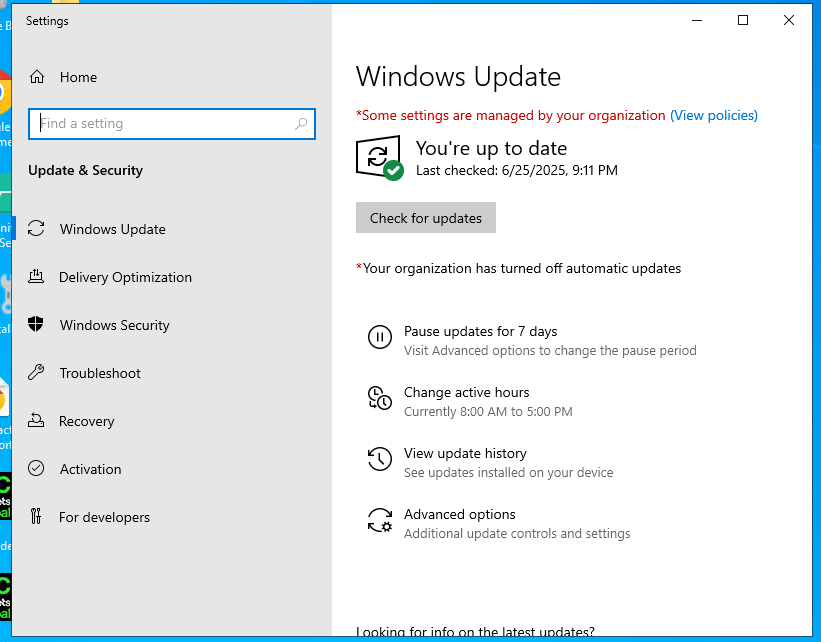 Inside of the update center click on the **"Check for updates"** button. Windows will then search for available updates for your system.
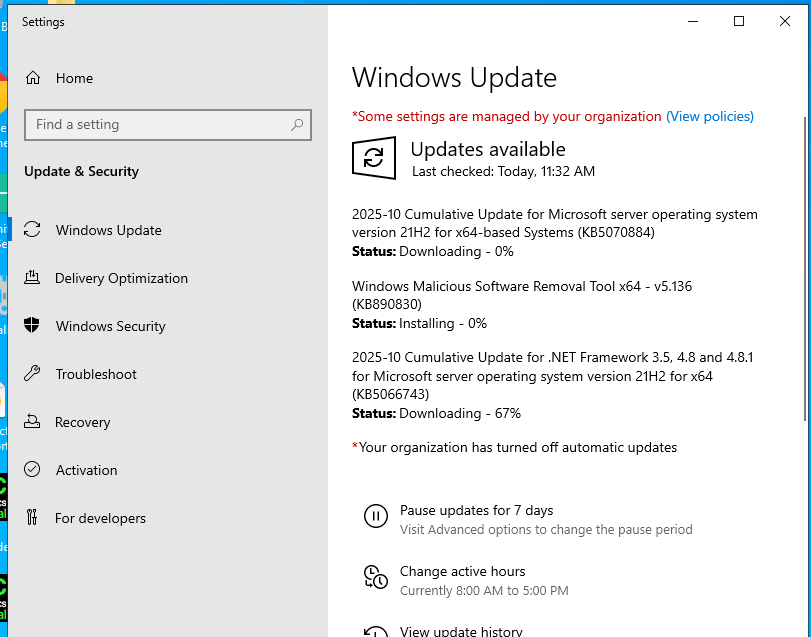 If there are available updates, Windows will proceed with downloading them automatically. Wait for the download process to complete.
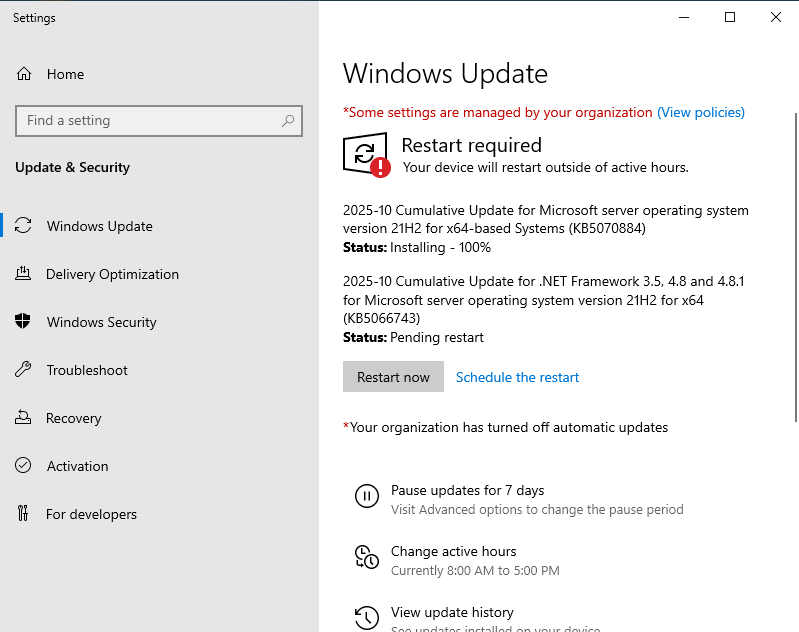 After the downloads are completed, click the **"Restart now"** button. The VPS will then restart, and Windows will complete the installation process.
Once the Windows update installation process is completed, the VPS will become accessible again automatically. You can then connect and resume normal usage.
The VPS will be offline and inaccessible for roughly 5-10 minutes while Windows completes the update process. Do not perform any additional power control actions to the VPS during this time. It is crucial that the update process is not interrupted.
You may use the [web browser connection](/connect/web-browser) to actively view the live screen of the VPS and monitor the update process as it happens.
After the downloads are completed, click the **"Restart now"** button. The VPS will then restart, and Windows will complete the installation process.
Once the Windows update installation process is completed, the VPS will become accessible again automatically. You can then connect and resume normal usage.
The VPS will be offline and inaccessible for roughly 5-10 minutes while Windows completes the update process. Do not perform any additional power control actions to the VPS during this time. It is crucial that the update process is not interrupted.
You may use the [web browser connection](/connect/web-browser) to actively view the live screen of the VPS and monitor the update process as it happens.