> ## Documentation Index
> Fetch the complete documentation index at: https://knowledgebase.newyorkcityservers.com/llms.txt
> Use this file to discover all available pages before exploring further.
# Monitor CPU and RAM Usage
> How to check CPU and RAM usage on your Windows VPS using Task Manager.
This guide provides simple instructions to check CPU and RAM usage on your Windows Server VPS using Task Manager.
## How to Monitor Usage
Connect to your VPS using Remote Desktop Protocol (RDP) as described in the [connection guides](/connect/overview).
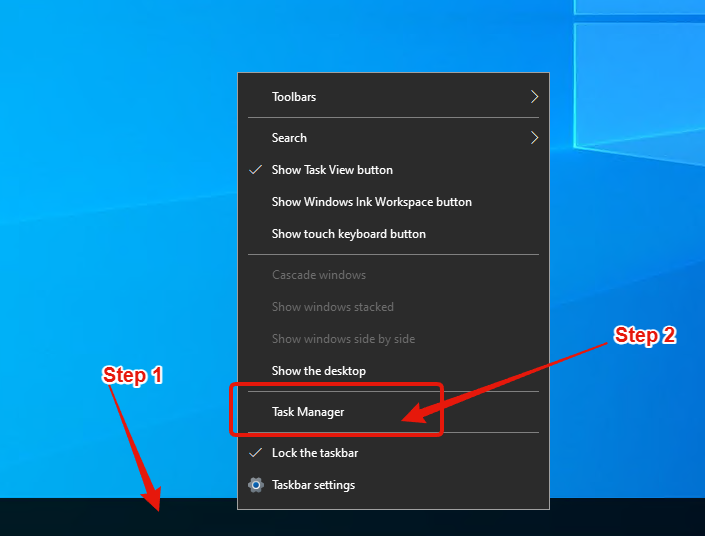 Right-click on the Windows taskbar located at the bottom of the screen. In the menu that appears, click on **"Task Manager"**.
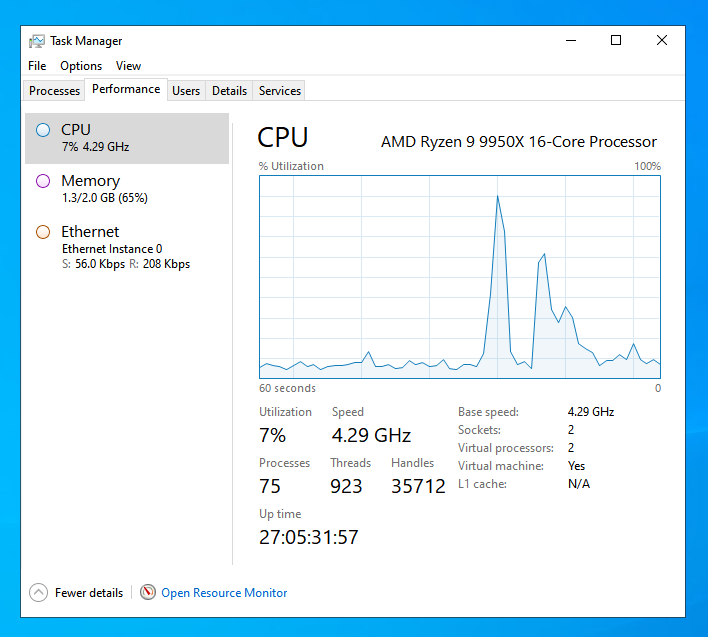 In Task Manager:
* Click on the **Performance** tab at the top.
* On the left side, select **CPU** to see real-time CPU usage, cores, and utilization.
* Select **Memory** (RAM) to view total RAM, used/available memory, and other details.
Keep Task Manager open to monitor usage in real-time while running your applications (e.g., MT4/MT5).
If usage is consistently high (above 80%), consider [upgrading your plan](/billing/upgrade) or optimizing your setup by closing unnecessary applications.
In Task Manager:
* Click on the **Performance** tab at the top.
* On the left side, select **CPU** to see real-time CPU usage, cores, and utilization.
* Select **Memory** (RAM) to view total RAM, used/available memory, and other details.
Keep Task Manager open to monitor usage in real-time while running your applications (e.g., MT4/MT5).
If usage is consistently high (above 80%), consider [upgrading your plan](/billing/upgrade) or optimizing your setup by closing unnecessary applications.