> ## Documentation Index
> Fetch the complete documentation index at: https://knowledgebase.newyorkcityservers.com/llms.txt
> Use this file to discover all available pages before exploring further.
# Disconnect From VPS
> A guide showing how to close your connection to the VPS, while leaving all software running.
To ensure that your software and trading activity continues, it is important to exit the VPS using the correct steps outlined below.
Do not shut down or restart the VPS to disconnect. This will stop all running software and trading activity.
## How To Disconnect From the VPS
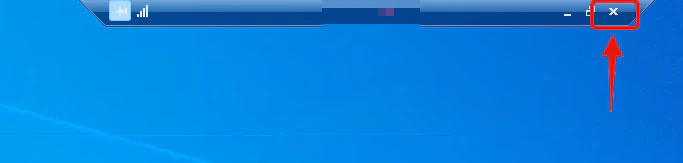 At the top of the screen, locate the blue remote desktop connection bar.
On the blue remote desktop bar, locate the **X** button on the far right side. Click the X button.
A confirmation message may appear — select **"Yes"**.
Your remote desktop connection to the VPS will now close, and all software and trading activity will continue on the VPS as expected.
At the top of the screen, locate the blue remote desktop connection bar.
On the blue remote desktop bar, locate the **X** button on the far right side. Click the X button.
A confirmation message may appear — select **"Yes"**.
Your remote desktop connection to the VPS will now close, and all software and trading activity will continue on the VPS as expected.