> ## Documentation Index
> Fetch the complete documentation index at: https://knowledgebase.newyorkcityservers.com/llms.txt
> Use this file to discover all available pages before exploring further.
# Connect from Windows PC
> Below you can find the step by step process to log into your forex VPS from a Windows PC.
## Option 1: Manual RDP Connection
After your order is complete, you'll receive an email with your VPS login credentials. Wait **at least 10 minutes** after receiving this email to ensure the Windows installation is fully ready.
On your Windows PC, open the **Start menu**, type **`Remote Desktop Connection`**, and launch the app.
In the **Computer** field, enter your **VPS IP address** exactly as shown in the email.
When prompted, enter the user credentials from your email:
* **Username**: `Administrator`
* **Password**: (copy exactly as provided)
If a certificate warning appears, check **"Don't ask me again for connections to this computer"**, then click **Yes**.
Your connection will begin — the VPS desktop will appear in the Remote Desktop window.
***
## Option 2: Quick Connect with .RDP File
Download the pre-configured .RDP file from your welcome email. It auto-fills the IP and username.
In your **VPS welcome email**, click the **"Download .RDP File"** link.
Locate the downloaded file (usually in **Downloads**) and **double-click** it.
When prompted, enter your **VPS password** from the email and click **OK**.
If a certificate warning appears, check **"Don't ask me again for connections to this computer"**, then click **Yes**.
Your connection will begin — the VPS desktop will appear in the Remote Desktop window.
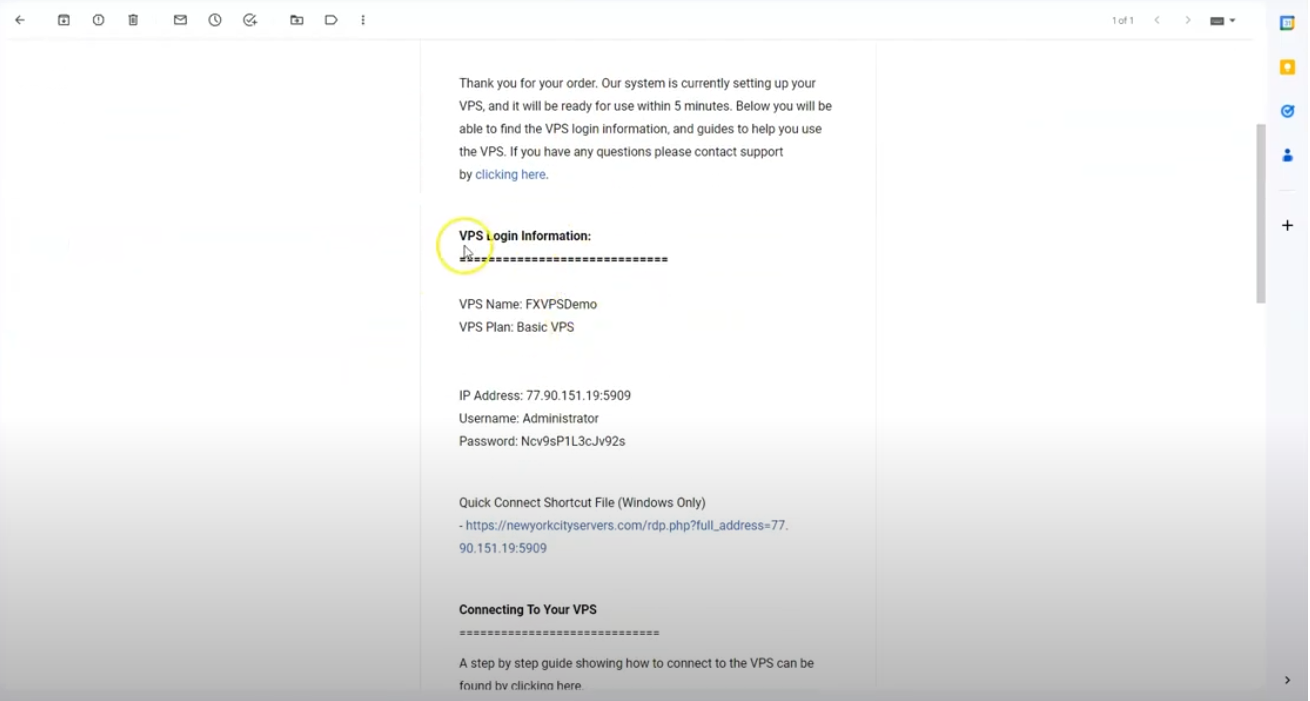 After your order is complete, you'll receive an email with your VPS login credentials. Wait **at least 10 minutes** after receiving this email to ensure the Windows installation is fully ready.
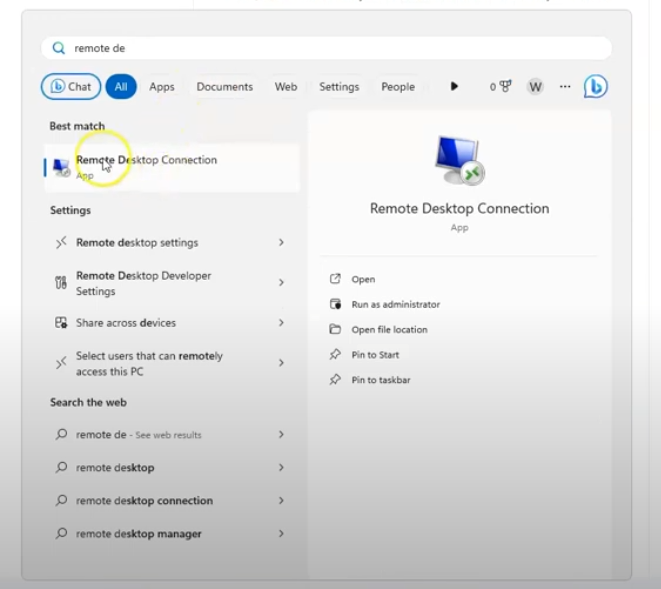 On your Windows PC, open the **Start menu**, type **`Remote Desktop Connection`**, and launch the app.
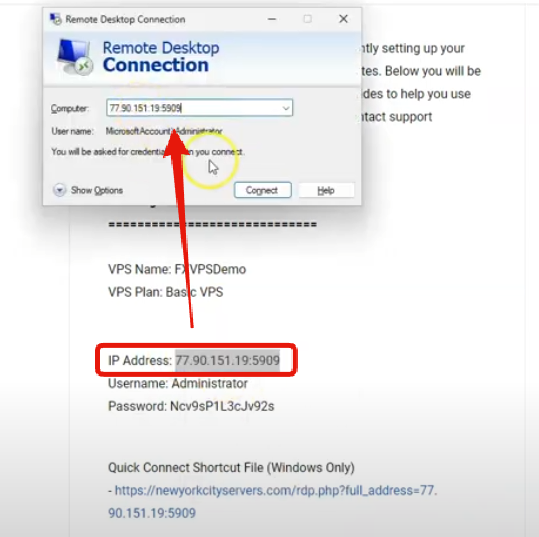 In the **Computer** field, enter your **VPS IP address** exactly as shown in the email.
 When prompted, enter the user credentials from your email:
* **Username**: `Administrator`
* **Password**: (copy exactly as provided)
When prompted, enter the user credentials from your email:
* **Username**: `Administrator`
* **Password**: (copy exactly as provided)
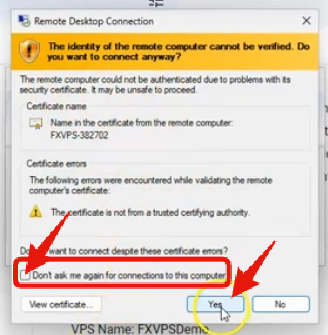 If a certificate warning appears, check **"Don't ask me again for connections to this computer"**, then click **Yes**.