> ## Documentation Index
> Fetch the complete documentation index at: https://knowledgebase.newyorkcityservers.com/llms.txt
> Use this file to discover all available pages before exploring further.
# SSH to Linux VPS from Windows
> Step by step process to log into your Linux VPS over SSH from a Windows PC, using built-in OpenSSH or PuTTY.
This guide is for clients who have selected Ubuntu as their VPS operating system. If your VPS is running Windows, see the [Windows VPS connection guide](/connect/windows) instead.
## Option 1: Built-in OpenSSH (PowerShell)
Windows 10 (build 1809+) and Windows 11 ship with **OpenSSH Client** enabled by default — no installation needed. You can connect using the built-in PowerShell or Windows Terminal.
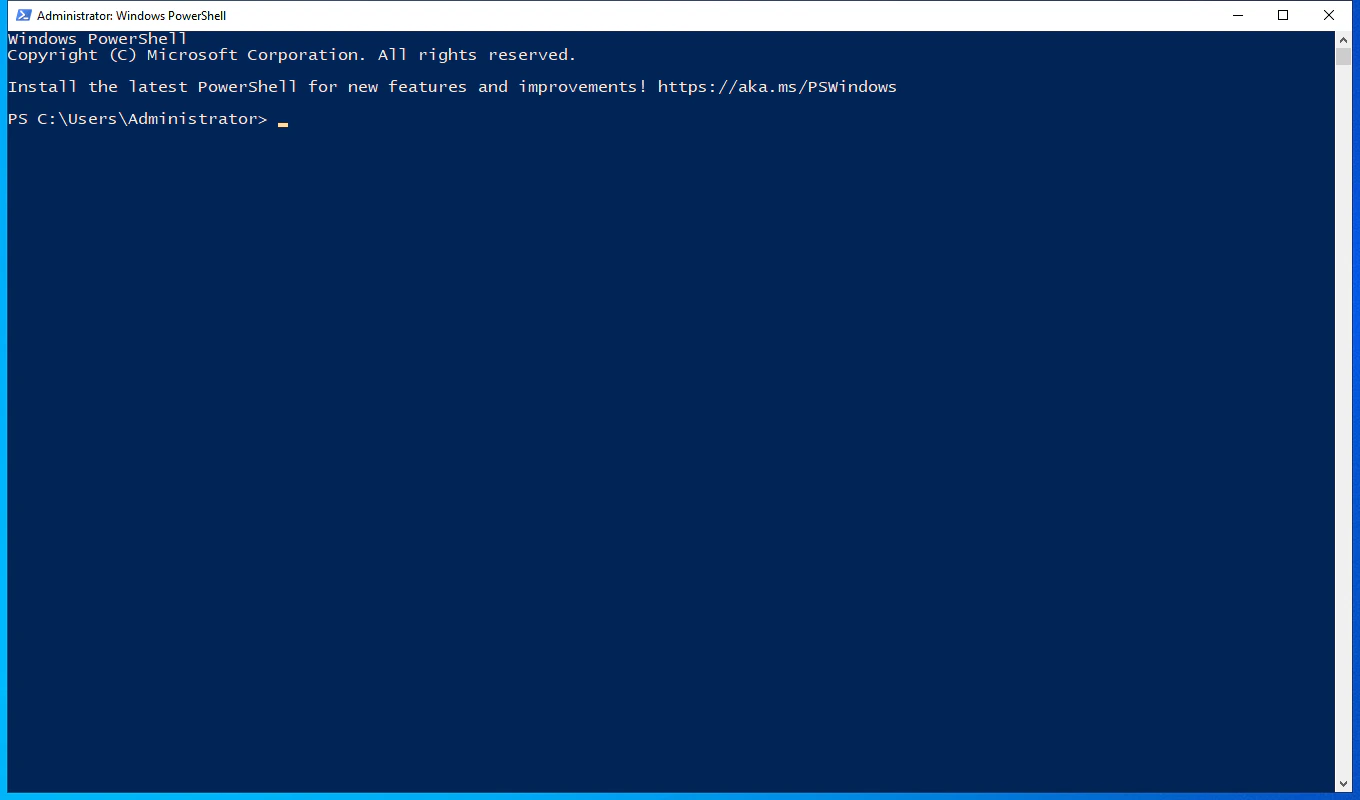 Open the **Start menu**, type **`PowerShell`** (or **`Terminal`** on Windows 11), and press **Enter** to launch it.
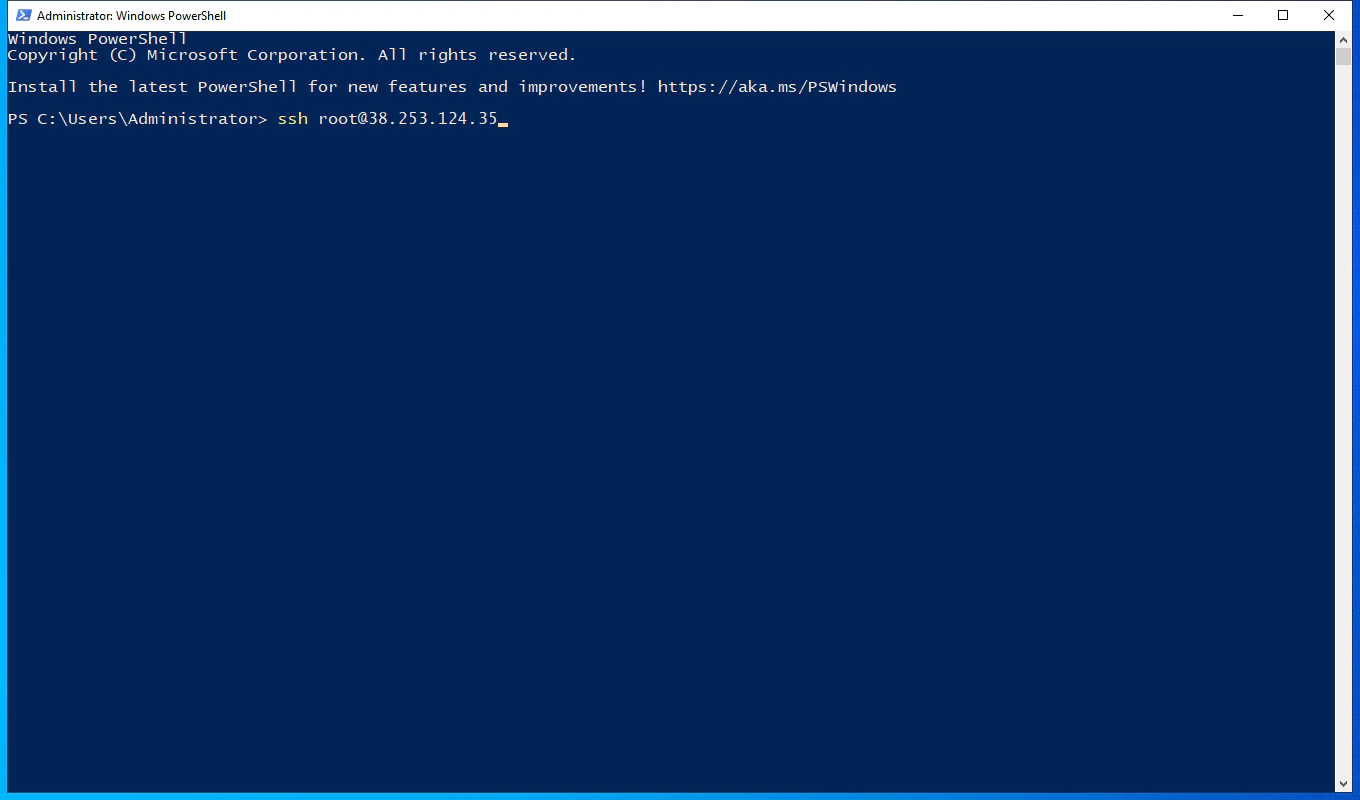 Type the following, replacing `YOUR_VPS_IP` with the IP address from your welcome email, then press **Enter**:
```powershell theme={null}
ssh root@YOUR_VPS_IP
```
Type the following, replacing `YOUR_VPS_IP` with the IP address from your welcome email, then press **Enter**:
```powershell theme={null}
ssh root@YOUR_VPS_IP
```
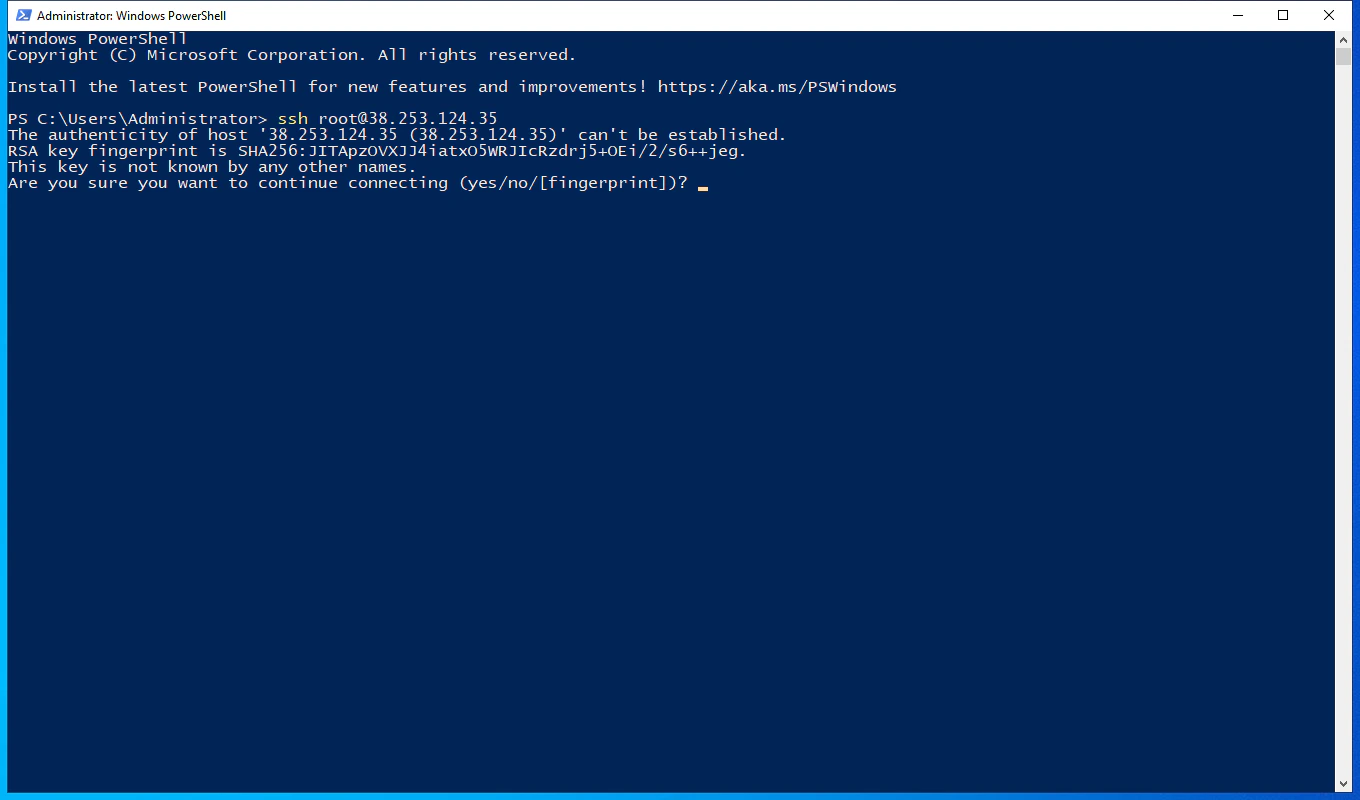 The first time you connect, SSH shows the server's key fingerprint. Type **`yes`** and press **Enter** to save it to your local trust list.
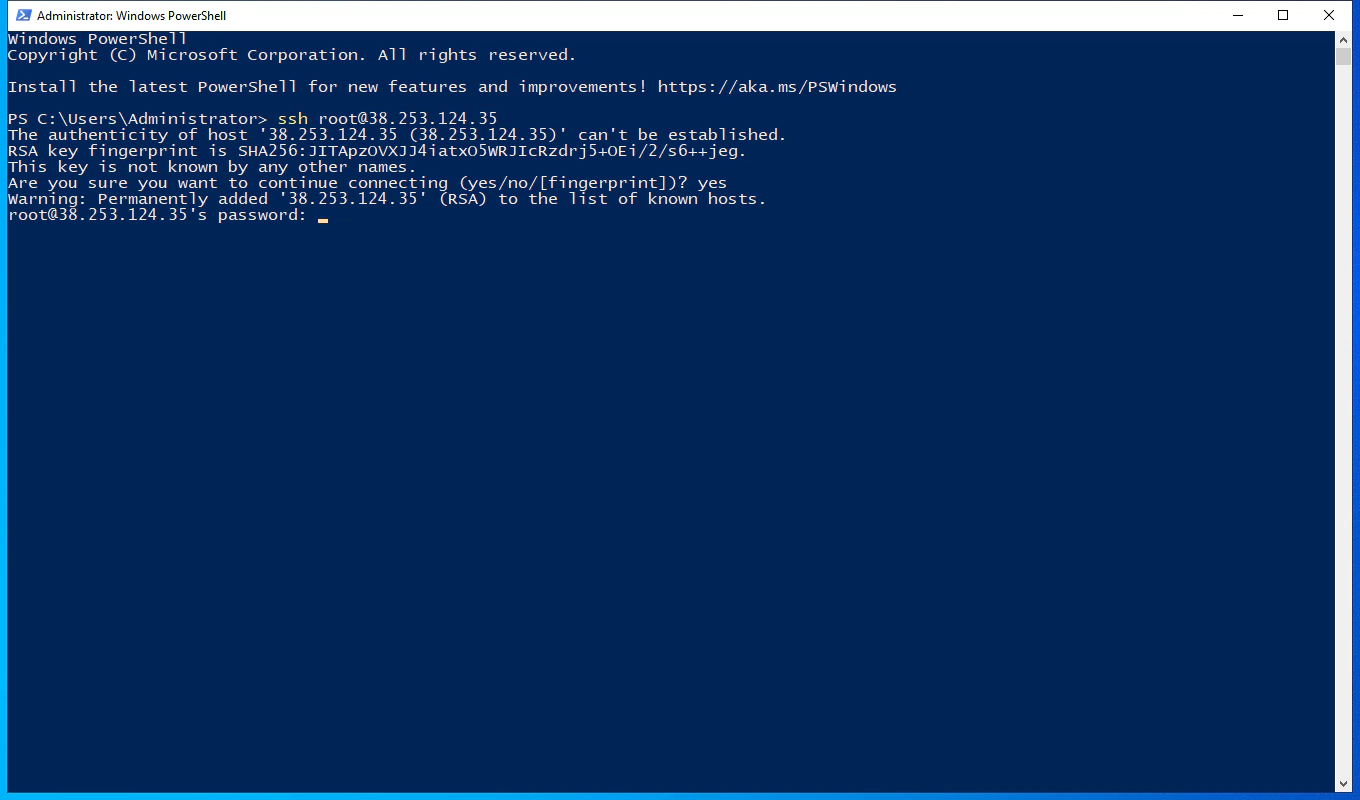 When prompted, paste or type your **VPS root password** from the welcome email and press **Enter**.
Characters will not appear on screen as you type the password — this is normal SSH behavior. You can paste with **Ctrl+V** in PowerShell.
When prompted, paste or type your **VPS root password** from the welcome email and press **Enter**.
Characters will not appear on screen as you type the password — this is normal SSH behavior. You can paste with **Ctrl+V** in PowerShell.
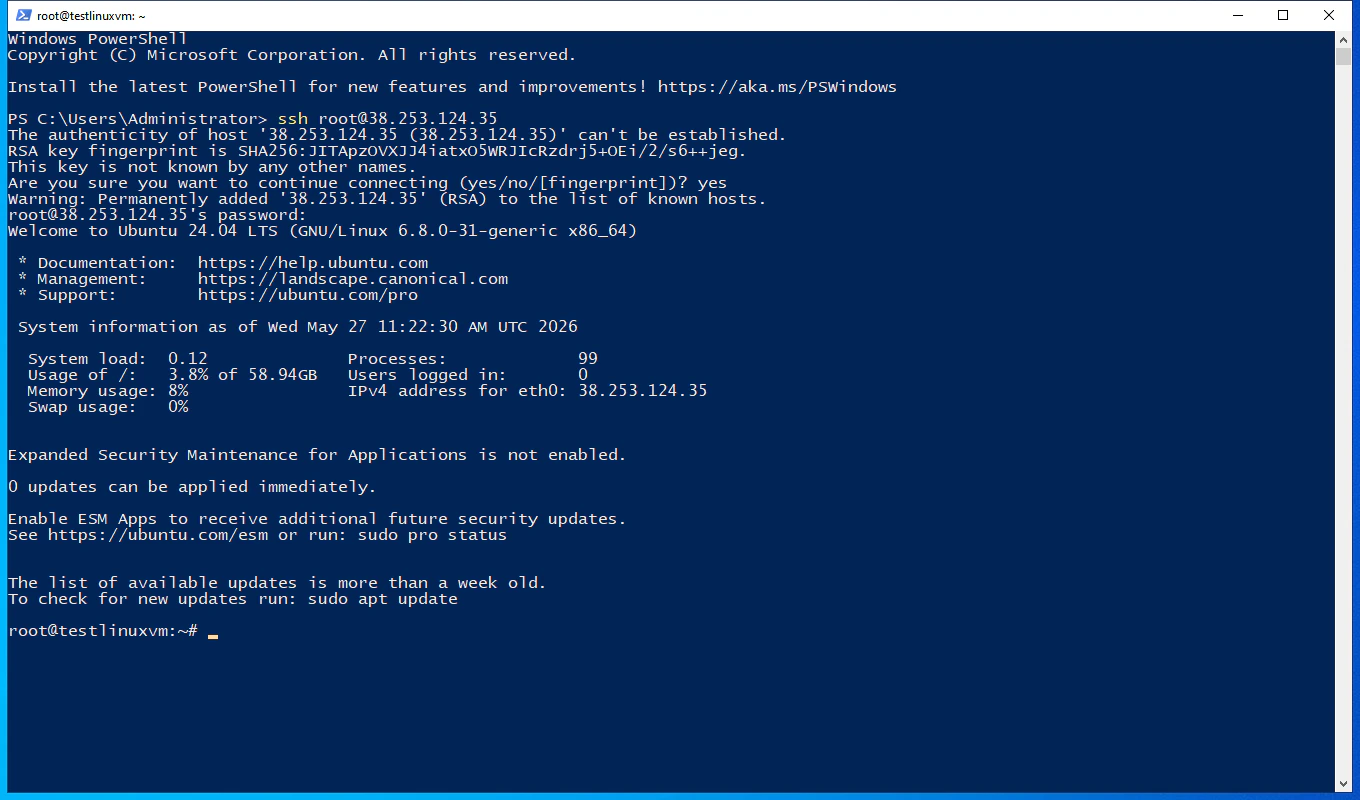 You're now logged into your Linux VPS. The title bar changes to `root@` and the prompt becomes a Linux shell (`#`). To disconnect, type `exit` and press **Enter**.
***
## Option 2: PuTTY
If you prefer a graphical client with saved session profiles, PuTTY is a popular free SSH client for Windows.
Only download PuTTY from the **[official site](https://www.chiark.greenend.org.uk/~sgtatham/putty/latest.html)**. Many third-party "putty.org" style mirrors distribute outdated builds or malware bundles.
You're now logged into your Linux VPS. The title bar changes to `root@` and the prompt becomes a Linux shell (`#`). To disconnect, type `exit` and press **Enter**.
***
## Option 2: PuTTY
If you prefer a graphical client with saved session profiles, PuTTY is a popular free SSH client for Windows.
Only download PuTTY from the **[official site](https://www.chiark.greenend.org.uk/~sgtatham/putty/latest.html)**. Many third-party "putty.org" style mirrors distribute outdated builds or malware bundles.
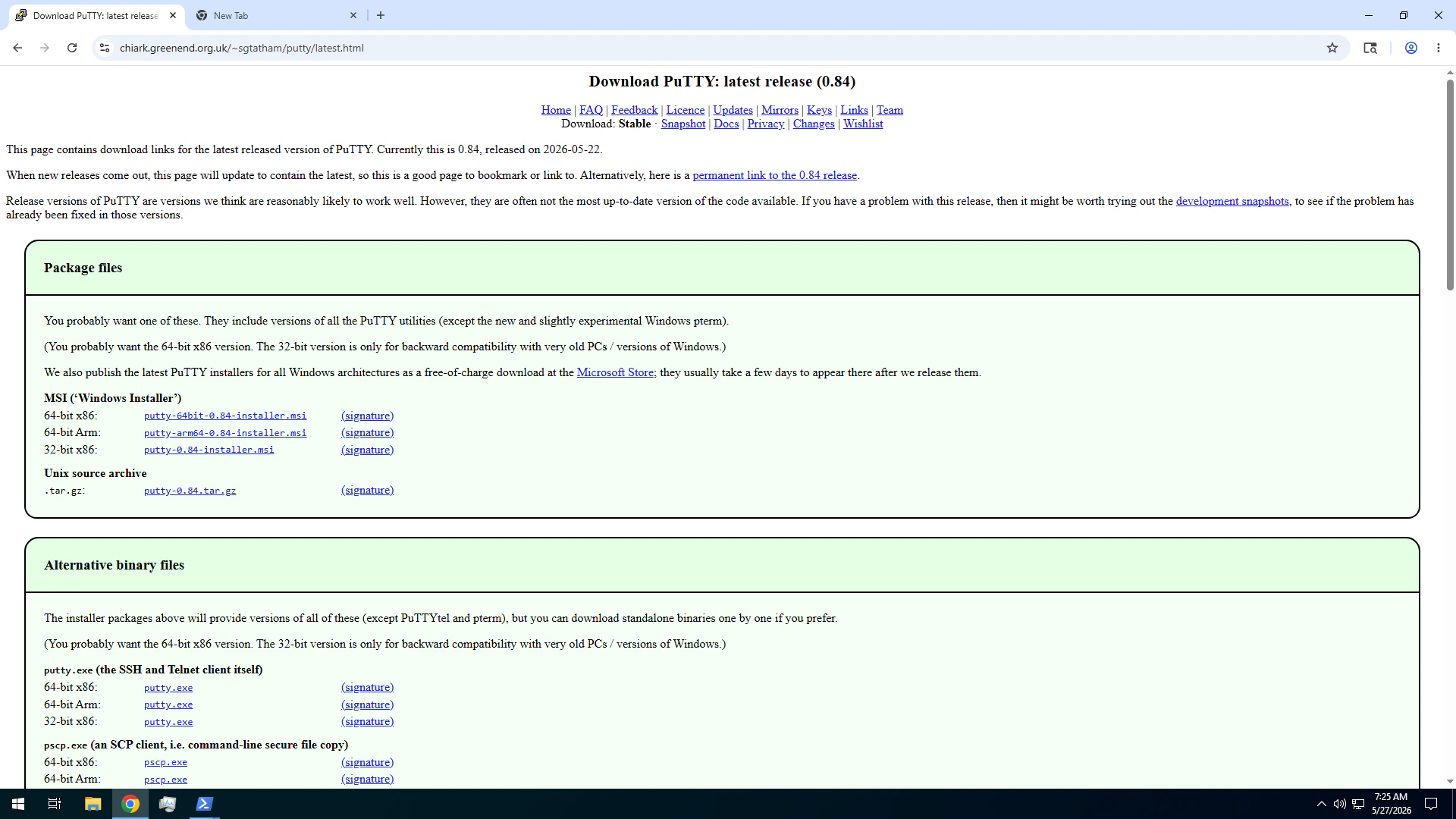 Open [chiark.greenend.org.uk/\~sgtatham/putty/latest.html](https://www.chiark.greenend.org.uk/~sgtatham/putty/latest.html) and, under the **MSI ('Windows Installer')** section, download **`putty-64bit-X.XX-installer.msi`**. The 32-bit version is only for very old PCs.
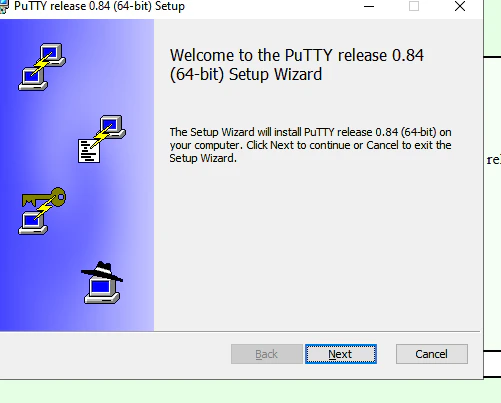 Double-click the downloaded MSI to launch the **PuTTY release X.XX (64-bit) Setup Wizard**, then click **Next** through the wizard accepting the defaults, and **Finish** when complete.
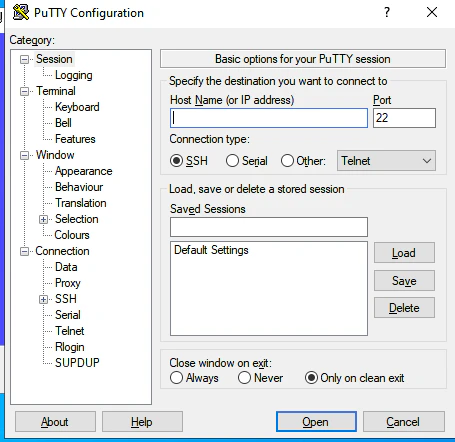 Open the **Start menu**, type **`PuTTY`**, and launch it. The **PuTTY Configuration** window opens to the Session category.
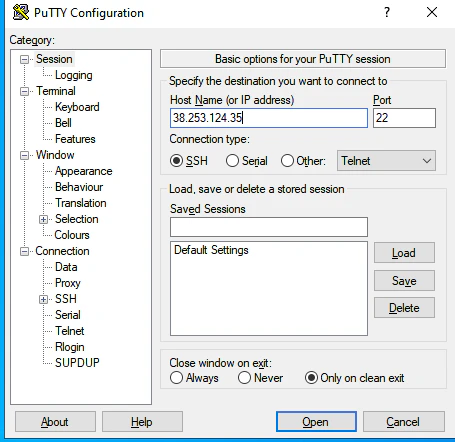 In **Host Name (or IP address)** enter the IP from your welcome email. Leave **Port** at **22** and **Connection type** at **SSH**. Click **Open**.
To save these settings for future use, type a name (e.g. "My Linux VPS") in **Saved Sessions** and click **Save** before clicking Open. Next time, just double-click the saved session to connect.
In **Host Name (or IP address)** enter the IP from your welcome email. Leave **Port** at **22** and **Connection type** at **SSH**. Click **Open**.
To save these settings for future use, type a name (e.g. "My Linux VPS") in **Saved Sessions** and click **Save** before clicking Open. Next time, just double-click the saved session to connect.
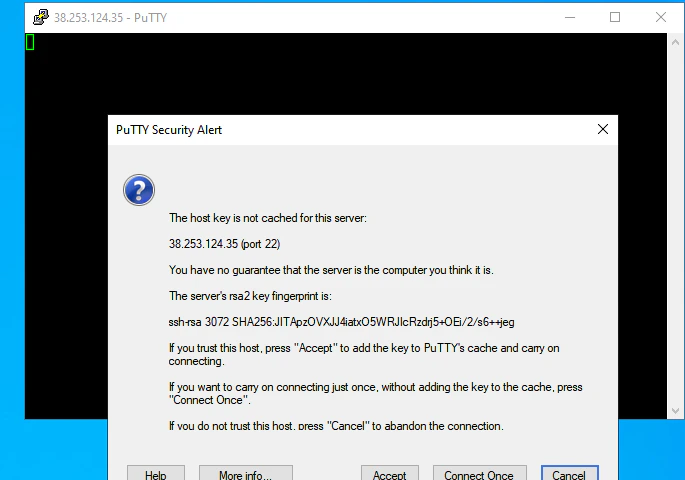 On first connect, PuTTY shows a **Security Alert** with the server's RSA key fingerprint. Click **Accept** to cache the key and continue.
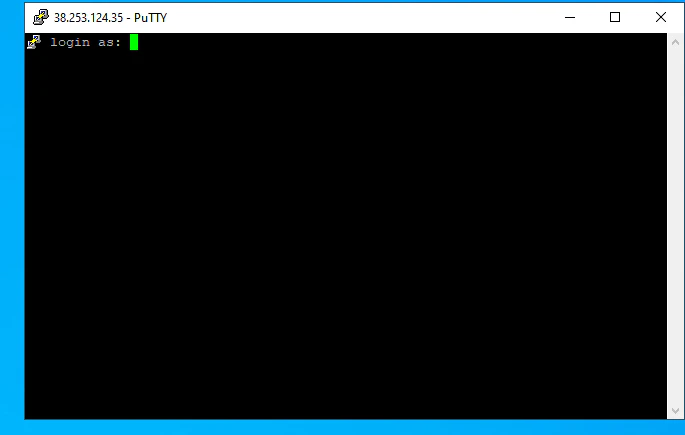 PuTTY opens a terminal showing `login as:`. Type **`root`**, press **Enter**, then enter your **VPS root password** when prompted.
To paste your password in PuTTY, copy it on Windows first, then **right-click** inside the PuTTY terminal window. Ctrl+V does not work at the PuTTY password prompt. Characters will not appear as you type — this is normal.
PuTTY opens a terminal showing `login as:`. Type **`root`**, press **Enter**, then enter your **VPS root password** when prompted.
To paste your password in PuTTY, copy it on Windows first, then **right-click** inside the PuTTY terminal window. Ctrl+V does not work at the PuTTY password prompt. Characters will not appear as you type — this is normal.
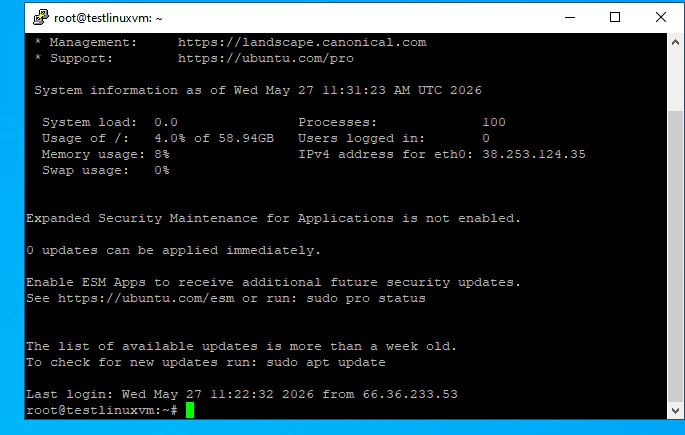 You're now logged in to your Linux VPS. The title bar shows `root@` and the prompt becomes a Linux shell (`#`). To disconnect, type `exit` and press **Enter**.
***
## Troubleshooting
Wait **at least 5–10 minutes** after receiving your welcome email — the Linux installation finishes provisioning during that window. If the problem persists, double-check the IP from your email matches what you typed, and confirm your local network does not block outbound port 22 (some corporate or hotel networks do).
Copy your password directly from the welcome email rather than retyping it. In PuTTY, **right-click** inside the terminal to paste — Ctrl+V does not work at the password prompt. If the password still fails, you can [reset it](/management/password-management) from the client portal.
This warning appears if your VPS was reinstalled or its host keys regenerated. After confirming the server is genuinely yours (e.g. you just triggered a reinstall), remove the cached key:
* **OpenSSH:** run `ssh-keygen -R YOUR_VPS_IP` in PowerShell, then reconnect.
* **PuTTY:** click **Accept** on the new fingerprint warning that appears on next connect.
SSH responsiveness depends on the physical distance between you and the VPS. Use the [Latency Checker](https://newyorkcityservers.com/broker-latency) to verify you picked the region closest to you. For long-running interactive sessions, consider installing `tmux` or `screen` on the VPS so the session survives brief network drops.
You're now logged in to your Linux VPS. The title bar shows `root@` and the prompt becomes a Linux shell (`#`). To disconnect, type `exit` and press **Enter**.
***
## Troubleshooting
Wait **at least 5–10 minutes** after receiving your welcome email — the Linux installation finishes provisioning during that window. If the problem persists, double-check the IP from your email matches what you typed, and confirm your local network does not block outbound port 22 (some corporate or hotel networks do).
Copy your password directly from the welcome email rather than retyping it. In PuTTY, **right-click** inside the terminal to paste — Ctrl+V does not work at the password prompt. If the password still fails, you can [reset it](/management/password-management) from the client portal.
This warning appears if your VPS was reinstalled or its host keys regenerated. After confirming the server is genuinely yours (e.g. you just triggered a reinstall), remove the cached key:
* **OpenSSH:** run `ssh-keygen -R YOUR_VPS_IP` in PowerShell, then reconnect.
* **PuTTY:** click **Accept** on the new fingerprint warning that appears on next connect.
SSH responsiveness depends on the physical distance between you and the VPS. Use the [Latency Checker](https://newyorkcityservers.com/broker-latency) to verify you picked the region closest to you. For long-running interactive sessions, consider installing `tmux` or `screen` on the VPS so the session survives brief network drops.