> ## Documentation Index
> Fetch the complete documentation index at: https://knowledgebase.newyorkcityservers.com/llms.txt
> Use this file to discover all available pages before exploring further.
# Connect from MacOS
> Connect to your NYCServers VPS from macOS
## Option 1: Manual Setup
After your order is complete, you’ll receive an email with your VPS login credentials. Wait **at least 10 minutes** to ensure Windows is fully ready.
Open the **Mac App Store**, search for **"Windows App"**, and install it.\
[Direct Link](https://apps.apple.com/app/windows-app/id1295203466)
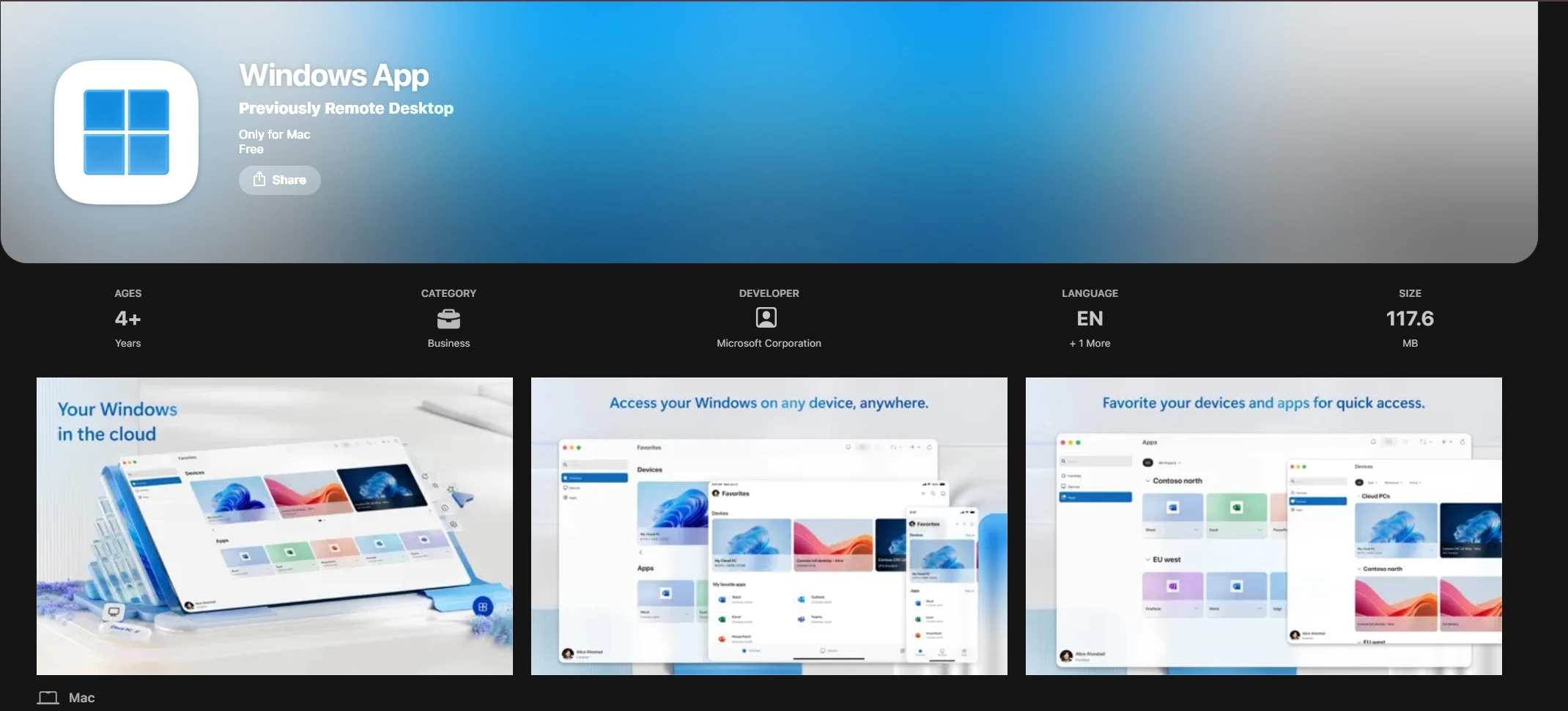 Launch **Windows App** from your Applications folder or Spotlight.
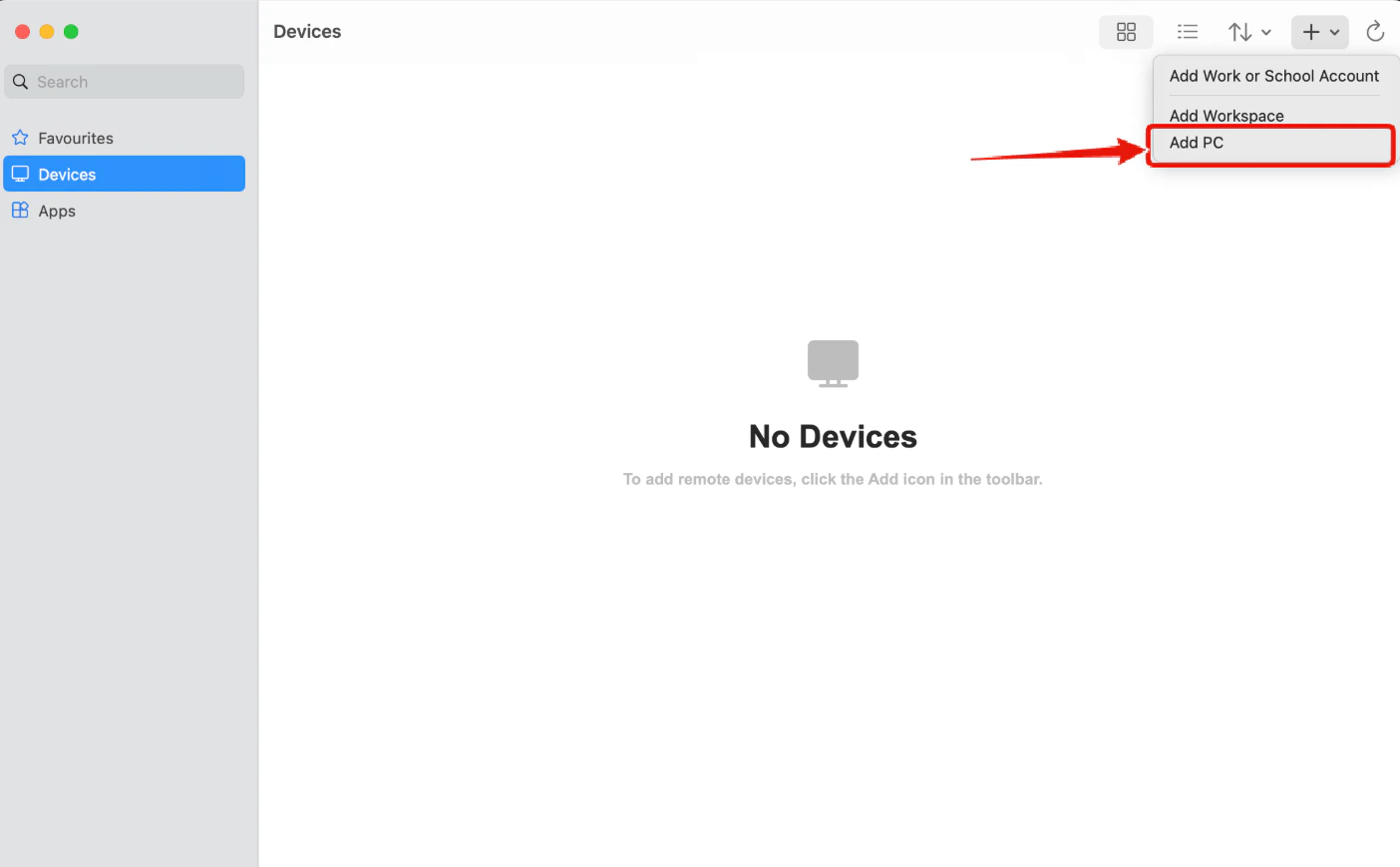
Click the **+** dropdown → **Add PC**.
Launch **Windows App** from your Applications folder or Spotlight.
Click the **+** dropdown → **Add PC**.
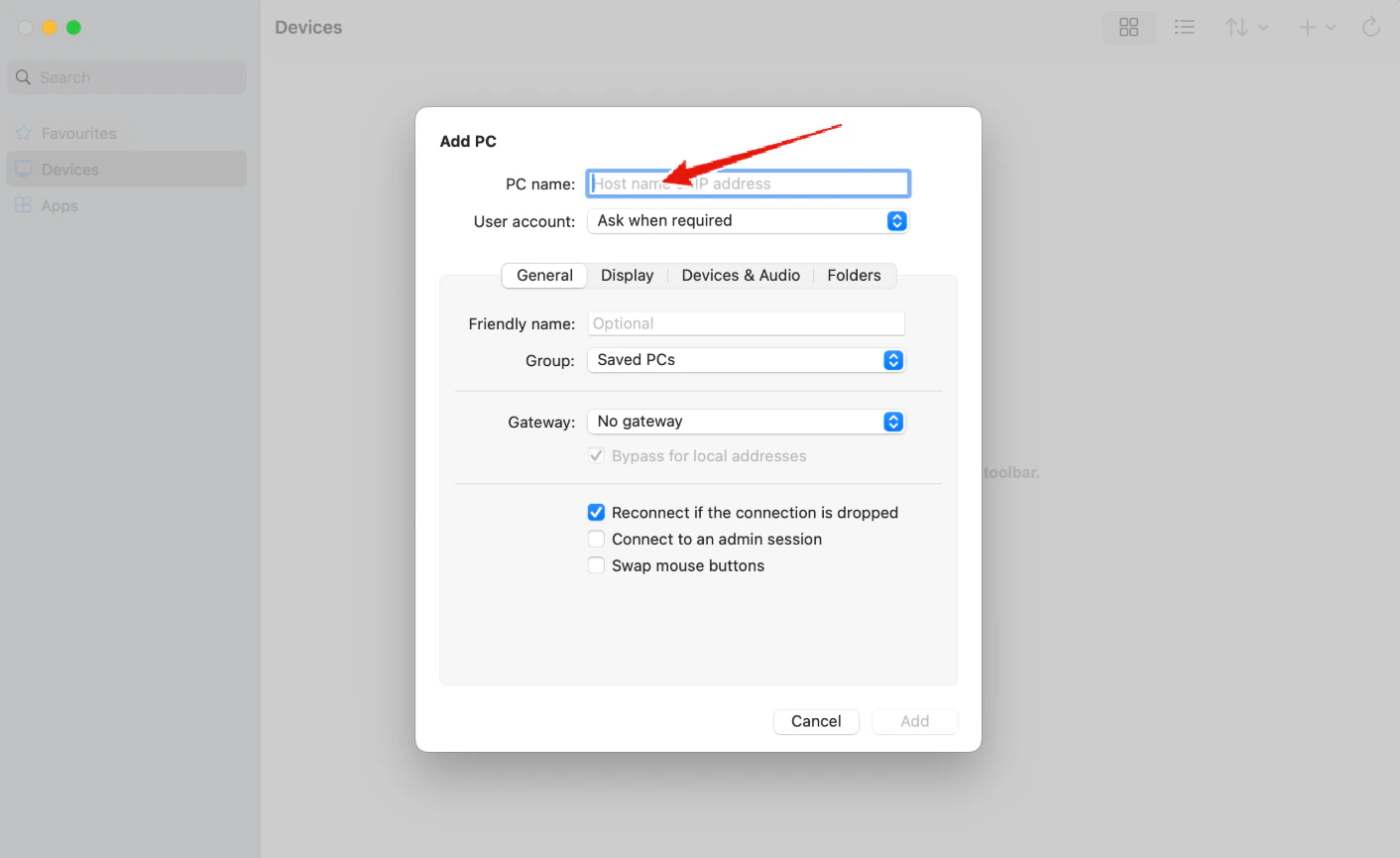
 In **Host name or IP address**, enter your **VPS IP** exactly as shown in the email.
 Under **User account**, click **Add user account**:
* **Username**: `Administrator`
* **Password**: (copy exactly from email)\
Click **Continue**.
In **Display name**, enter a nickname (e.g., `NYCServers VPS`).
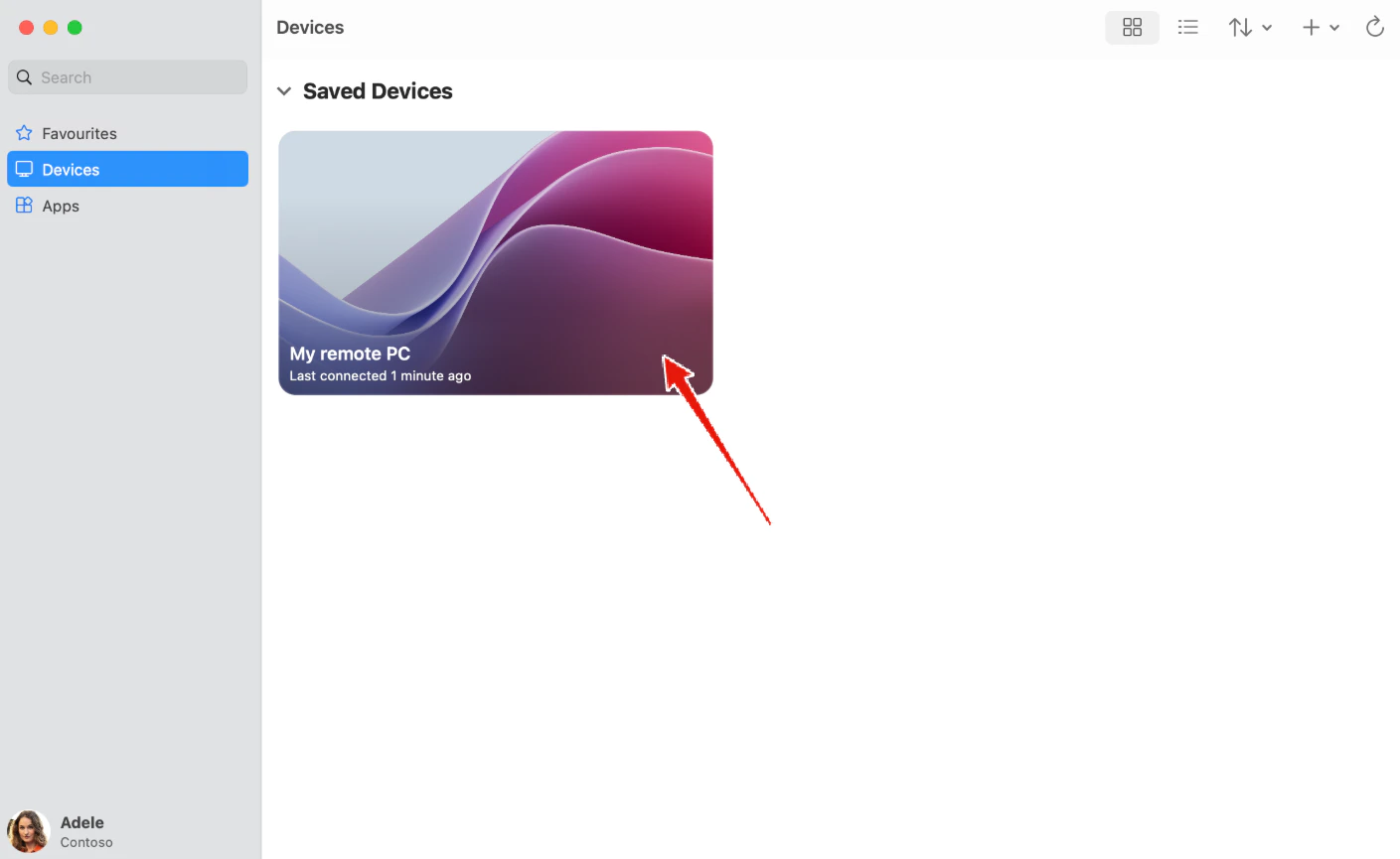
Return to the main screen. **Double-click** the new PC shortcut.
Under **User account**, click **Add user account**:
* **Username**: `Administrator`
* **Password**: (copy exactly from email)\
Click **Continue**.
In **Display name**, enter a nickname (e.g., `NYCServers VPS`).
Return to the main screen. **Double-click** the new PC shortcut.
 If prompted, click **Continue** to accept the certificate.
You’re connected! The VPS desktop will appear in a window.
***
## Option 2: Quick Connect with .RDP File
You must install Windows App on your MacOS device first. The download link for the app can be found here [Direct Link](https://apps.apple.com/app/windows-app/id1295203466)
Use the "Quick Connect Shortcut" download link in the VPS welcome email to download the .RDP file.
Double-click the downloaded file. It will open in **Windows App**.
When prompted, enter your **VPS password** from the email.
Click **Continue** if a certificate warning appears.
The VPS desktop will launch automatically.
If prompted, click **Continue** to accept the certificate.
You’re connected! The VPS desktop will appear in a window.
***
## Option 2: Quick Connect with .RDP File
You must install Windows App on your MacOS device first. The download link for the app can be found here [Direct Link](https://apps.apple.com/app/windows-app/id1295203466)
Use the "Quick Connect Shortcut" download link in the VPS welcome email to download the .RDP file.
Double-click the downloaded file. It will open in **Windows App**.
When prompted, enter your **VPS password** from the email.
Click **Continue** if a certificate warning appears.
The VPS desktop will launch automatically.