> ## Documentation Index
> Fetch the complete documentation index at: https://knowledgebase.newyorkcityservers.com/llms.txt
> Use this file to discover all available pages before exploring further.
# iPhone / iOS
> Connect to your NYCServers VPS from iPhone or iPad
## Install the Windows App
Open the **App Store** on your iPhone or iPad, search for **"Windows App"**, and tap **Get** to install it.
[Direct App Store Link](https://apps.apple.com/us/app/windows-app-mobile/id714464092)
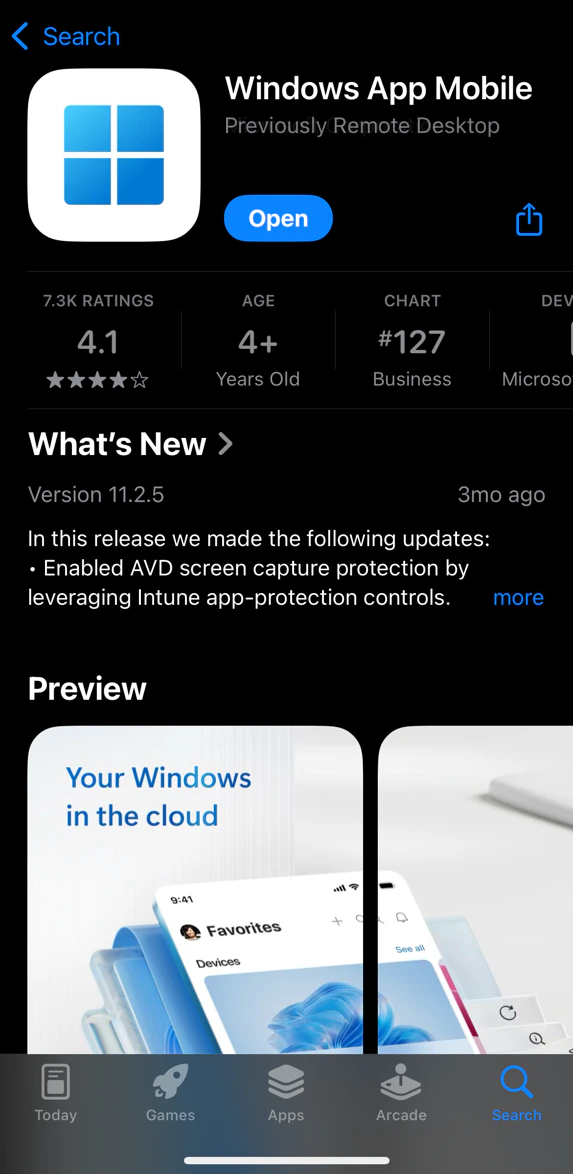 Using the old "Microsoft Remote Desktop" app? **Uninstall it** and use **Windows App** instead.
## Add a New Connection
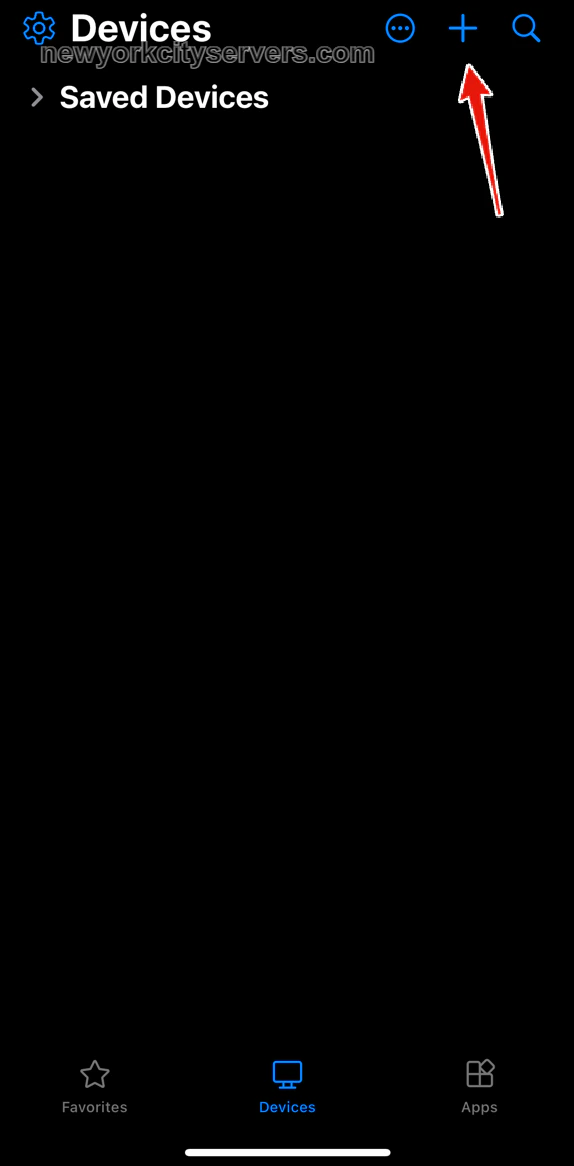
Launch **Windows App**. You'll land on the **Devices** tab. Tap the **+** button in the top-right corner.
Using the old "Microsoft Remote Desktop" app? **Uninstall it** and use **Windows App** instead.
## Add a New Connection
Launch **Windows App**. You'll land on the **Devices** tab. Tap the **+** button in the top-right corner.
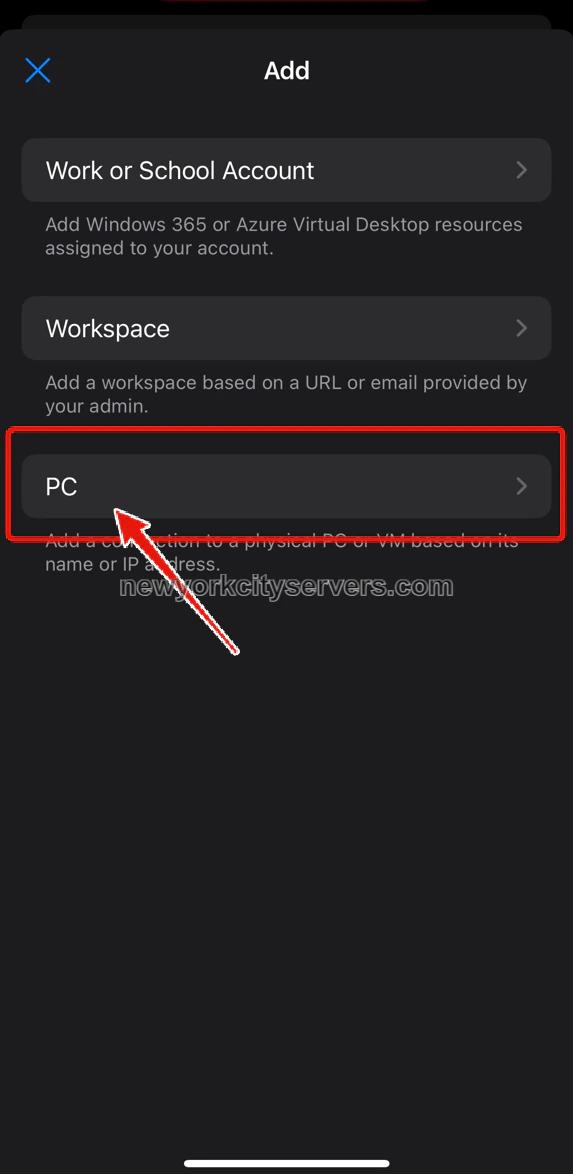
 From the **Add** menu, tap **PC** at the bottom.
 ## Enter Your VPS Details
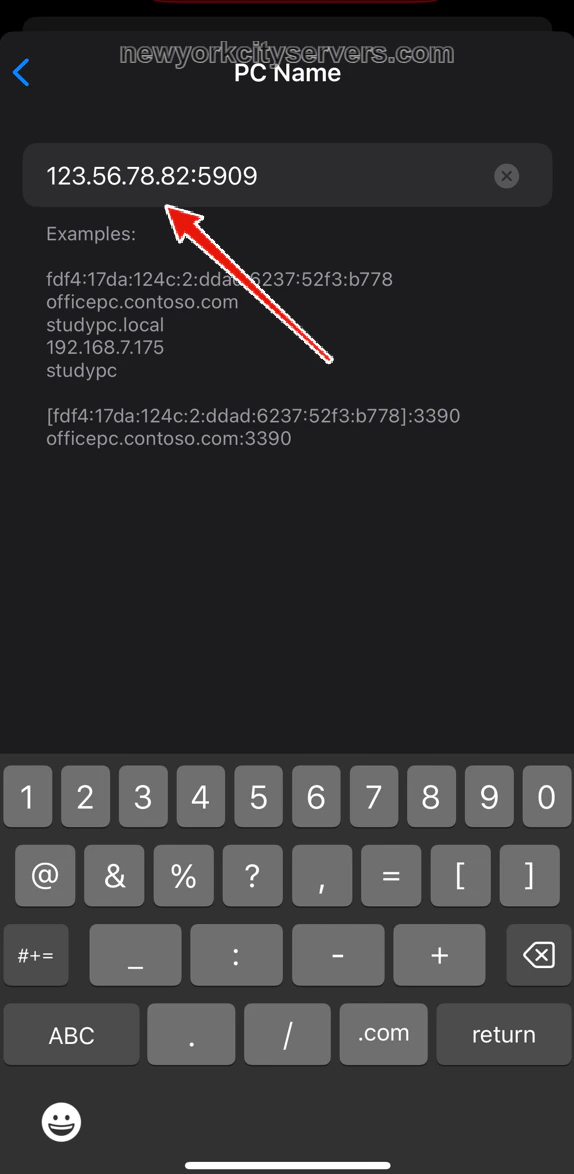
On the **Add PC** screen, tap the **PC Name** field.
## Enter Your VPS Details
On the **Add PC** screen, tap the **PC Name** field.
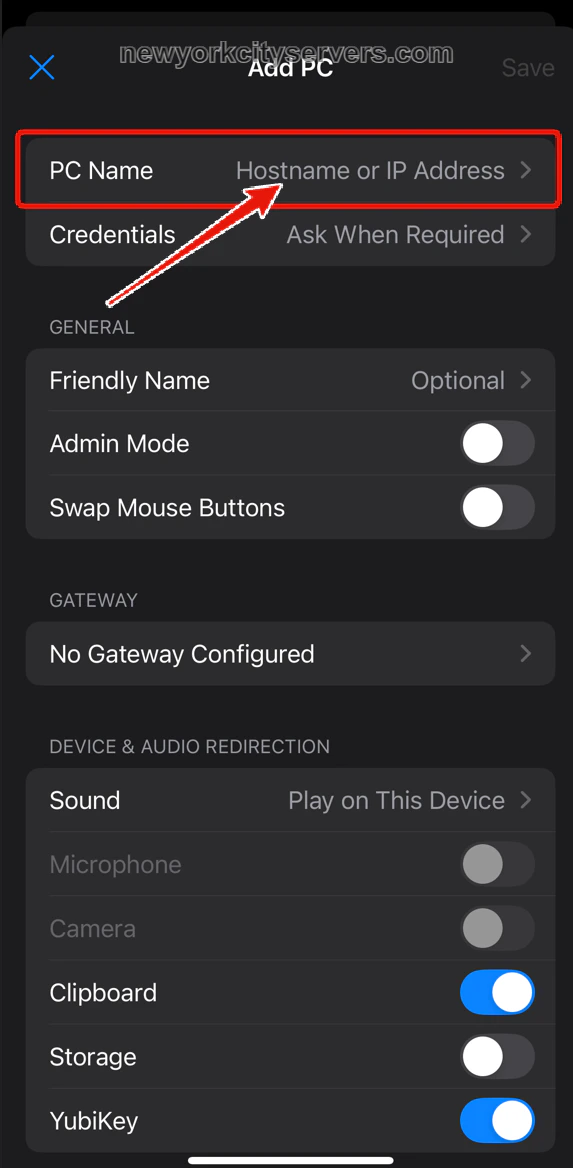 Type in your **VPS IP address and port** exactly as shown in your welcome email (e.g. `123.56.78.82:5909`), then tap the back arrow.
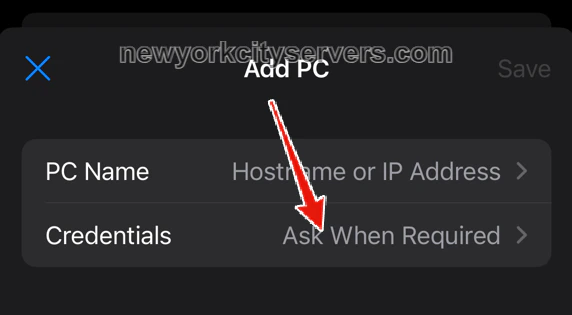
 Tap **Credentials** (which defaults to "Ask When Required").
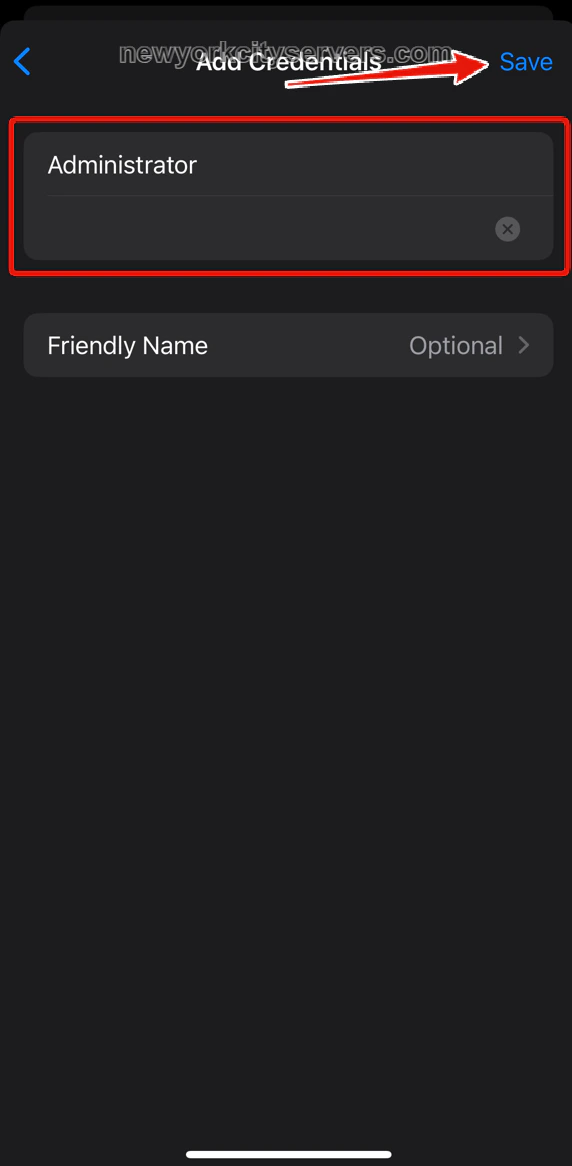
 On the **Add Credentials** screen, enter:
* **Username**: `Administrator`
* **Password**: paste the password from your welcome email
Tap **Save** in the top-right corner.
On the **Add Credentials** screen, enter:
* **Username**: `Administrator`
* **Password**: paste the password from your welcome email
Tap **Save** in the top-right corner.
 ## Save and Connect
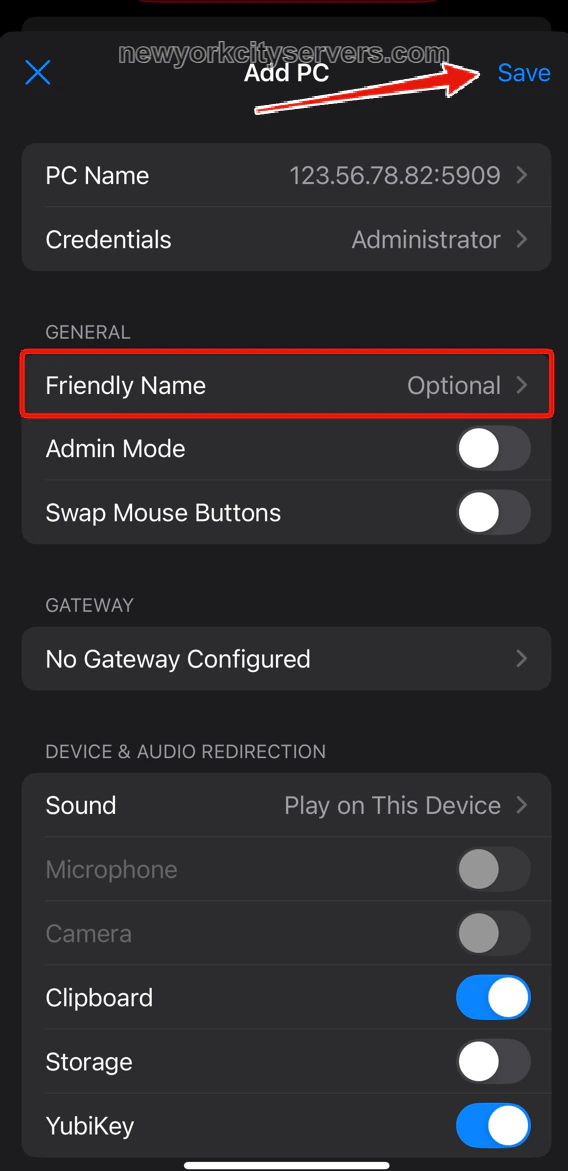
You'll return to the **Add PC** screen with your IP address and credentials filled in. You can optionally set a **Friendly Name** to label this connection.
Tap **Save** in the top-right corner.
## Save and Connect
You'll return to the **Add PC** screen with your IP address and credentials filled in. You can optionally set a **Friendly Name** to label this connection.
Tap **Save** in the top-right corner.
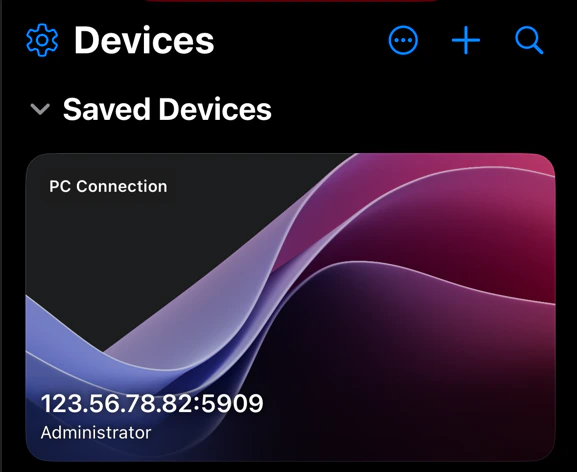
 Your saved VPS now appears as a card under **Saved Devices**. Tap it to connect.
If prompted with a certificate warning, tap **Continue** or **Accept**.
Your saved VPS now appears as a card under **Saved Devices**. Tap it to connect.
If prompted with a certificate warning, tap **Continue** or **Accept**.
 ## Need Help?
If you have any problems connecting to your VPS from your iPhone or iPad, [contact our support team](mailto:support@newyorkcityservers.com) and we'll be happy to assist you.
## Need Help?
If you have any problems connecting to your VPS from your iPhone or iPad, [contact our support team](mailto:support@newyorkcityservers.com) and we'll be happy to assist you.