> ## Documentation Index
> Fetch the complete documentation index at: https://knowledgebase.newyorkcityservers.com/llms.txt
> Use this file to discover all available pages before exploring further.
# Android
> Connect to your NYCServers VPS from Android
# Connect from Android
Use the official **Windows App** (by Microsoft) — the modern replacement for the old Remote Desktop app.
After your order is complete, you’ll receive an email with your VPS login credentials. Wait **at least 10 minutes** to ensure Windows is fully ready.
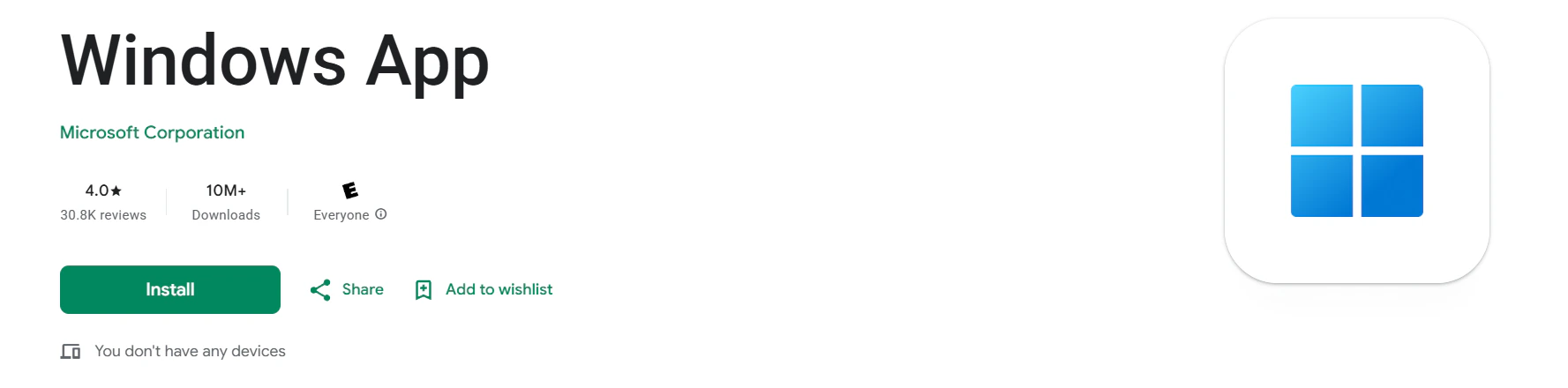
Open the **Google Play Store**, search for **"Windows App"**, and install it.
[Direct Link](https://play.google.com/store/apps/details?id=com.microsoft.windowsapp)
 Launch **Windows App**.
Tap **+ Add PC** (or **PC Connection**).
Type your **VPS IP address** exactly as shown in the welcome email.
Tap **Add user account**:
* **Username**: `Administrator`
* **Password**: (copy exactly from email)\
Tap **Save**.
Return to the main screen. **Tap the new PC shortcut** to connect.
If prompted, tap **Continue** or **Accept** the certificate warning.
You’re connected! The VPS desktop will appear full-screen.
Works great on tablets with keyboard — full Windows experience on the go!
**Old app?** If you have "Microsoft Remote Desktop", uninstall it — use **Windows App** instead.
Launch **Windows App**.
Tap **+ Add PC** (or **PC Connection**).
Type your **VPS IP address** exactly as shown in the welcome email.
Tap **Add user account**:
* **Username**: `Administrator`
* **Password**: (copy exactly from email)\
Tap **Save**.
Return to the main screen. **Tap the new PC shortcut** to connect.
If prompted, tap **Continue** or **Accept** the certificate warning.
You’re connected! The VPS desktop will appear full-screen.
Works great on tablets with keyboard — full Windows experience on the go!
**Old app?** If you have "Microsoft Remote Desktop", uninstall it — use **Windows App** instead.