> ## Documentation Index
> Fetch the complete documentation index at: https://knowledgebase.newyorkcityservers.com/llms.txt
> Use this file to discover all available pages before exploring further.
# Upgrade Your Service
> How to upgrade your NYCServers VPS or dedicated server.
Upgrades are prorated — pay only for the remaining days in your cycle at the new rate.
## Upgrade Anytime
You do not need to wait for your next renewal date to upgrade. VPS and dedicated server upgrades can be requested at any point in your billing cycle, and mid-cycle upgrades are handled through prorated billing.
## Billing & Payment
Upgrades are billed on a prorated basis. This means you only pay the difference between your current plan and the new plan for the remaining days in your current billing cycle.
For VPS upgrades, an invoice is generated automatically after you select your new plan. Once payment is completed, you will receive an email with a link to finalize the upgrade. You can also return to your VPS service page and click **Apply Upgrade** from the **Action Required** banner.
For dedicated server upgrades, our team will review your requested changes and provide a quote. Once you approve the quote, we will generate a prorated invoice. Payment must be completed before the upgrade is scheduled.
Your billing cycle does not restart when you upgrade. Your next renewal invoice will reflect the full recurring price of the upgraded service.
***
## Upgrading Your VPS
Upgrading your VPS is a simple, automated process — no data loss, IP changes, or reinstalls required. Your data, IP address, credentials, and EA/MQL product licenses will remain unchanged.
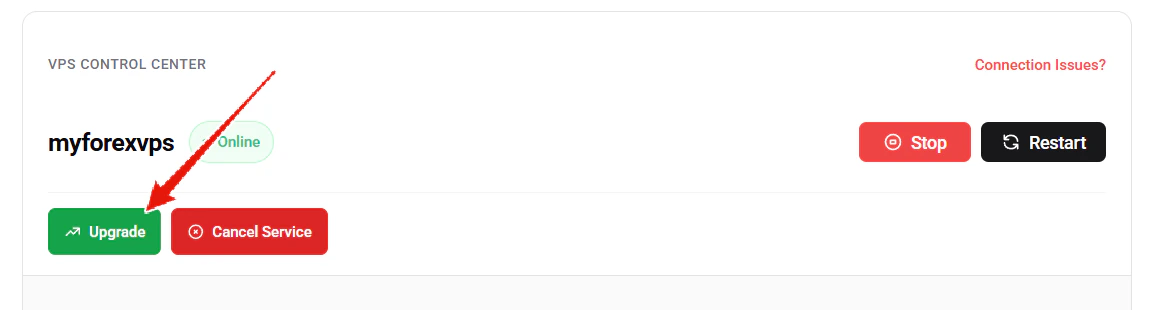 Log in to the [client area](https://newyorkcityservers.com/billing) and navigate to your VPS service management page. Click the green **Upgrade** button at the top of the VPS Control Center.
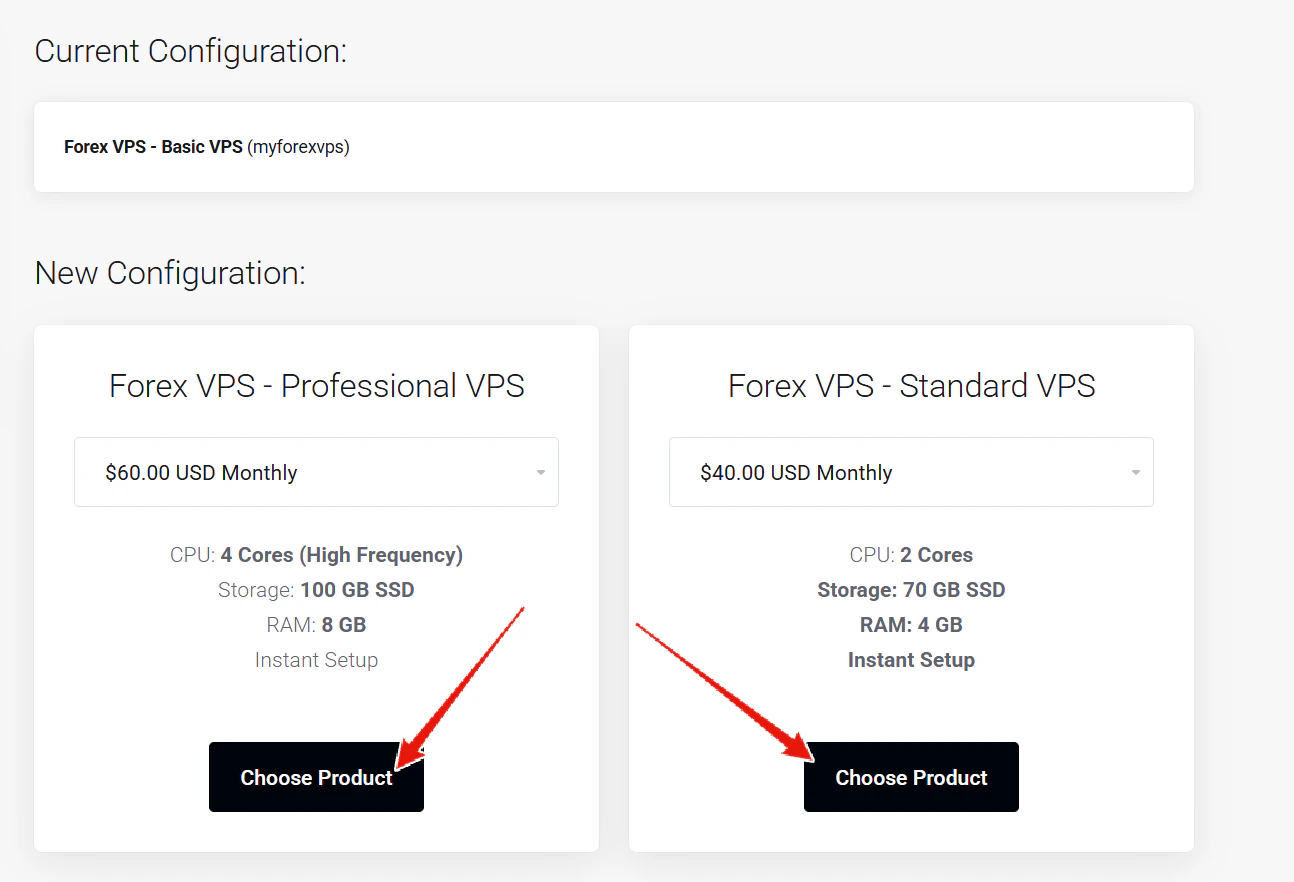 You will see your current configuration at the top and the available upgrade options below. Each plan shows the CPU, storage, RAM, and monthly price. Select your desired plan and click **Choose Product** to proceed.
An invoice will be generated with the prorated upgrade cost. Once payment is completed, you will receive an email containing a link to finalize the upgrade.
You will see your current configuration at the top and the available upgrade options below. Each plan shows the CPU, storage, RAM, and monthly price. Select your desired plan and click **Choose Product** to proceed.
An invoice will be generated with the prorated upgrade cost. Once payment is completed, you will receive an email containing a link to finalize the upgrade.
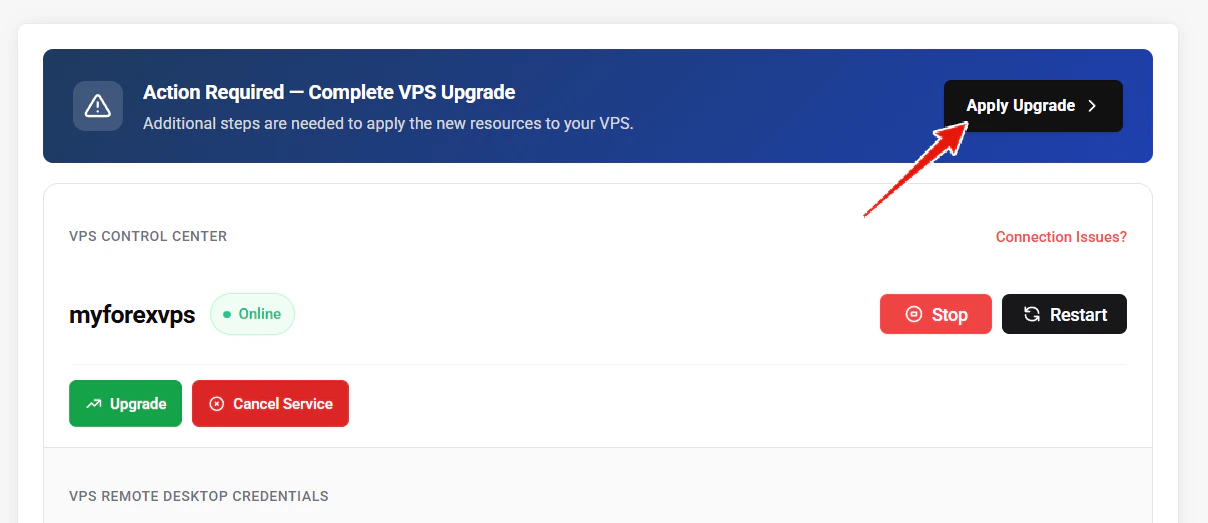 After payment, an **Action Required** banner will appear at the top of your VPS service page. Click **Apply Upgrade** to begin the automated upgrade process.
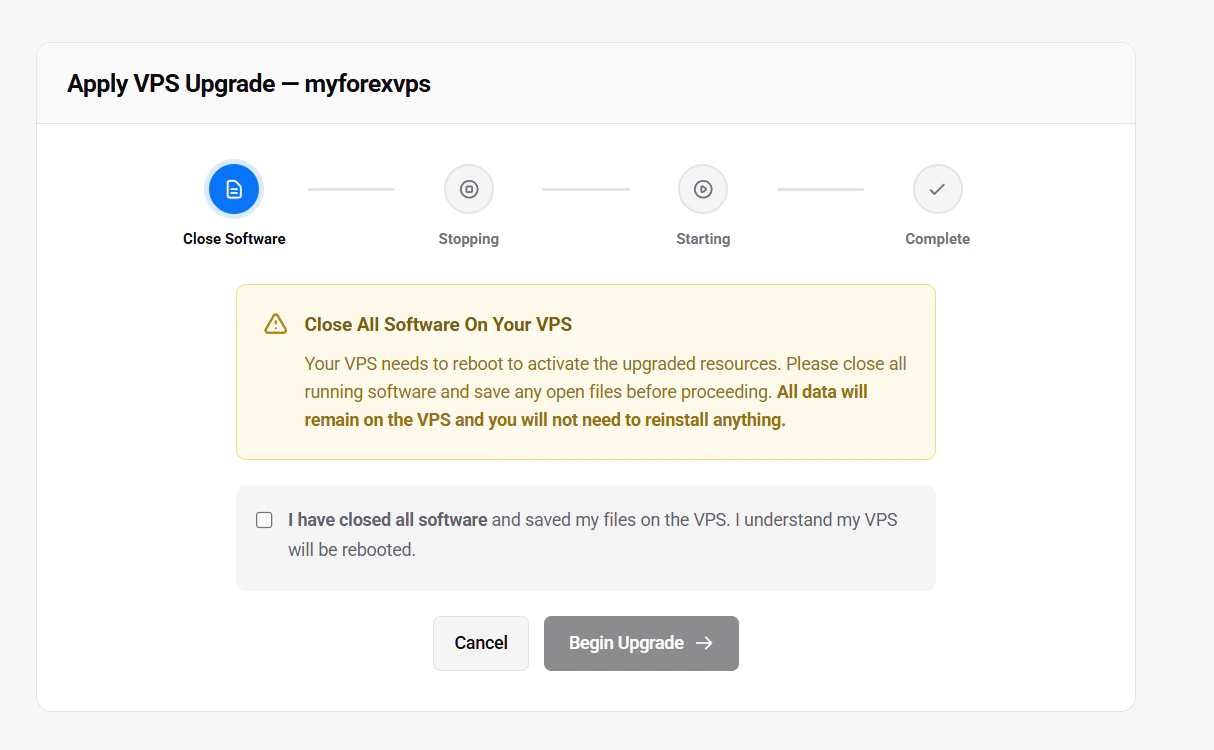 The automated upgrader will guide you through the process. Before proceeding, **close all running software and save any open files** on your VPS. Check the confirmation box to confirm, then click **Begin Upgrade**. The upgrader will handle the rest — stopping your VPS, applying the new resources, and restarting it. The process takes approximately 5-10 minutes to complete.
For minimal interruption, we recommend performing the upgrade during the weekend while trading markets are closed.
***
## Upgrading Your Dedicated Server
Dedicated server upgrades are fully customizable — you can upgrade individual components or change your entire plan. Upgrades are handled by our team and are prorated to your current billing cycle.
Email [support@newyorkcityservers.com](mailto:support@newyorkcityservers.com) or open a ticket in the [client portal](https://newyorkcityservers.com/billing) to request your upgrade. Let us know what components or plan changes you need.
Our team will provide a quote for the upgrade. Once approved, an invoice will be generated with the prorated cost. Complete payment to proceed.
Our team will coordinate a time with you to perform the upgrade. The server will require approximately **1-2 hours of downtime** during the process. Your data and IP address are preserved in most cases.
We recommend scheduling the upgrade during the weekend while trading markets are closed to minimize disruption.
***
## Common Questions
VPS upgrades take approximately 5-10 minutes using the automated process. Dedicated server upgrades typically require 1-2 hours of downtime.
No — your data, credentials, and software configurations are preserved during the upgrade for both VPS and dedicated servers.
VPS upgrades do not change your IP address. Dedicated server upgrades preserve your IP address in most cases.
Your billing cycle stays the same. The upgrade is prorated for the remaining days in your current cycle, and your next renewal invoice will show the new plan price.
No — all MQL products will remain fully licensed, and a new activation is not needed.
***
Ready to upgrade your VPS? Log into the [Client Portal](https://newyorkcityservers.com/billing) to get started. For dedicated server upgrades, [contact support](mailto:support@newyorkcityservers.com).
The automated upgrader will guide you through the process. Before proceeding, **close all running software and save any open files** on your VPS. Check the confirmation box to confirm, then click **Begin Upgrade**. The upgrader will handle the rest — stopping your VPS, applying the new resources, and restarting it. The process takes approximately 5-10 minutes to complete.
For minimal interruption, we recommend performing the upgrade during the weekend while trading markets are closed.
***
## Upgrading Your Dedicated Server
Dedicated server upgrades are fully customizable — you can upgrade individual components or change your entire plan. Upgrades are handled by our team and are prorated to your current billing cycle.
Email [support@newyorkcityservers.com](mailto:support@newyorkcityservers.com) or open a ticket in the [client portal](https://newyorkcityservers.com/billing) to request your upgrade. Let us know what components or plan changes you need.
Our team will provide a quote for the upgrade. Once approved, an invoice will be generated with the prorated cost. Complete payment to proceed.
Our team will coordinate a time with you to perform the upgrade. The server will require approximately **1-2 hours of downtime** during the process. Your data and IP address are preserved in most cases.
We recommend scheduling the upgrade during the weekend while trading markets are closed to minimize disruption.
***
## Common Questions
VPS upgrades take approximately 5-10 minutes using the automated process. Dedicated server upgrades typically require 1-2 hours of downtime.
No — your data, credentials, and software configurations are preserved during the upgrade for both VPS and dedicated servers.
VPS upgrades do not change your IP address. Dedicated server upgrades preserve your IP address in most cases.
Your billing cycle stays the same. The upgrade is prorated for the remaining days in your current cycle, and your next renewal invoice will show the new plan price.
No — all MQL products will remain fully licensed, and a new activation is not needed.
***
Ready to upgrade your VPS? Log into the [Client Portal](https://newyorkcityservers.com/billing) to get started. For dedicated server upgrades, [contact support](mailto:support@newyorkcityservers.com).